


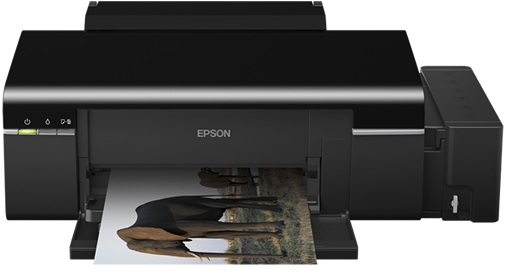
Epson Inkjet Photo L800 (B412C) is a photo printer that comes with an integrated ink tank system capable of delivering high volume prints at the lowest running cost. To use all the features through the computer, you will have to install its latest version driver on your computer.
If you are looking for download the Epson EcoTank L800 driver? And if you don’t know where or how to download it, then this article is for you. Here on this page below, we have listed all the L800 driver download links in the download section below, all are the new versions. This printer supports the following operating systems: Windows XP, Vista, 7, 8, 8.1, 10, 11, Windows Server and Mac OSX -macOS 10.x, 11.x, 12.x, 13.x, 14.x, macOS 15 Sequoia, 26.x Tahoe. To download the driver, go to the below given download section and click on the link according to your operating system version. Additionally, you will find the complete process on how to install those drivers properly on your PC.
How to download Epson L800 driver
Find the version of the operating system on which you want to install the Epson Inkjet Photo L800 printer. Here you will find a list of multiple operating systems that are supported by this device. Select your operating system from that list and download its Epson Inkjet Photo L800 printer driver.
| Driver Description | Download Link |
| Full Feature driver for Windows XP, Vista (32bit / 64bit) | Download (32bit) Download (64bit) |
| Full Feature driver for Windows 7 (32bit / 64bit) | Download (32bit) Download (64bit) |
| Full Feature driver for Windows 8, 8.1 (32bit / 64bit) | Download (32bit) Download (64bit) |
| Full Feature driver for Windows 10 (32bit / 64bit) | Download (32bit) Download (64bit) |
| Full Feature driver for Windows 11 (64bit) | Download (64bit) |
|
Epson L800 CD / PVC card Printing Software for Windows. Note: Users typically use Epson Stylus R260 printing software for PVC card printing. Check out this video tutorial for more details: https://youtu.be/bwcEXU752Kk |
——— |
| Easy Photo Print Software for Windows | Download |
| Full feature driver for Server 2000, 2003, 2008, 2012, 2016, 2019, 2022 and 2025 (32bit / 64bit) | Download (32bit) Download (64bit) |
| Full feature driver for Mac OS v10.0 to macOS 11 Big Sur, 12.x, 13.x, 14.x, macOS 15 Sequoia, 26.x Tahoe | Download |
| Full feature driver for Linux and Ubuntu (32bit / 64bit) | Download (32bit) Download (64bit) |
|
OR |
|
| You may download the driver directly from Epson’s official website. | |
How to Install Epson L800 Driver
This guide has been prepared by our expert (Amit) to inform you about the best way to install our printer drivers on a computer. Installation process is different for each operating system, therefore, you must read the instructions attentively before starting the installation process.
Learn how to install Epson L800 printer automatically using its setup file.
How to install Epson L800 printer manually using its basic driver.
Driver Compatibility
We completely understand that incompatible drivers can cause printer not printing issues. Therefore, you have to double-check the compatibility of all our printer drivers with their respective operating systems. We have done this for you and our shared driver download links are fully compatible with the given operating system – so that you can use them with confidence.
How to Uninstall
This is a good practice to follow if you want to re-install any driver on your computer, then you should uninstall the previously installed drivers carefully. I recommend you to uninstall the unused drivers and software too to avoid driver conflicts. I suggest you to restart your computer after uninstall the drivers and before start installing the new one. To uninstall, simply go to the control panel and then go to installed apps and then search for the printer model number from the search and then right click on the found entry and click on uninstall.
Epson Inkjet Photo L800 Features
1. Epson ink-tank-system printing technology.
2. Printing resolution of up to 5760 x 1440 dpi.
3. Print speeds of up to 34 ppm.
4. Input tray capacity of 120 pages.
5. USB interface.





404 – File or directory not found.
All links are working perfectly fine, I just have checked all them. Please let us know which is not working.