


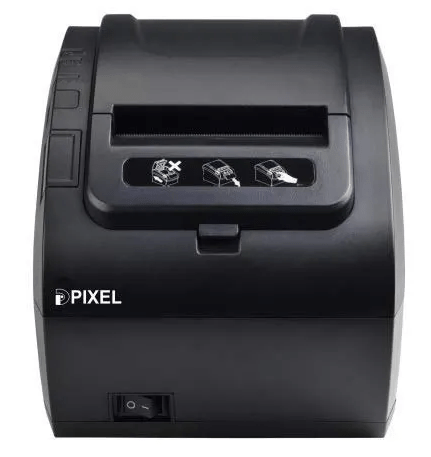

Simply go to the download section below and download the latest version POSX Pixel DP82 / DP82w driver.
In the download section you will get the latest version of Pixel DP82 / DP82w driver which are fully compatible with the following operating system Windows 11, 10, 8, 8.1, 7, Vista, XP (32bit / 64bit), Server 2000 to 2022, Linux, Ubuntu, and Mac 10.x, 11.x, 12.x, 13.x Ventura operating systems.
After downloading your drivers, read the following installation guide which help you to install the printer driver without any mistakes. Let’s start by downloading the driver first.
Steps to Download Pixel DP82 / DP82w Driver
Step 1: Select the operating system from our OS list where you want to install this printer.
Step 2: Click on its download link to begin the download of your Pixel DP82 / DP82w driver setup file.
POSX Pixel DP82 / DP82w Driver Download for Windows
| Driver Description | Download Link |
| Full feature driver for Windows XP, Vista, 7, 8, 8.1, 10, 11, Server 2000, 2003, 2008, 2012, 2016, 2019, 2022 OS (32bit/64bit) | Download |
Driver for Mac
Driver for Linux/Ubuntu
OR
Download the driver directly from the Pixel DP82 / DP82w official website.
How to Install POSX Pixel DP82 / DP82w Driver
All your queries regarding the proper installation process of the printer drivers will get cleared once you read the driver installation guide I have shared below. Here, I have shared the detailed installation guide for the full feature driver and basic driver (inf driver). Choose the installation guide suitable for you, then use its installation steps to properly install the Pixel DP82 / DP82w printer drivers on your computer.
1) Install Pixel DP82 / DP82w Driver Using its Driver Package
In the following steps, I will explain how you can install the full feature Pixel DP82 / DP82w driver on a Windows computer. Follow the following steps:
Steps:
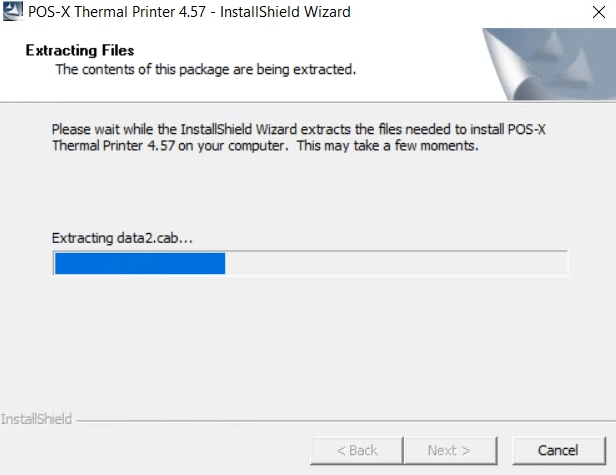
- Run the full feature driver installer file download from this page and wait for its files to extract onto your computer.
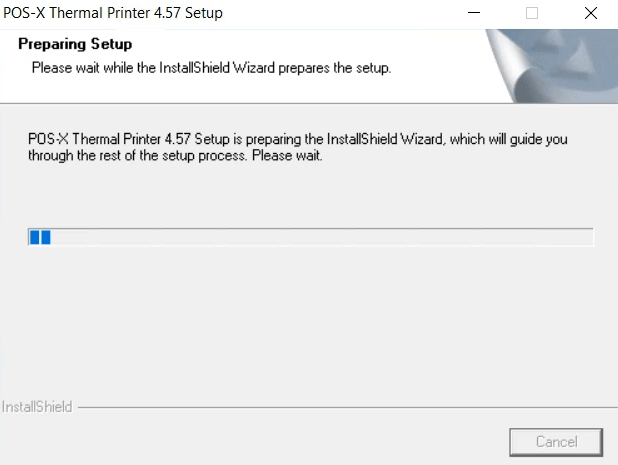
- Wait for the installer program to prepare your computer for the driver installation.
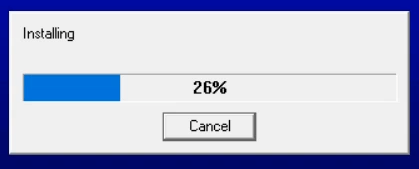
- Wait for the installation of the files.
- In the Installation Program screen, choose the ‘POS-X Thermal Printer’ option, then click on the ‘Installation’ button.

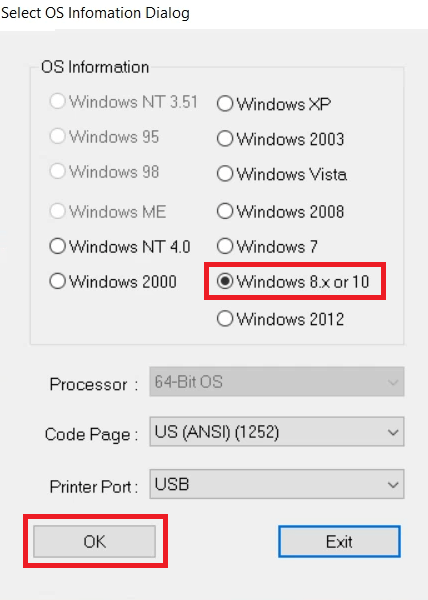
- In the OS Information Dialog Box, choose your OS version, I have chosen ‘Windows 8.x or 10’ option. Finally, click on the ‘OK’ button.
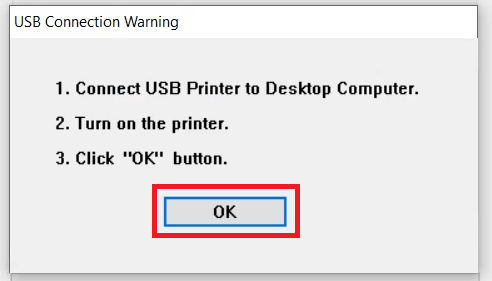
- Connect your printer with your computer by using a USB cable and turn on your printer, then click on the ‘OK’ button. Wait for the installer program to detect your printer, then follow the onscreen instructions to complete the printer driver installation process.


That’s it, you have successfully completed the installation of the Pixel DP82 / DP82w driver package on your computer. Your printer is now ready for printing.
2) Install Pixel DP82 / DP82w Printer Using its Basic Driver
If you have decided to install this printer using its Pixel DP82 / DP82w basic driver, then I have shared below an installation guide, which you must read because it clearly describes the installation process for the Pixel DP82 / DP82w INF driver on a Windows computer. Check out the following steps that has been shared in this article: How to install a printer driver manually using a basic driver (.INF driver).
Features
The Pixel DP82 / DP82w is a POS (Point of Sale) printer which can be used for printing receipts, invoices and any type of slips. This monochrome thermal printer is well suited for hotels, restaurants and retail stores.
The operational costs of this printer are also very low, since it doesn’t need any cartridges, ribbons, etc, it uses thermal technology.
The top print speed of this printer is nearly 230 mm/sec. This is an almost zero maintenance product, which makes it highly cost effective and useful. You can connect this printer to your computer using its USB and Ethernet connectivity options.
Package Box Details: The package box of this printer contains: one Pixel DP82 / DP82w printer, one power cable, one USB connecting cable, one driver CD and one user’s manual.


