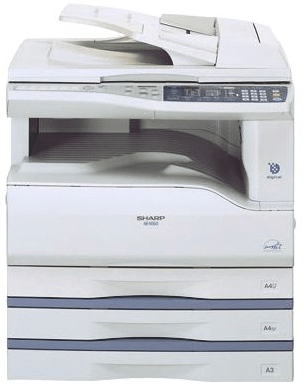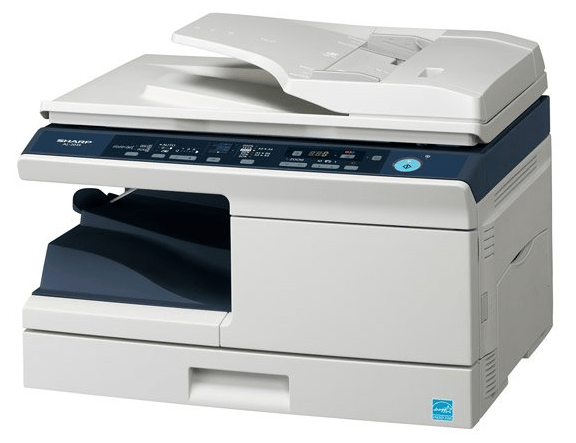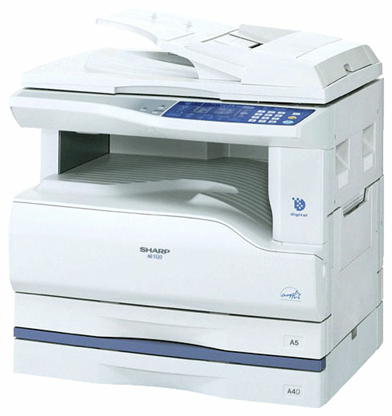

Don’t worry, in this guide, I will provide download links of the latest version drivers of this printer model. Also, read the how to install section of this guide to properly install these drivers on your computer.
Download Sharp AR-5320D Printer Driver
- Find your preferred OS version.
- Click on its download button.
Driver for Windows
Basic Printer driver for Windows 95, 98, Me, 2000, XP, Vista, 7, 8, 8.1, 10 (32-bit)
Download (32-bit)
File Name: sharp-ar-5316-t2-basic-driver-32bit.zip
Size: 1.5 MB
Version: 1.00
Type: Basic driver
Language: English
Driver Pack Contains: Printer driver
————————————————————
Basic Printer driver for Windows XP, Vista, 7, 8, 8.1, 10, 11 (64-bit)
Download (64-bit)
File Name: sharp-ar-5316-t2-basic-driver-64bit.zip
Size: 1.9 MB
Version: 1.00
Type: Basic driver
Language: English
Driver Pack Contains: Printer driver
————————————————————
Full feature driver for Windows Server 2003 to 2025 (32, 64-bit)
Download
Driver for Mac
Printer driver for macOS
Download
Driver for Linux
Printer driver for Linux and Ubuntu
Download
OR
Download the driver directly from the Sharp AR-5320D printer official website.
How to Install Sharp AR-5320D Printer Driver
Before you learn the steps to install the latest Sharp AR-5320D driver, you must know how to download them:
Step 1: Find the Driver
- The latest driver of this printer can be downloaded from the Sharp website or via downloads section of this guide.
- In the Sharp website, go to the support/downloads section.
- Type your printer model details (AR-5320D) to search for the drivers, then select your preferred OS version.
Step 2: Download the Driver
- Start the download of your preferred driver by clicking on it download button.
- Wait as the driver setup file downloads on your computer.
Step 3: Install the Driver
- Go to the Downloads folder, find the downloaded compressed file and extract its contents onto a folder.
- Right click the ‘Start’ button and choose ‘Settings’ option.
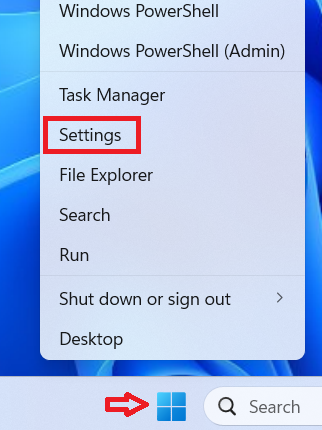
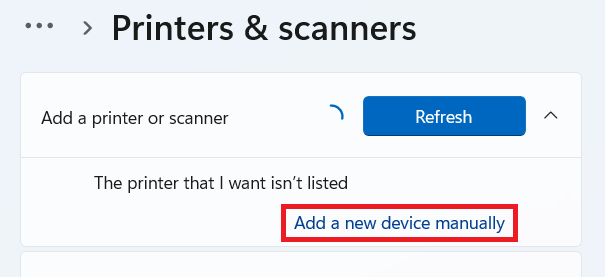
- In Settings page, choose ‘Bluetooth & devices’, click ‘Printers & scanners’, click ‘Add device’, and finally click on ‘Add a new device manually’.
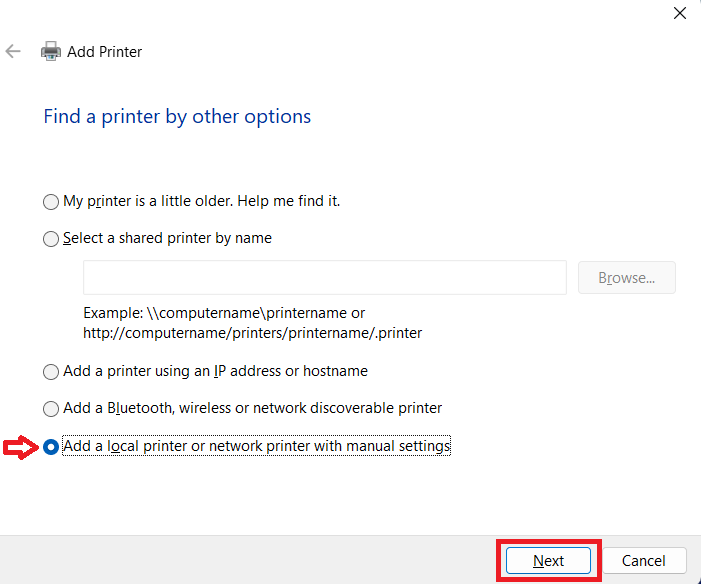
- In Add Printer, select to add with manual settings, then click ‘Next’.


Step 4: Connect the Printer
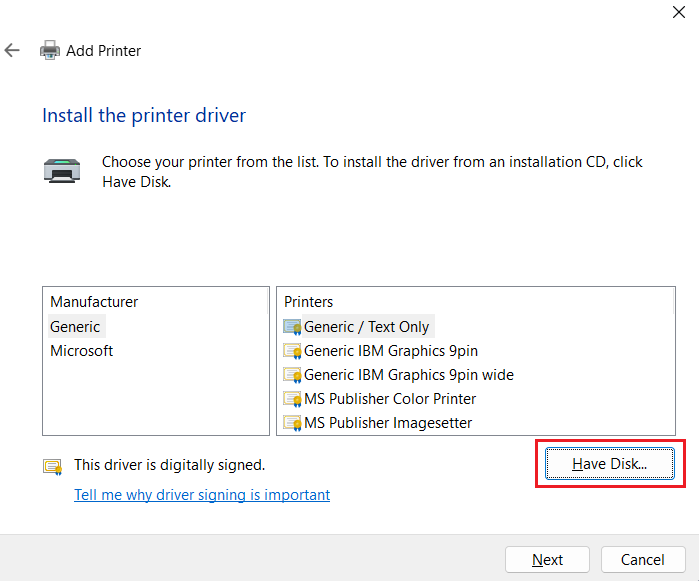
- Connect your printer with your computer’s USB port, proceed by selecting ‘USB’ port option. Finally, click on ‘Have Disk’ button.
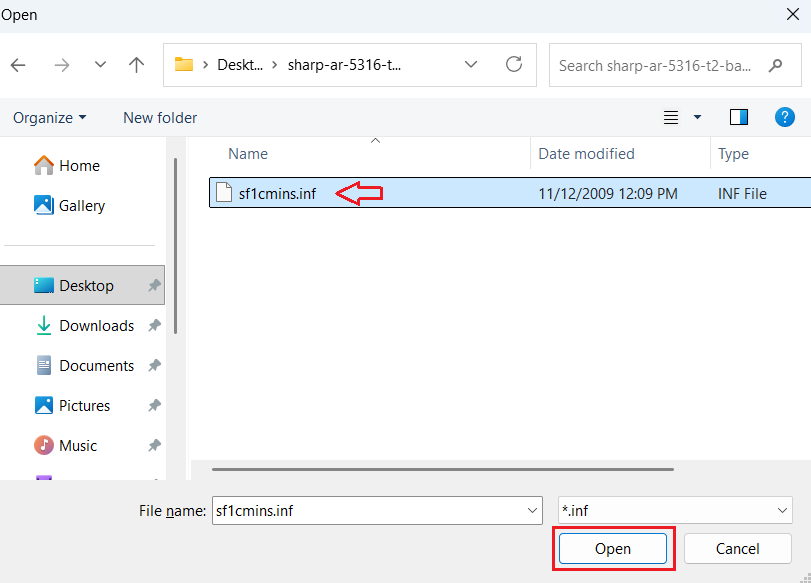
- Browse to the folder where you extracted the driver files, then select ‘sf1cmins.inf’ file, and click ‘Open’.
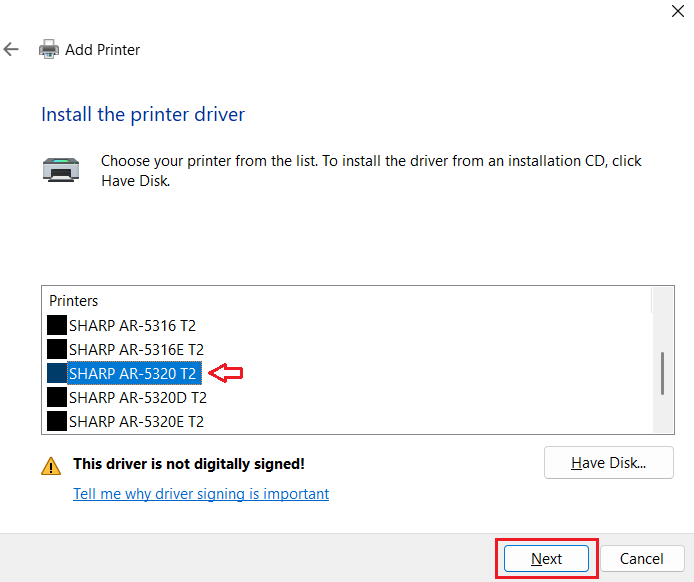
- Select ‘SHARP AR-5320 T2’ printer, then click ‘Next’.
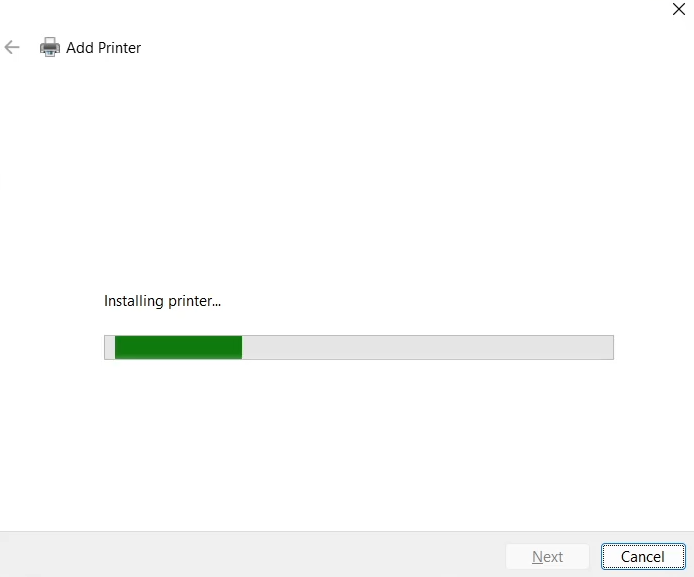
- Follow the prompts to install your Sharp printer.


More information about installation:
- How to install the printer driver with its installer
- How to install the printer driver manually using its basic driver
That’s it, installation of the Sharp AR-5320D printer has completed.
More details about the drivers
Hardware Name: AR-5320D
Hardware ID: NA
Connection Type: USB/Parallel connections
Installer Type: Setup File (without Installer)
Driver Compatibility
This printer is compatible with the Windows 95, 98, Me, 2000, XP and higher OS versions. However, this printer doesn’t support Windows Server OS, Mac OS, or Linux/Ubuntu operating system.
Driver Update
When you update the printer drivers of this printer you makes sure that your printer will communicate more effectively with your computer. Additionally, you can unlock full potential of your printer and prevent multiple common technical issues.
Supported Operating Systems
Windows 95, 98, Me, 2000, XP, Vista, 7, 8, 8.1, 10, 11 (32, 64-bit)