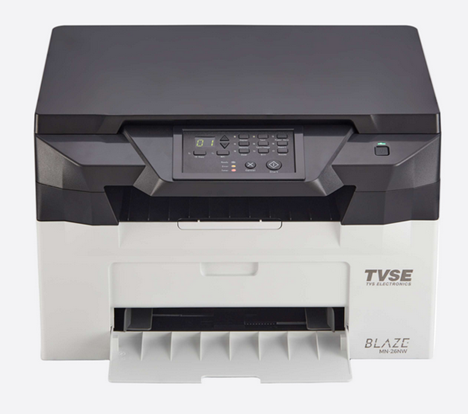

Therefore, I have prepared this guide to share the download links of TVS MN-26NW printer driver, along with their detailed installation procedure which is also given beneath the download section so that you can easily install this printer on your computer without any error. So let’s start the installation process by downloading the drivers first.
Download TVS MN-26NW Printer Driver
Follow these steps:
- In our OS list, find your operating system.
- Click on its download link to get the latest TVS MN-26NW printer driver.
TVS MN-26NW Printer Driver for Windows
Full feature driver for Windows XP, Vista, 7, 8, 8.1, 10, 11(32, 64-bit)
Download (32, 64-bit)
File Name: tvs-blaze-mn-26nw-driver-windows.zip
Size: 85.7 MB
Version: 1.3.3.0
Type: Full feature driver
Language: All Language
Driver Pack Contains: Printer and scanner driver
————————————————————
Full feature driver for Windows Server 2003 to 2025 (32, 64-bit)
Download
Driver for Mac
Basic driver for macOS
Download
File Name: tvs-blaze-mn-26nw-driver-mac.zip
Size: 58.4 KB
Type: Basic driver
Version: 1.00
Language: English
Driver Pack Contains: Printer and scanner driver
Driver for Linux
Basic driver for Linux and Ubuntu
Download
File Name: tvs-blaze-mn-26nw-driver-linux.zip
Size: 23.1 MB
Type: Basic driver
Version: 1.0
Language: English
Driver Pack Contains: Printer and scanner driver
OR
Download the driver directly from the TVS MN-26NW printer official website.
How To Install TVS MN-26NW Printer Driver
In steps 1 & 2, you will learn the how to download the latest version TVS MN-26NW driver. In steps 3 & 4, I will describe the proper way to install TVSE Blaze Series printer driver on your computer.
Step 1: Find the Driver
- For downloading the latest driver, you should visit the TVS website or go to the downloads section of this guide.
- In the TVS website, go to the support/downloads page.
- Select the ‘Laser printer’ option, click on your printer model number (MN-26NW), then locate your preferred operating system.
Step 2: Download the Driver
- Click the download link of your chosen operating system.
- Wait for the download of your driver setup file to complete.
Step 3: Install the Driver
- In the downloads folder, find the compressed file containing the driver and extract its contents into a folder.
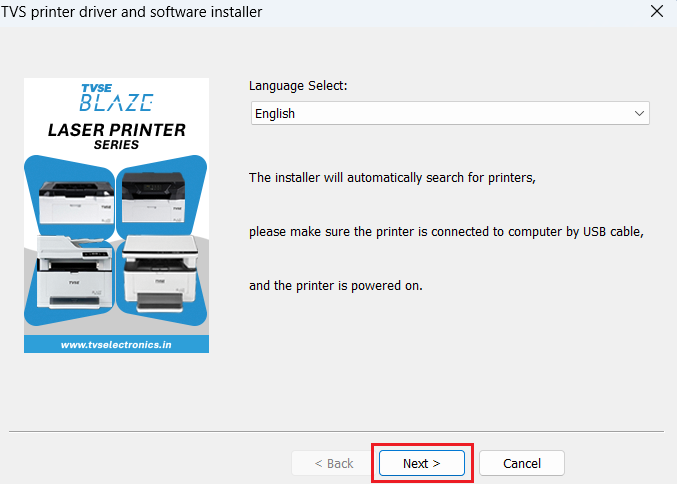
- In the extracted folder, run the setup file, then click on ‘Next’.
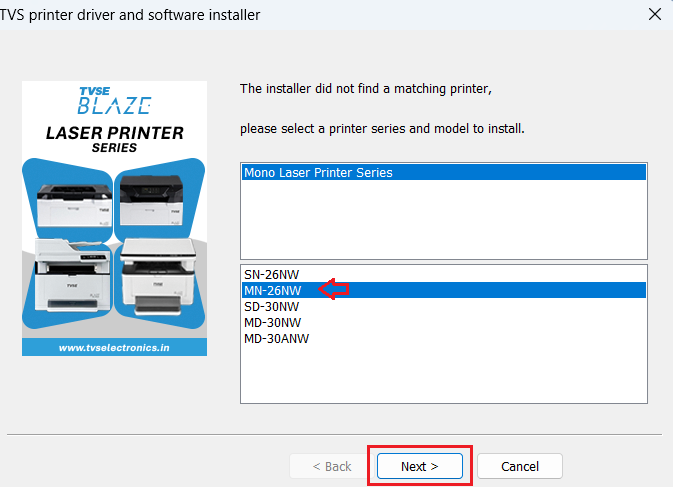
- Select your printer model, then click on ‘Next’.


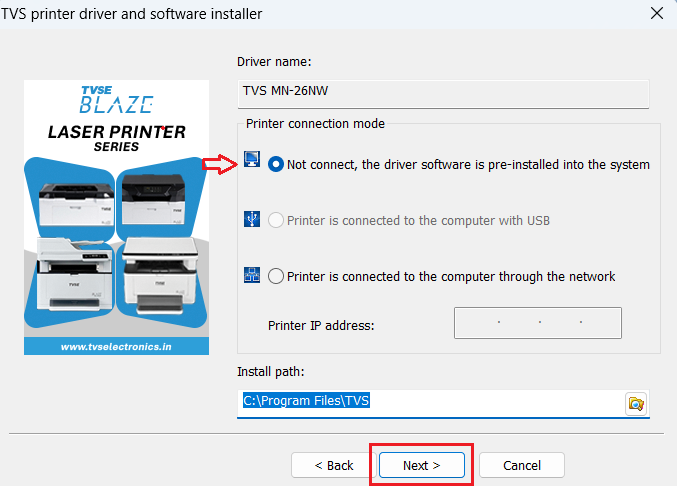
Step 4: Connect the Printer
- Select the USB option or to connect printer later, then click on ‘Next’.
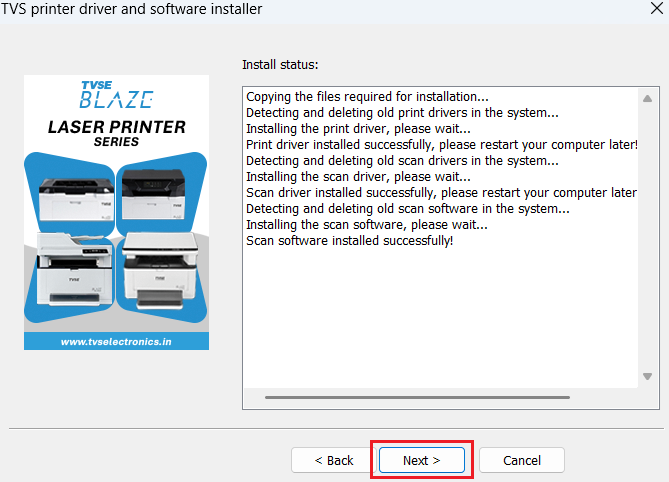
- Wait for the driver to install on your computer, then click on ‘Next’.
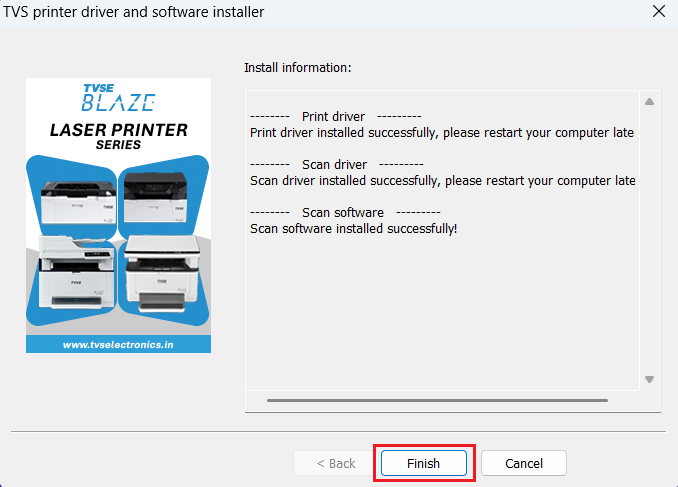
- Click on ‘Finish’ to close.


More information about installation:
- How to install the printer driver with its installer
- How to install the printer driver manually using its basic driver
That’s it, you have successfully installed the TVS MN-26NW printer.
More details about the drivers
Hardware Name: MN-26NW
Hardware ID: NA
Connection Type: USB/Ethernet/Wireless Connection
Installer Type: Setup File (with Installer)
Driver Compatibility
This laser printer supports Windows XP and higher OS versions, but isn’t compatible with the Windows Server OS versions. Also, this TVS printer is compatible with the MacOS and Linux/Ubuntu operating systems.
Driver Update
Latest version of a printer driver is released after removing all the bugs which were found in its previous versions. Therefore, updating your printer driver with its latest version ensures that your printer will run on its most efficient support software.
Supported Operating Systems
Windows XP, Vista, 7, 8, 8.1, 10, 11 (32, 64-bit)
Mac OS
Linux