
Additionally, I have provided links to download the setup guide and user’s manual of this printer so that you can setup this printer without any hassles. So, let’s start the the installatoin process by downloading the drivers first.
Download TVS LP46 DLITE Printer Driver
Follow these steps:
- Select your operating system.
- Click on its download button.
TVS LP46 DLITE Printer Driver for Windows
Full feature driver for Windows XP, Vista, 7, 8, 8.1, 10, 11 (32, 64-bit)
Download (32, 64-bit)
File Name: tvs-lp46-dlite-1753946547290-345981155-driver-windows.zip
Size: 231.00 MB
Version: 1.03
Type: Full feature driver
Language: All Language
Driver Pack Contains: Printer driver and software
————————————————————
Full feature driver for Windows Server 2003 to 2025 (32, 64-bit)
Download
Driver for Mac
Printer driver for macOS 10.x, 11.x, 12.x, 13.x, 14.x, 15.x, 26.x
Download
Driver for Linux
Basic printer driver for Linux and Ubuntu
Download
Setup Guide for TVS LP46 DLITE
Setup guide for TVS LP46 DLITE
Download
File Name: LP46_DliteUser_s_Quick_Reference.pdf
Size: 588.00 KB
Type: Quick reference guide
Language: English
User’s Manual for TVS LP46 DLITE
User’s manual for TVS LP46 DLITE
Download
File Name: LP46DLite_User_manual.pdf
Size: 1.50 MB
Type: User’s manual
Language: English
OR
Download the driver directly from the TVS LP46 DLITE printer official website.
How to Install TVS LP46 DLITE Printer Driver
Now for the important part, here I will describe the step-by-step instructions for downloading and installing the latest TVS LP46 DLITE printer driver on your computer.
Step 1: Find the Driver
- Find the latest version driver on the TVS website or in the Downloads section of this guide.
- In the TVS website, visit the LP46 DLITE printer description page.
- Scroll down that page, find and click on the Download section, then locate your preferred operating system.
Step 2: Download the Driver
- Click the download link of your preferred driver.
- Wait for the compressed file to download.
Step 3: Install the Driver
- You will find the downloaded compressed file in Downloads folder. Extract its contents into a separate folder.
- Go to the extracted folder, locate and execute the ‘Bartender driver .exe’ file.
- Accept the license agreement, select your preferred installation directory, then confirm installation options, and finally, click on ‘Finish’.
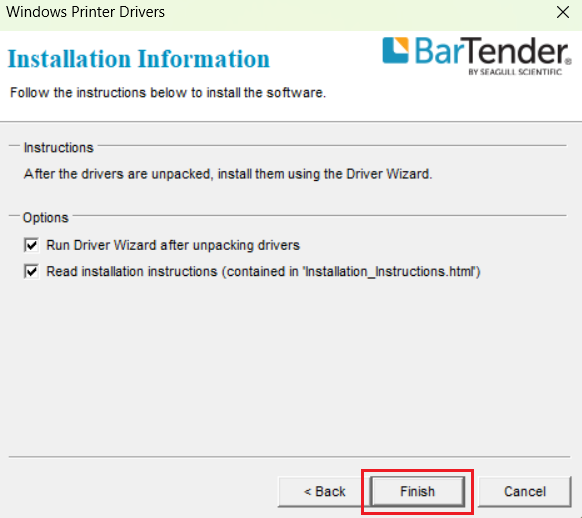

Step 4: Connect the Printer
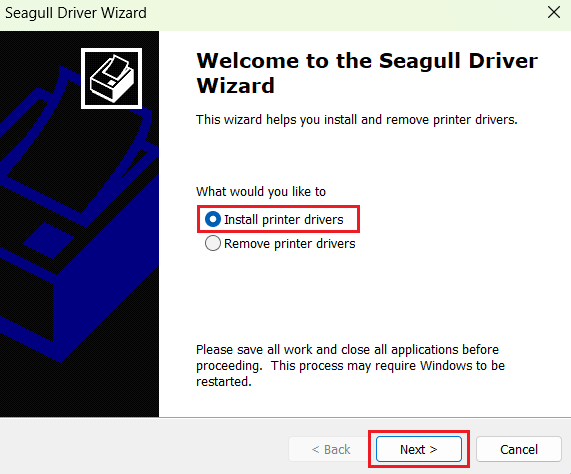
- Choose the ‘Install printer drivers’ option, then click ‘Next’.
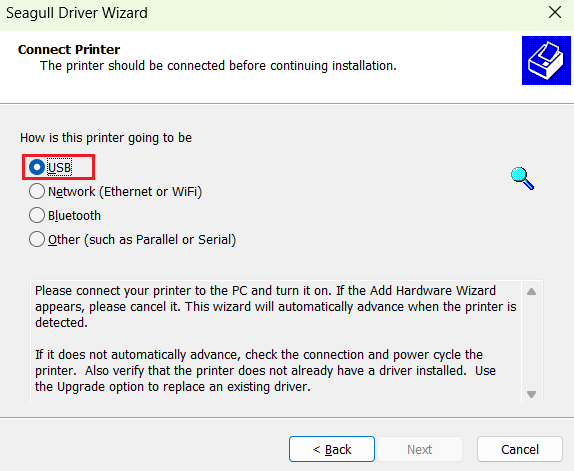
- Select the ‘USB’ connection option, and make sure your TVS printer is switched on and connected with the USB port of your computer. Finally, click on ‘Next’.
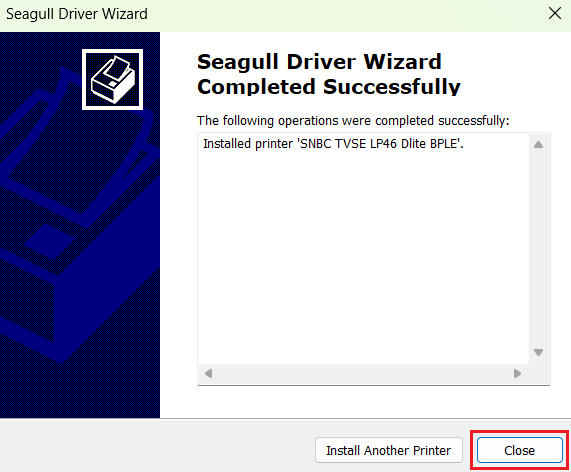
- Follow the prompts to complete the printer installation, then click on ‘Close’ when installation is completed.


More information about installation:
- How to install the printer driver with its installer
- How to install the printer driver manually using its basic driver
That’s it, you have successfully completed the installation of TVS LP46 DLITE printer.
More details about the drivers
Hardware Name: LP46 DLITE
Hardware ID: NA
Connection Type: USB (Standard), Optional: Ethernet/Serial/Bluetooth/Wi-Fi Connection
Installer Type: Setup File (with Installer)
Driver Compatibility
This TVS printer supports the Windows XP or later OS versions, but isn’t compatible with the Windows Server OS versions. This printer supports the MacOS and Linux/Ubuntu operating systems.
Driver Update
Updating your printer driver with its latest version allows your printer to communicate in a better way with your OS version. That’s because the latest version of a printer driver has recent patches for your OS version, thus improving the communication between your printer and your computer.
Supported Operating Systems
Windows XP, Vista, 7, 8, 8.1, 10, 11 (32, 64-bit)
MacOS 10.x, 11.x, 12.x, 13.x, 14.x, macOS 15 Sequoia, 26.x Tahoe
Linux