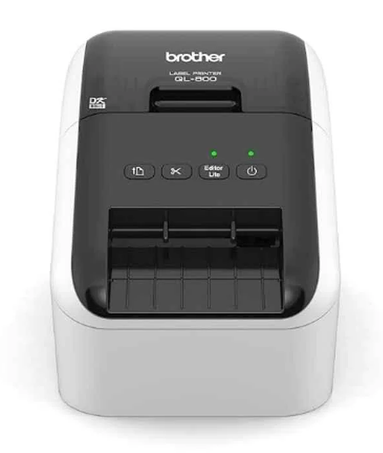
Brother QL-800 is a POS thermal barcode and label printer. It is a 58mm (2.4 Inch) printer. You can easily connect this printer with the latest operating systems like Windows 11, Windows 10 and mobile phones through AirPrint and Brother’s Android App.
In this article, I am going to explain how and where to download the driver and how to install it on Windows, Linux, Mac, iPhone and Android phones. So let’s start the installation process by downloading the drivers first.
Although you can download its drivers from its official website, you can download the same drivers from the download section below. After downloading the driver, I recommend you to follow the below given step-by-step guide in order to install this printer properly on your computer. Please follow these steps.
Download Brother QL-800 Printer Driver
In order to download the driver, click on the download link below according to the version of your operating system where you want to install this QL-800 printer.
Driver for Brother QL 800 POS Printer
Type: Full feature driver Operating System: Windows 11, 10, 8, 8.1, 7 File Size: 33.4 MB Version: 1.10 Download DriverOR
You may download the same driver directly from Brother’s official website.
How to Install Brother QL-800 Printer
After downloading the correct printer from the above given download section, you must have to install it in the right way to avoid installation error. For that, I have prepared a step-by-step guide which will help you to install the driver in the correct order. Please follow the following steps.
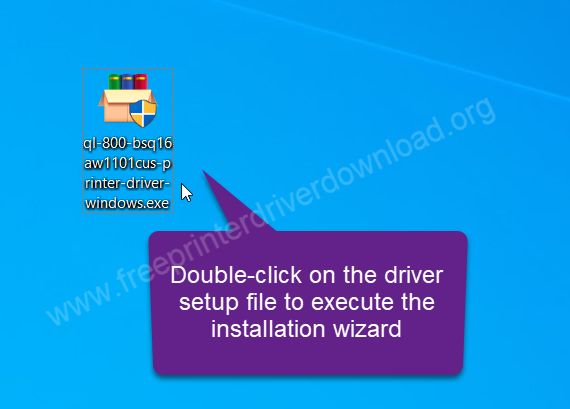
Step 1: Double-click on the driver setup file (ql-800-bsq16aw1101cus-printer-driver-windows.exe) to execute the installation wizard.

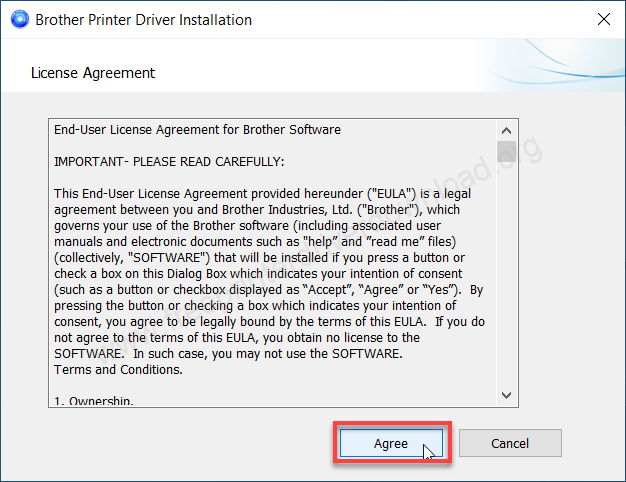
Step 2: Click on the Agree button to accept the terms and conditions.

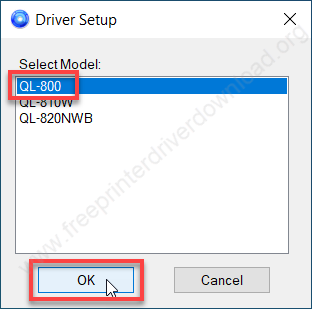
Step 3: Select the printer model number “QL-800” and click on OK.

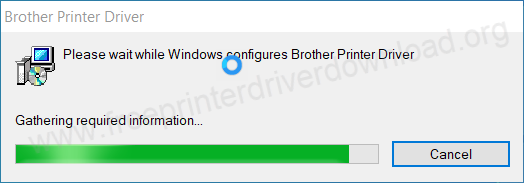
Step 4: It is installing the drivers now, so please wait for that.

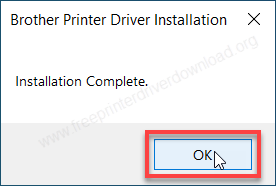
Step 5: The printer driver installation has been completed, click on OK.

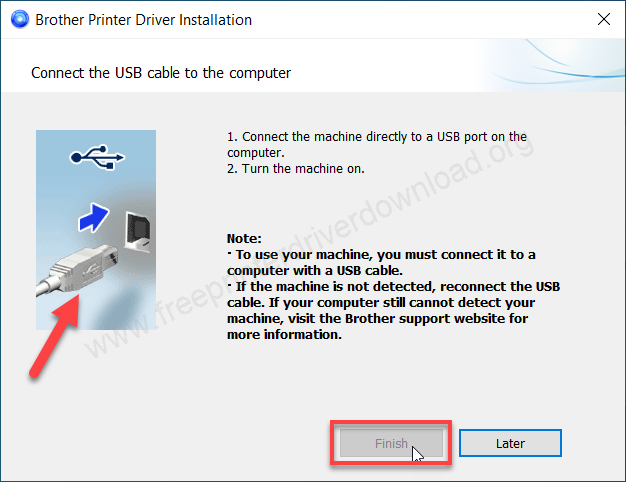
Step 6: Now, please connect the USB cable of your printer to the computer and click on Finish to complete the installation process.
Specifications & Features
The print speed of this printer is 148mm/s at 300dpi. It is an auto-cutter printer. This printer supports USB cable connectivity. Connect this printer to the computer through a USB cable. To install it on android phones, you will have to install “Brother iPrint & Label“ app on your phone then setup it on your computer.
The dimensions of this printer are 125mm width, 213mm depth and 142mm height. This printer has 4 buttons on the printer, power button, feed button, Editor and Cutter button. There are 6 options to auto turn off this printer from 10 minutes to 60 minutes. This printer comes with 2 years warranty. The printer supports Windows 11, 10, 8, 8.1, 7, Mac, Linux and Android phones.