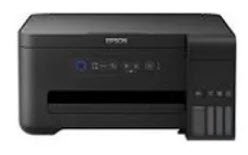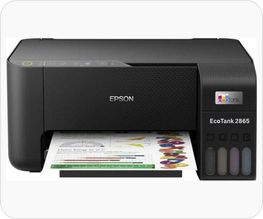
Ecotank ET-2865 is a multifunctional color printer made by Epson. This printer has two connectivity options: USB and WiFi. You can connect this printer to your Laptop directly through WiFi direct or connect it to your local network through WiFi. Alternately, you can connect it to your computer directly through a USB connection.
All the connections need its driver to be installed on that computer. You can either download its driver from the Epson’s official website or download the Epson ET-2865 printer driver from the download section below. In the download section, I have given all the supported operating system drivers. You can download the printer & scanner driver from there. You will get the latest drivers.
After downloading the driver, follow the below given step-by-step installation guide which will lead you for the proper installation. So let’s start the installation process by downloading the drivers first, then follow the installation steps. Your printer will be installed successfully.
Download Epson ET-2865 Driver for PC & Mobile
In order to download the latest version driver of Epson ET-2865 printer, first know the operating system version of your computer and then click on the below given download link accordingly. This printer supports: Windows 11, 10, 8, 8.1, 7, Vista, XP (32bit / 64bit), Server 2000 to 2025, Linux, Ubuntu, Mac OS X 10.x, 11.x, 12.x, 13.x, 14.x and macOS 15 Sequoia, 26.x operating systems.
Driver for Epson EcoTank ET-2865 Printer
Type: Full feature driver Operating System: Windows 11, 10, 8, 8.1, 7, Vista, XP File Size: 2.4 MB Version: 6.6 Download DriverOR
You can download the Epson 2865 driver from Epson’s official website.
How to Install Epson 2865 Printer Driver
To properly install the Epson ET-2865 printer driver on a computer, follow the below given step-by-step instructions. I have installed this ET-2865 printer on my Windows 11 computer, but you can apply the same steps and same drivers on Windows 10, 8, 8.1 and Windows 7 PC. Apply the following steps.
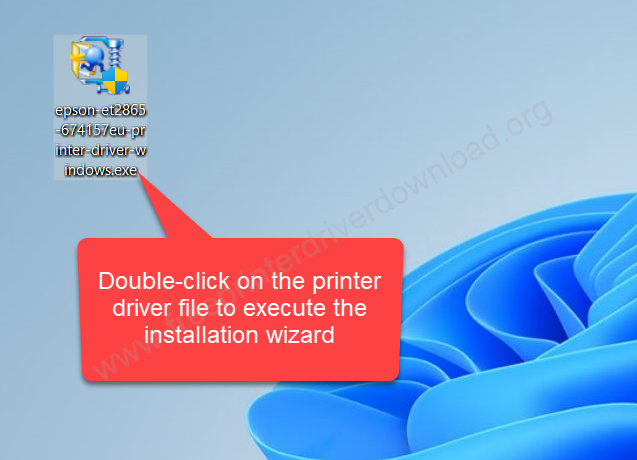
Step 1: Double-click on the downloaded driver file “epson-et2865-674157eu-printer-driver-windows.exe” to execute the installation wizard.

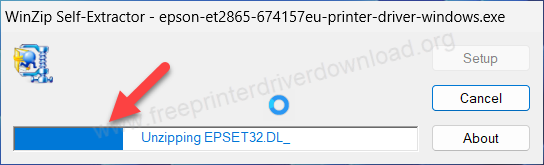
Step 2: Unzip the driver files.

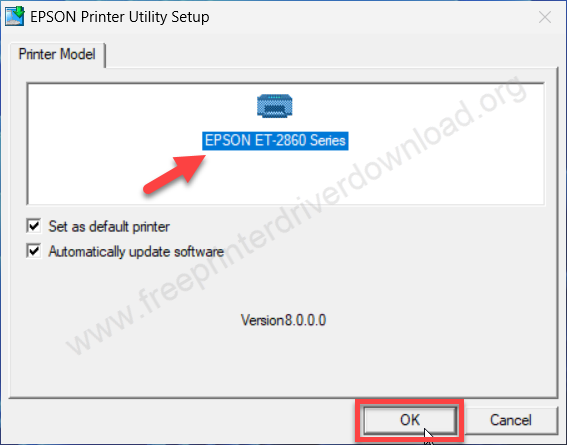
Step 3: The installation wizard has been started. You just need to select the printer model number that is shown on the screen “Epson ET-2860 series” and then click on OK. Do not get confused between the 2860 and 2865 model number, because 2860 is the main series of Epson printer. This driver will work with the 2865 printer as well. So, just go for it.

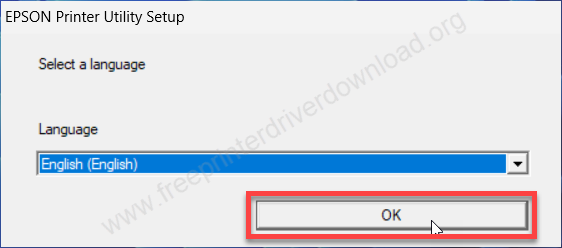
Step 4: Select the preferred language from the drop-down menu and click on OK.

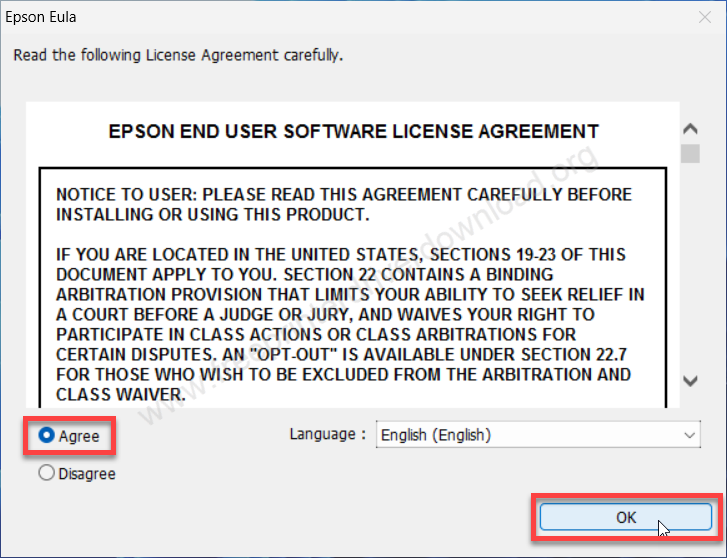
Step 5: Select the option “agree” and then click on OK.

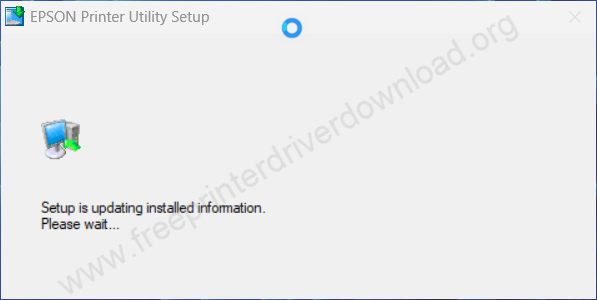
Step 6: It is updating the drivers, so please wait for that.

Step 7: Now please select the preferred connection type from the Network and USB connection and click on OK.

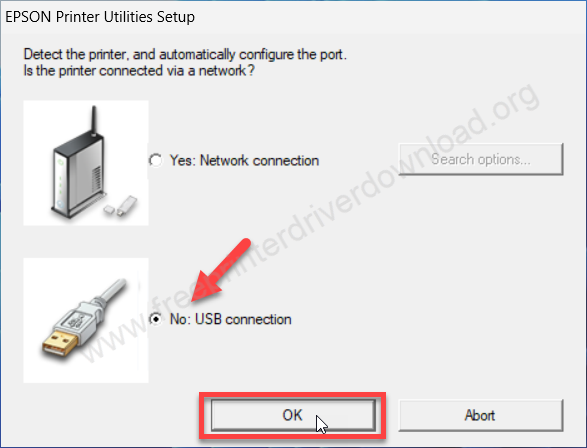
Step 8: Now please wait for the printer to be detected. Make sure that your printer should be connected to the computer through a USB cable if you select the USB option. If you did select the network connection option, then make sure your printer should be connected to your router through an Ethernet cable. After detecting the printer, click on Next. Otherwise, click on Manual to select the ports manually.

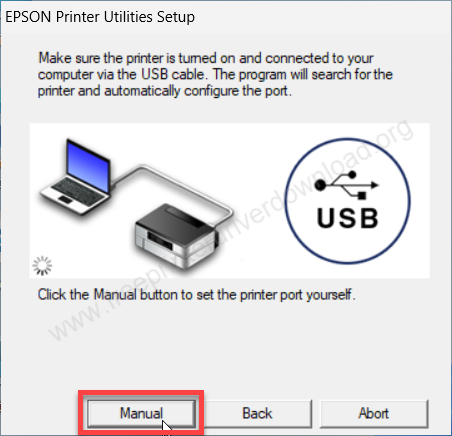
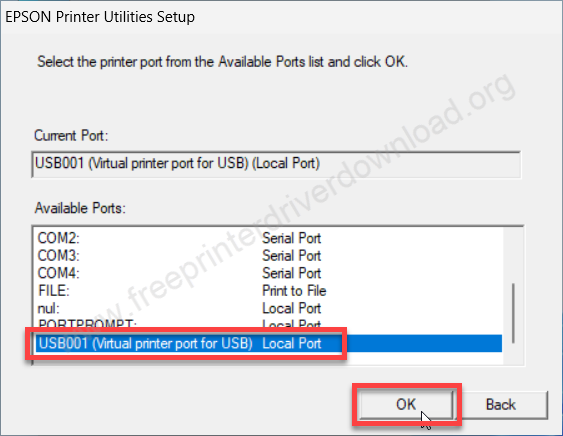
Step 9: After you click on the manual button, you need to select the port manually. I recommend you to select USB001. You can select the port if the model number of your printer is shown in any port that is listed here.

Step 10: Wait for it. After a few seconds, the printer will be installed successfully. You will get a success message.

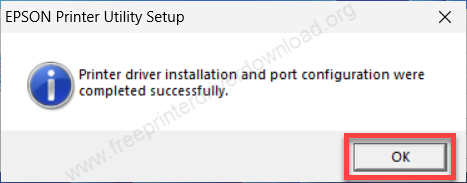
This is how you can install the Epson ET-2865 printer driver on a Windows computer. Hopefully you can install your printer with the same procedure.
How to Install Epson 2865 Scanner Driver
If you use the full feature the you need to install scanner driver separately. If you don’t use the full feature driver then you will have to install the printer and scanner driver separately. So here are the steps to install scanner driver. Download the scanner driver from the above given download section and install it in the same way as shown in the below given step-by-step guide.
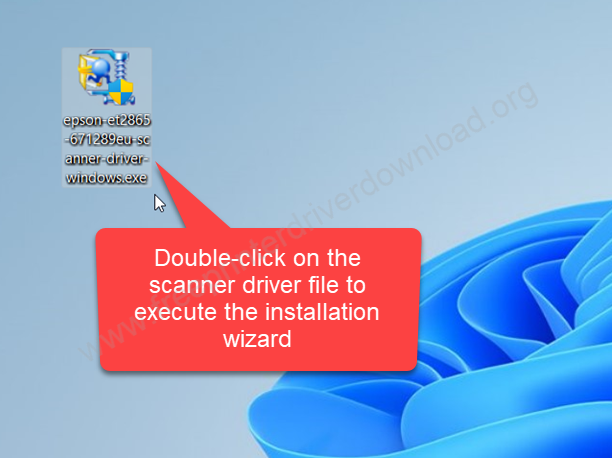
Step 1: Now it’s time to install the scanner separately. Please double-click on the scanner driver file to execute the automatic installation wizard.

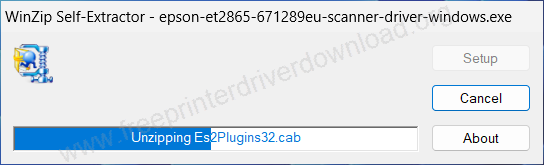
Step 2: You are now unzipping the scanner zip file, so please wait for that.
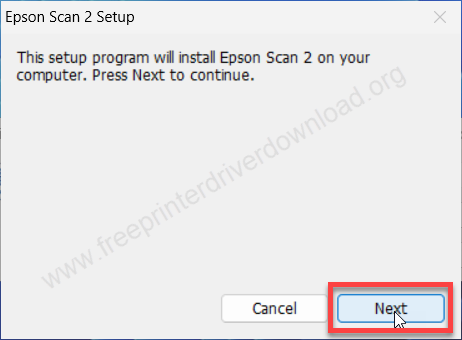
Step 3: The installation wizard is ready. Please click on Next to start installing the scanner driver.

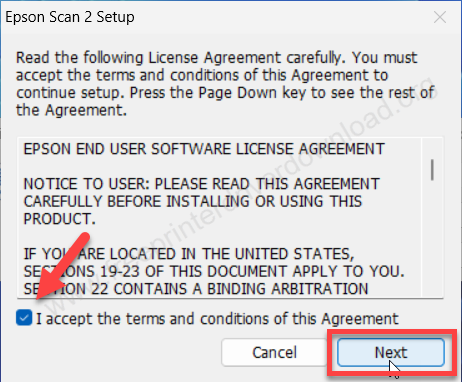
Step 4: Now please select the terms and conditions by selecting the “I accept” and click on Next.

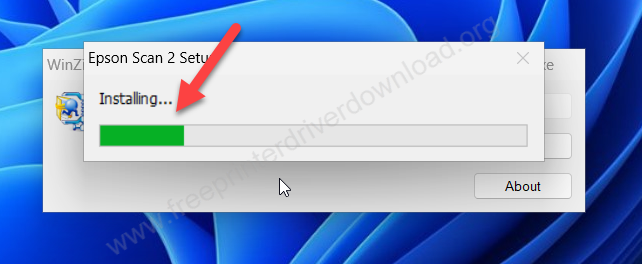
Step 5: It is now installing the scanner driver and then click on Next.

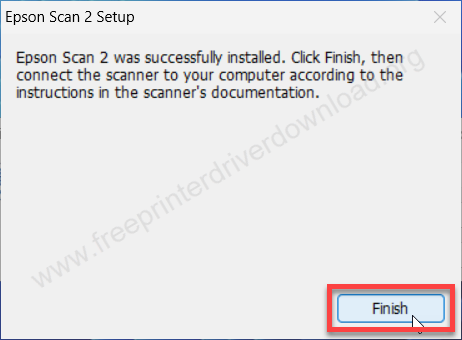
Step 6: The scanner has been installed successfully and click on Finish to complete the Epson ET-2865 scanner driver installation.
Epson ET-2865 Full Specifications
Epson ET-2865 printer is an A4 color all-in-one printer. This is an ink tank printer that has four ink tanks. The first is black, the 2nd is cyan, the 3rd is magenta and the last 4th one is yellow. You can easily refill these ink tanks with the ink bottles (Product number: Epson 104) which has 65 ml ink in each bottle. The maximum resolution of this printer is extremely high: 5760 x 1440 DPI. The print speed of this printer is also very good: 33 pages per minute in black, 15 pages per minute in color, which is very close to the laser printers.
It has a flatbed scanner, which is a CIS scanner. The scanning resolution is also very good: 1200 x 2,400 DPI. The scanner gives you the output in the following formats: PNG, JPEG, BMP and PDF for multiple pages scan.
It has one input tray that can hold 100 pages at a time and one output tray that can also hold 30 pages at a time. If you are using this printer on your mobile, you can use Epson Smart Panel or Epson Connect app on your mobile. This printer supports the most latest operating systems like Windows 11, Windows 10, Mac 27 and Server 2026.