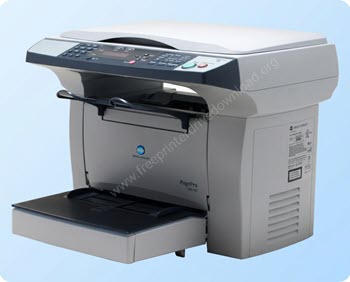
Konica Minolta PagePro 1380MF is a multifunctional laser printer with a built-in scanner with ADF. The USB connectivity of this printer is very stable. It is a very simple to use laser printer. To use all its features through your computer, you need to install its latest version driver on your computer. This will help your computer communicate with the printer. Without drivers – this won’t happen. So eventually a driver installation is necessary.
Although the driver CD usually does come with the printer, sometimes it might get scratched or get lost, in this scenario, you can download its driver from the download section which is given below. This printer supports Windows 11, 10, 8, 8.1, 7, Vista, XP (32bit / 64bit), Server 2000 to 2025, Linux, Ubuntu, Mac 10.x, 11.x, 12.x, 13.x, 14.x, macOS 15 Sequoia, 26.x Tahoe Operating Systems.
After downloading the 1380mf driver, I suggest you to follow the below given step-by-step how-to install guide which I have prepared while installing this printer on my Windows 10 PC. So let’s start the installation process by downloading the drivers first.
Download Konica Minolta PagePro 1380 MF Printer Driver
OR
You may download the driver KM 1380 MF driver from Konica Minolta’s official website.
How to Install Konica Minolta PagePro 1380 on PC
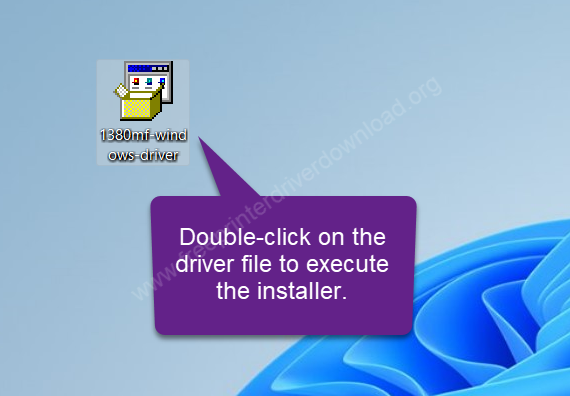
Step 1: Double-click on the driver file (1380mf-windows-driver.exe) to execute the automatic installation wizard.

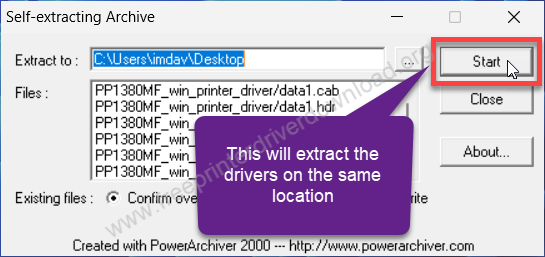
Step 2: Click on start button to extract all the files into a folder in the the same location.

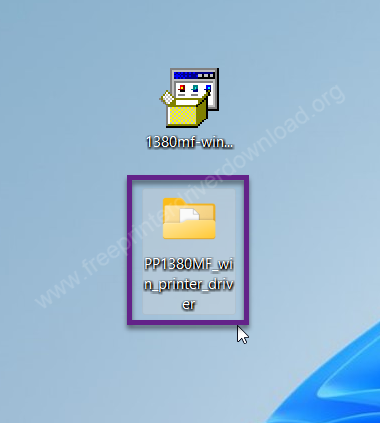
Step 3: Open up the extracted folder.

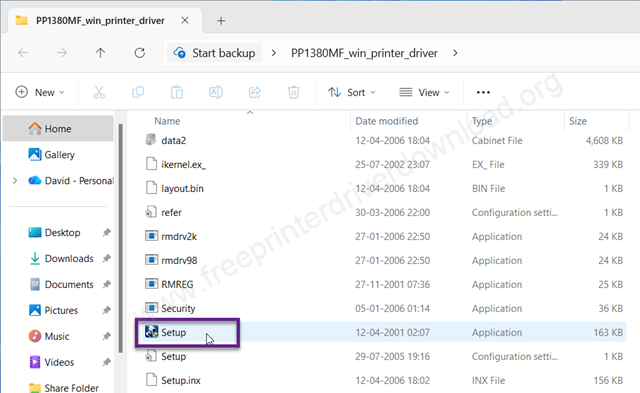
Step 4: You will get a setup.exe file. Please double-click on it to execute the main install.

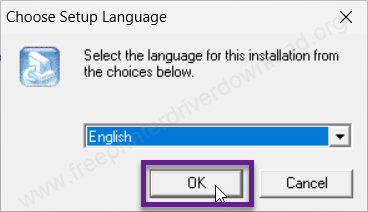
Step 5: Select your preferred language and click on OK.

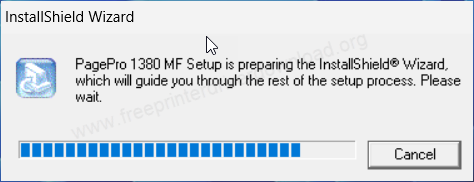
Step 6: It is now preparing the main illustration wizard, so please wait for that.

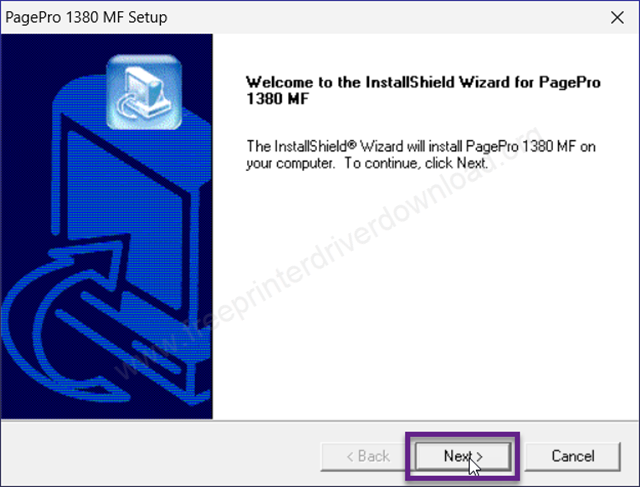
Step 7: After starting up the installation wizard, you need to click on Next to start the installation process.

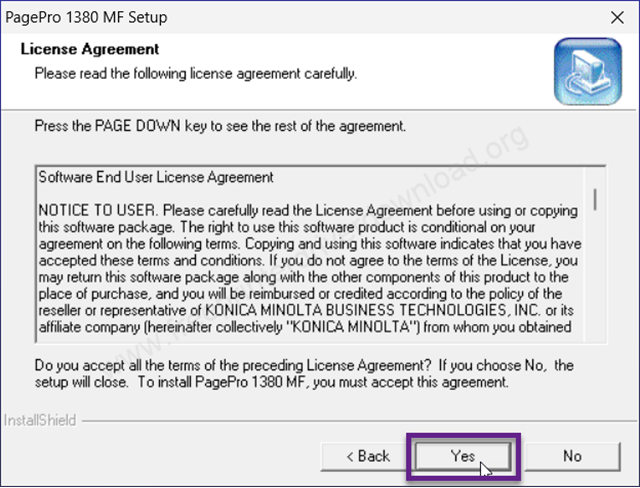
Step 8: Click on Yes to accept the license agreement.
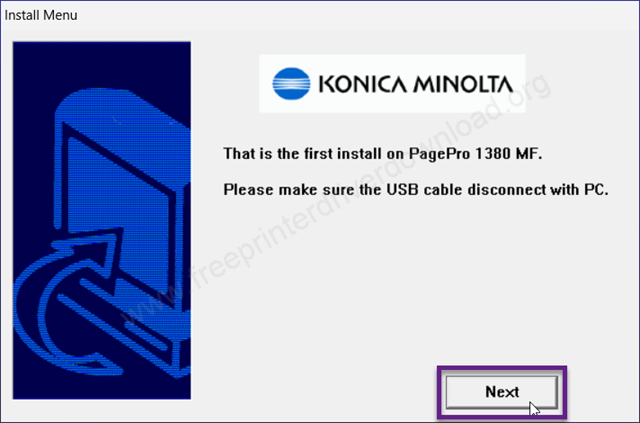
Step 9: Please disconnect the USB cable of your printer from the computer and click on Next.

Step 10: The installer is now installing the driver, so please wait for that.
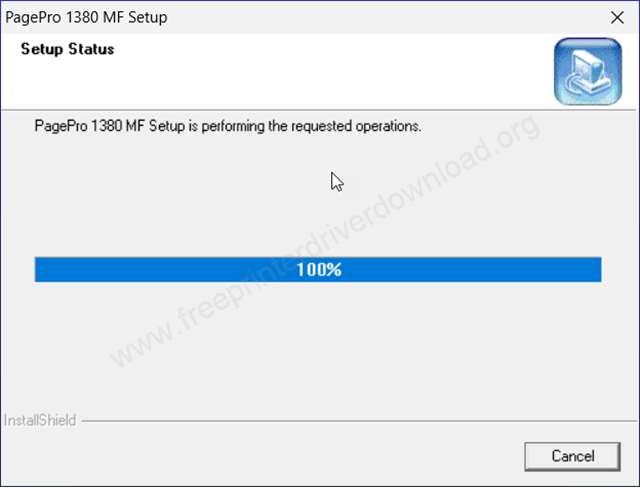
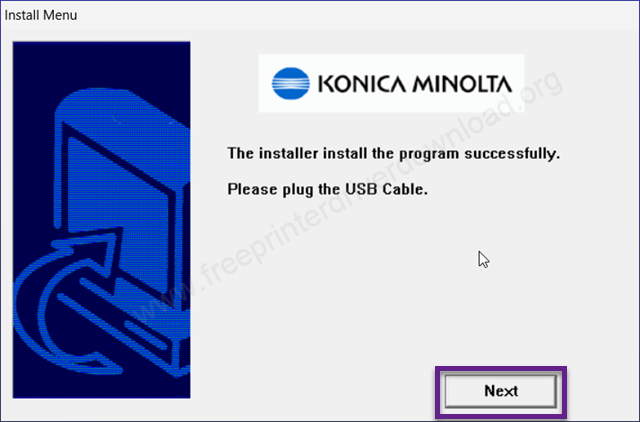
Step 11: Now plug the USB cable of your printer to the computer, and click on Next.

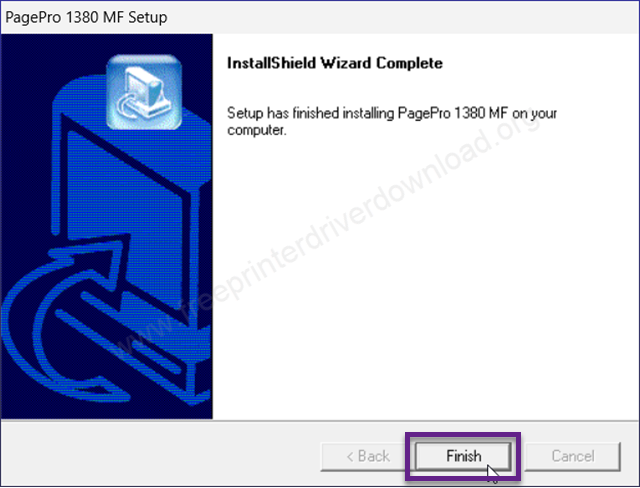
Step 12: The printer Konica Minolta PagePro 1380MF is successfully installed. Please click on Finish to complete the installation process.
Specifications & Features
The print speed of this PagePro 1380MF printer is around 21 ppm at a resolution of 1200 x 1200 DPI. The scanning speed is up to 8ppm at a resolution of 600 x 600 dpi and the copy speed is 21 cpm at 300dpi resolution which is good enough.
It has an input tray that can hold up to 250 pages at a time. There’s also an output tray that can hold up to 100 pages at a time. There is no auto-duplex feature on this printer, you will have to do it manually. However, there is a manual-duplex feature in the printer driver.
It comes with a tiny 150 Mhz processor and 32mb RAM which can handle multiple print, scan and copy commands. The dimensions of this printer are 492mm width, 465mm depth and 547mm height with ADF. The maximum power consumption of this printer is up to 900 watts. In standby mode it takes only 80 watts. The 1380mf printer supports A4, A5, letter and envelope paper sizes.
In this article, I have explained how and where to download the KM 1380 MF drivers. I have also explained how to install this printer and also provided all the specifications and features of this printer. Hope you like my effort in making this.