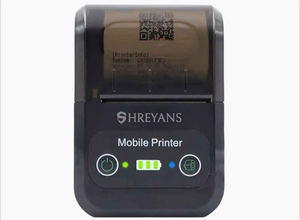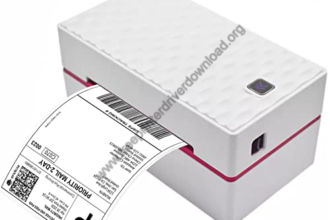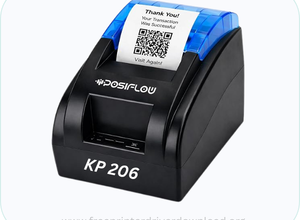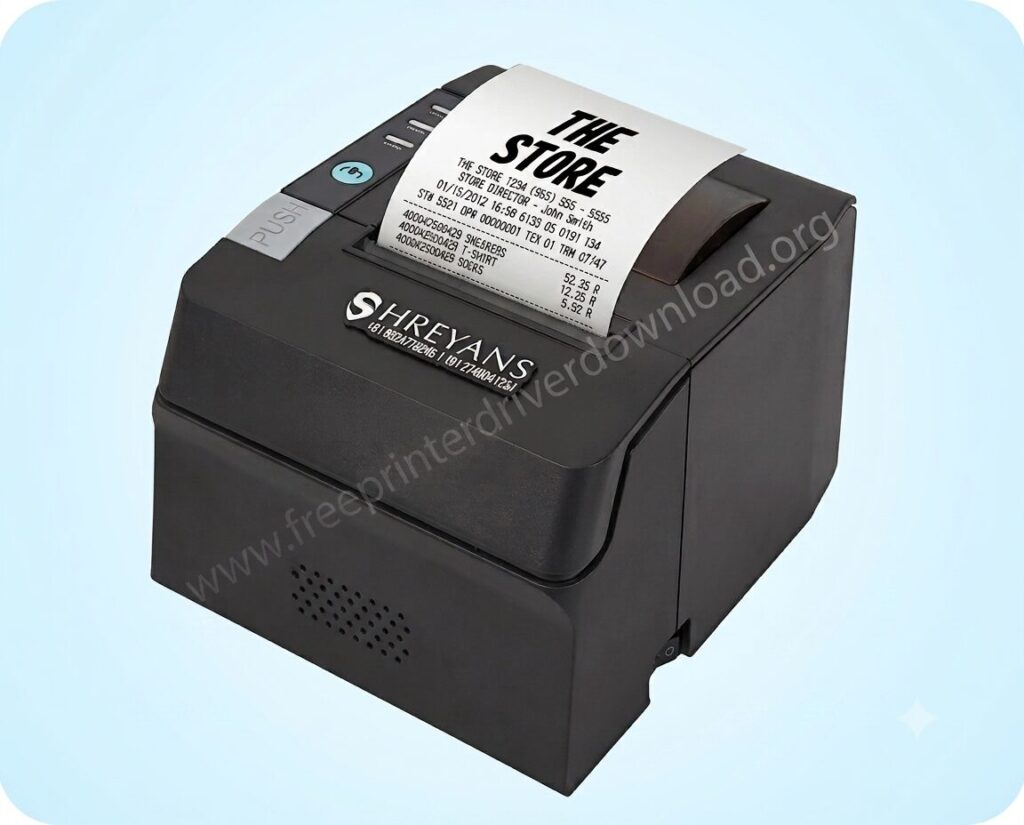
The Shreyans SRS-89CU printer is an 80 mm (3 Inches) thermal receipt printer that is an inkless printer with auto cutter functionality. This printer can connect with your computer through the USB cable only.
In order to connect Shreyans 89cu printer to your computer, you will have to install its latest version driver on your computer. You can download its driver from the below given download section. Alternatively, you can download this driver from Shreyans official website as well.
After that, look beneath the download section, you will see a how to install guide, which will help you to install this printer properly on your computer. I have provided a step-by-step guide with the screenshot. Please follow these steps as well for the proper installation.
This printer supports the following operating systems: Windows 11, 10, 8, 8.1, 7, Vista, XP (32bit / 64bit), Server 2000 to 2025, Linux, Ubuntu, Mac 10.x, 11.x, 12.x, 13.x, 14.x, macOS 15 Sequoia, 26.x Tahoe Operating Systems.
So let’s start the installation process by downloading the drivers. First, let’s come to the download section below.
Download Shreyans SRS 89 CU Printer Driver for Windows / Linux / Mac
In order to download the Shreyansh 889CU printer driver, you will have to click on the below given download link according to your operating system version.
Driver for Shreyans SRS 89 CU Printer
Type: Basic Driver Operating System: Windows 11, 10, 8, 8.1, 7 File Size: 2.97 MB Version: 2.1 Download DriverOR
If you face any problem while downloading the driver from the above given download link, then you can download the same driver from the Shreyans official website from here.
How to Install Shreyans 89CU Printer Driver on PC
Downloading the right driver is important to avoid driver conflicts, but the right installation is also mandatory because if you don’t know how to install the printer, then you might make mistakes while installing the driver that also cause of driver conflict. So, you should know the right process to install the driver. That is why I have given a step-by-step installation guide, so that you can get help. Please follow the following steps:
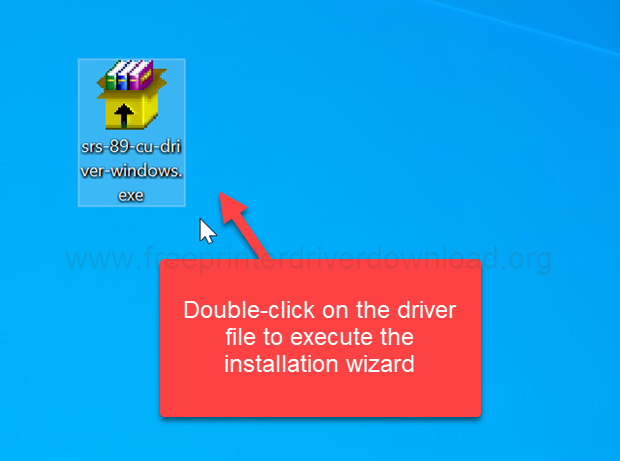
Step 1: Double-click on the downloaded driver file (srs-89-cu-driver-windows.exe) to execute the installation wizard.

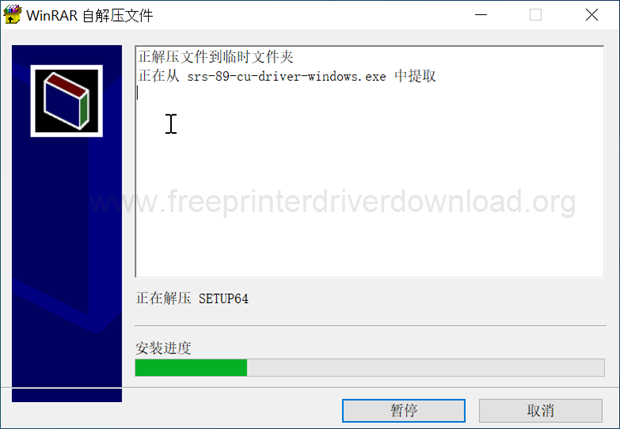
Step 2: The installer is now installing the drivers. Please click on Yes to grant permission.

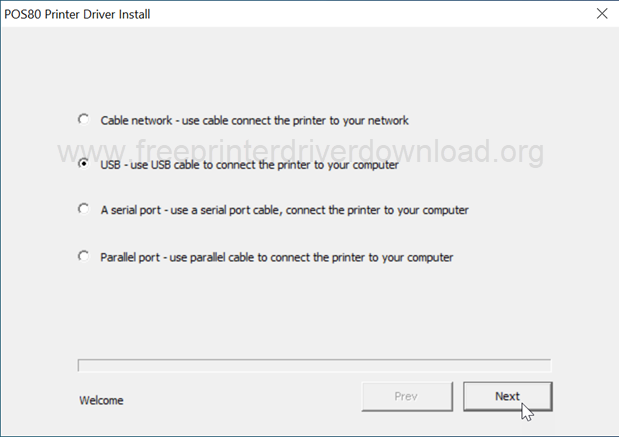
Step 3: Choose the preferred connection type and click Next. I am going to choose the USB one because the USB connectivity is always a reliable connection.

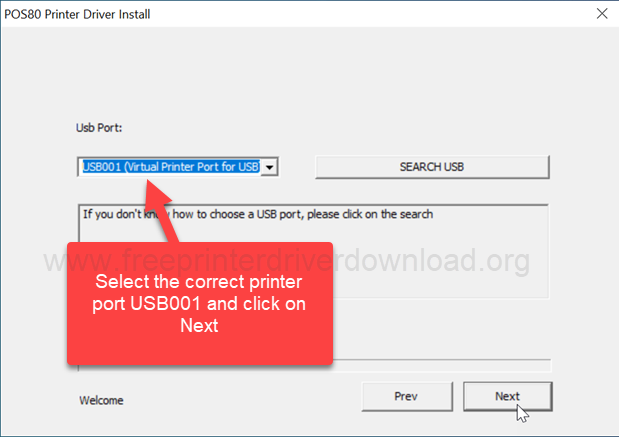
Step 4: Now choose the port of your printer, where your printer is connected right now. I recommend you to choose USB001 and then click on Next
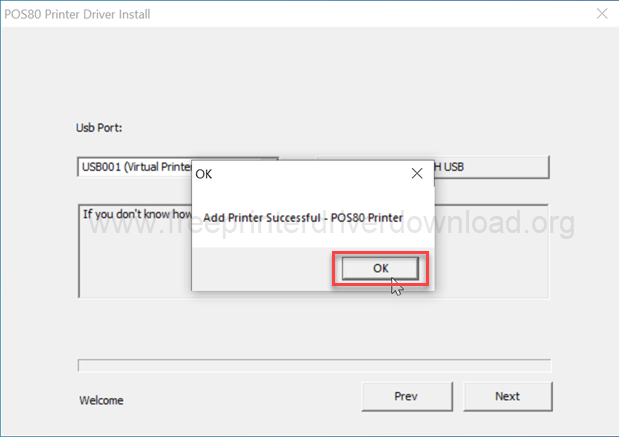
Step 5: Click on OK. Printer has been installed successfully with the name of POS-80. Do not get confused between the names because this is a universal driver of 80 POS printers and this will work with the SRS 89 CU printer as well.
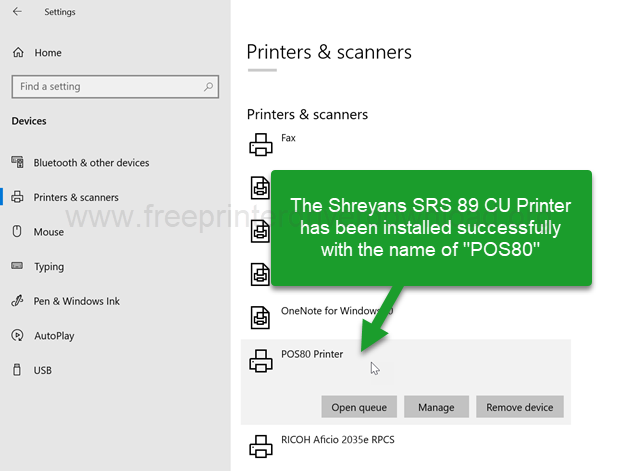
Step 6: Go to the printer’s page and check whether the printer is installed or not. It should be installed with the name of POS 80 printer.

Specifications & Features
As mentioned above, the Shreyans 89CU is a thermal printer, so it does not use ink, toner, or ribbons. Instead, it prints on special thermal paper that already has a heat-sensitive coating. When the printer’s thermal print head applies heat to the paper, the coated areas turn black and create the printed text or image.
This is a monochrome black & white printer with a 32 pages per minute print speed. The total weight of this printer is 1.76 kg. This printer has one USB port that can be connected to your computer through the USB cable. And this is a very compact printer. So you can use it as a billing and receipt printer. You can place this printer in a restaurant, supermarket, warehouses and for retail purposes. You can also use it for online billing & shipping use. There is no ink used in this printer because this is a thermal printer and thermal printers use ink which is already present on the paper.
So I have explained everything about Shreyans 89cu printer, all the specifications and features about this printer, how to install it on a computer, where to download its driver, and I have given the download link in the download section. So this is from my side. Hope you like it.