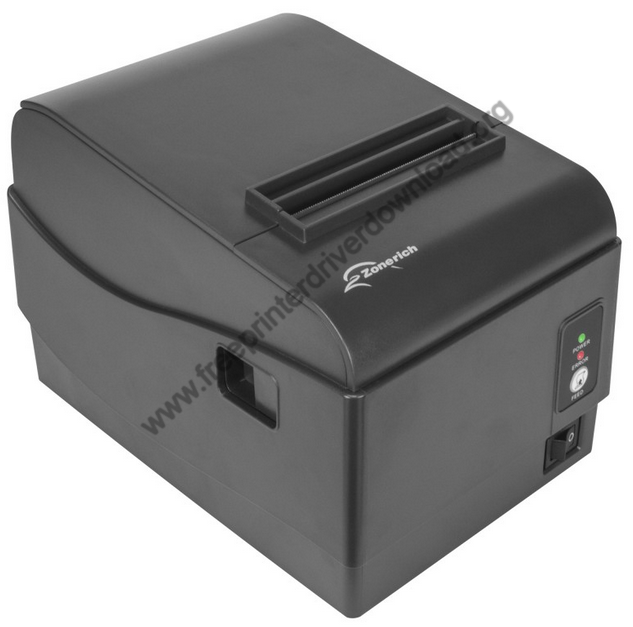

As we all know, the best printer driver for a printer is the latest version printer driver, I have provided in this guide download links of the latest version driver of this printer model. Also, I have provided detailed installation instructions for these drivers.
Download ZoneRich AB-88H Driver
Follow these steps:
- In the list of OS, find your preferred operating system.
- Click on its download button to begin the download of ZoneRich AB-88H printer driver.
ZoneRich AB-88H Printer Driver for Windows
Basic printer driver for Windows XP, Vista, 7, 8, 8.1, 10, 11 (32-bit)
Download (32-bit)
File Name: GenX_AB-88H_32bit.zip
Size: 127 KB
Version: NA
Type: Basic driver
Language: All Language
Driver Pack Contains: Printer driver
————————————————————
Basic printer driver for Windows XP, Vista, 7, 8, 8.1, 10, 11 (64-bit)
Download (64-bit)
File Name: GenX_AB-88H_64bit.zip
Size: 91.1 KB
Version: NA
Type: Basic driver
Language: All Language
Driver Pack Contains: Printer driver
————————————————————
Full feature driver for Windows Server 2003 to 2025 (32, 64-bit)
Download
————————————————————
Printer IP tool for Windows
Download
File Name: GenX_AB-88H_Printer_IP_Tool.zip
Size: 288 KB
Version: NA
Type: Printer application
Language: All Language
Driver Pack Contains: IP tool
Driver for Mac
Printer driver for macOS 10.x, 11.x, 12.x, 13.x, 14.x, 15.x, 26.x
Download
Driver for Linux
Basic printer driver for Linux and Ubuntu
Download
OR
Download the driver directly from the ZoneRich AB-88H printer official website.
How to Install ZoneRich AB-88H Driver
In this section, I will describe in simple step-by-step format the right method of downloading and installing the latest ZoneRich AB-88H printer driver on your computer. Following steps can be used for all the supported versions of the Windows operating system.
Step 1: Find the Driver
- The latest version driver of this thermal printer can be downloaded from the ZoneRich website or from the Downloads section above.
- In the ZoneRich website, go to the support/downloads page.
- Enter the printer model number (AB-88H), then search for its drivers, and select your preferred OS version.
Step 2: Download the Driver
- Click on the download link which is related to your preferred OS version.
- Wait for the download of the driver setup file to complete.
Step 3: Install the Driver
- In the Downloads folder, find the compressed driver file you just downloaded, then extract its content files into a folder.
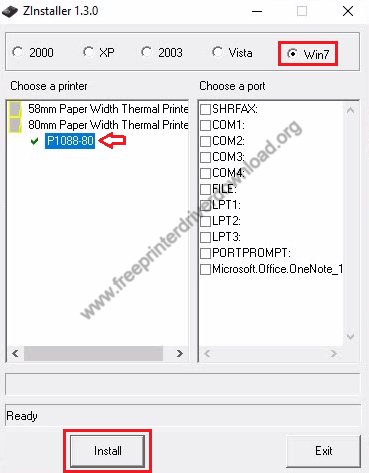
- In the Welcome screen, select your printer model number, your preferred OS version, and USB connectivity port. Finally, click on ‘Install’.

Step 4: Connect the Printer
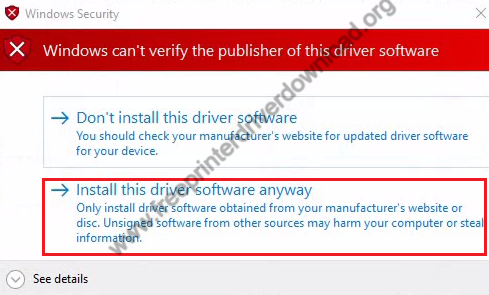
- Make sure your printer is connected to the USB port of your printer, then if Windows can’t verify the driver, then select the ‘Install this driver software anyway’ option.
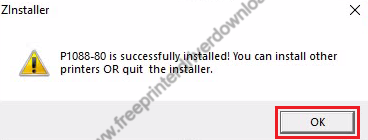
- When you see the message that printer driver is successfully installed, then click on ‘OK’.


More information about installation:
- How to install the printer driver with its installer
- How to install the printer driver manually using its basic driver
That’s it, installation of the ZoneRich AB-88H printer has completed successfully.
More details about the drivers
Hardware Name: AB-88H
Hardware ID: USBVID_0483&PID_5740
Connection Type: USB//Ethernet/Serial Connection
Installer Type: Setup File (with Installer)
Driver Compatibility
This thermal printer is compatible with the Windows XP or later OS versions, but doesn’t support any Windows Server OS version, macOS, or Linux/Ubuntu operating system.
Driver Update
Updating your printer driver to its latest version is like upgrading your computer’s hardware. Each new version of a printer driver is released after removing all the bugs which were found in its older version. Therefore, the latest version of the printer driver will improve the performance of your printer.
Supported Operating Systems
Windows