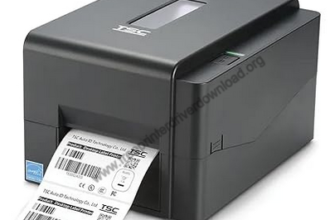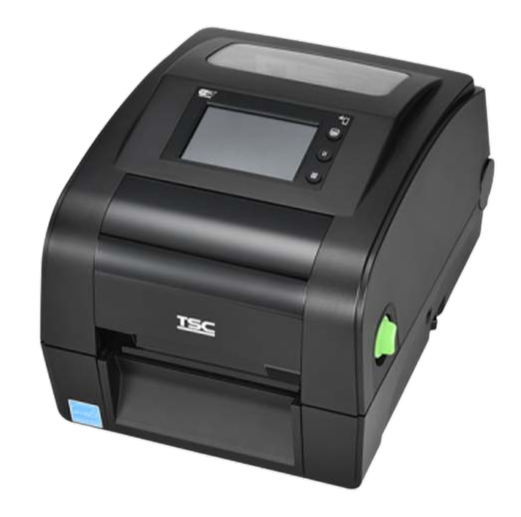
TSC TH340 is a barcode label printer which is usually used to print barcodes and labels for shopping platforms like Amazon and Flipkart. In order to setup this printer on a PC, you will require its driver to be installed on the PC. You can either download its driver from the download section given below or download it from TSC’s official website, both are the same drivers. After download, I suggest you to please follow the below given how-to instructions in order install this printer properly.
So let’s start the installation process by downloading the drivers first. Please check out the below given download section where I have listed all the drivers that will supported Windows 11, 10, 8, 8.1, 7, Vista, XP (32bit / 64bit), Server 2000 to 2026, Linux, Ubuntu, Mac 10.x, 11.x, 12.x, 13.x, 14.x, 15.x, 26.x Tahoe Operating Systems. Click on the download button according to your operating system.
Download TSC TH340 Series Printer Driver for PC
To download the driver, click on the download button according to the operating system version below. all its supported operating systems.
Driver for TSC TH340 Printer for PC
Type: Full feature driver Operating System: Windows 11, 10, 8, 8.1, 7, Vista, XP, Server File Size: 47 MB Version: 12.4 Download DriverOR
Alternately, you may download the TSC TH340 driver from TSC’s official website.
How to Install TSC TH340 Series Printer Driver on a PC
In order to install the TSC TH340 driver, please follow the below given step-by-step instructions. The printer will be installed without hassle.
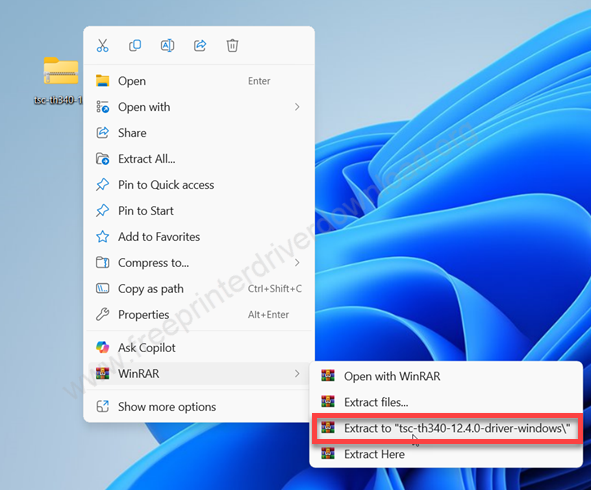
Step 1: Unzip / Extract the driver file “tsc-th340-12.4.0-driver-windows.zip” into a folder to the same location.

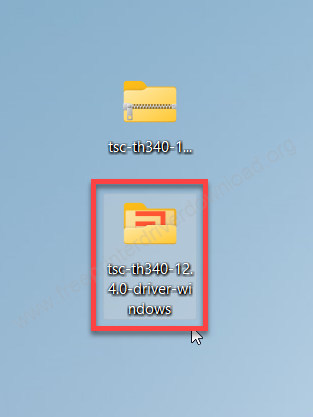
Step 2: Open up the extracted folder.

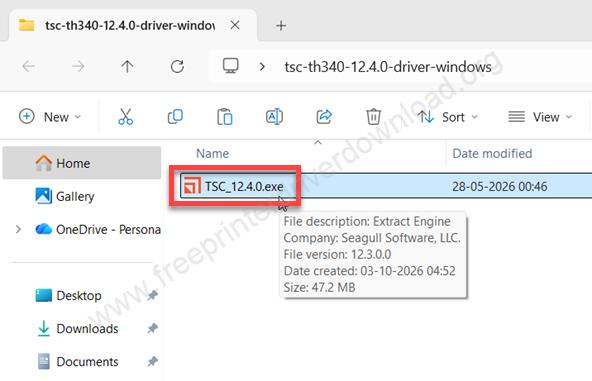
Step 3: Double-click on the driver file “TSC_12.4.0.exe” to execute the installation wizard.

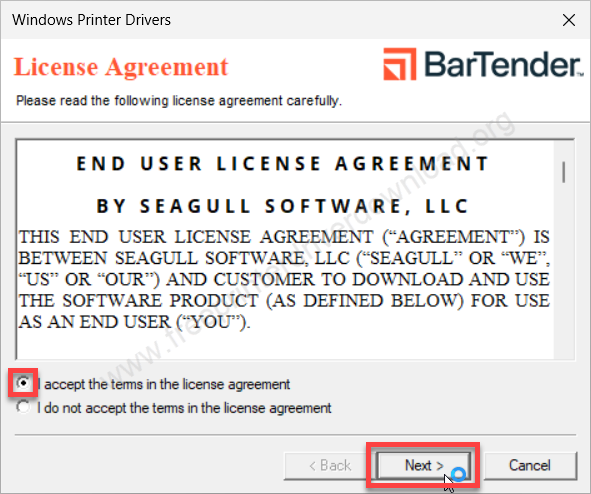
Step 4: Tick the check box “I accept” and click on Next.

Step 5: Click on Next.
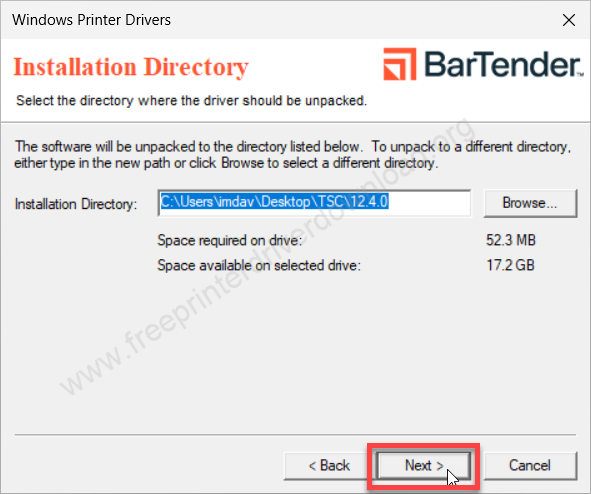
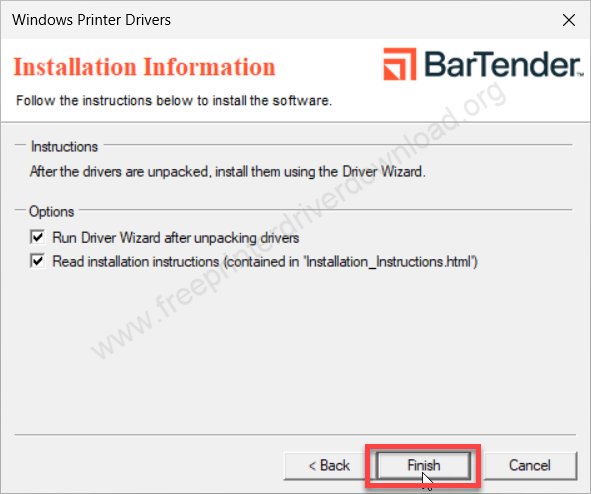
Step 6: Click on Finish.
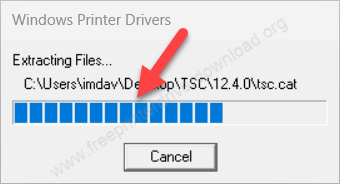
Step 7: It will start extracting the main drivers, so please wait for that.

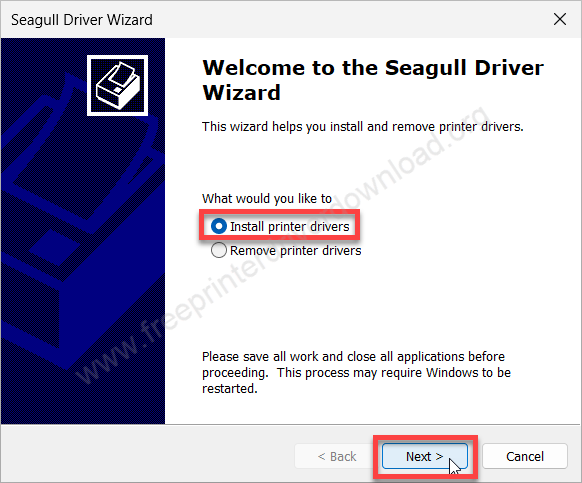
Step 8: Select the option “Install printer drivers” and click on Next.

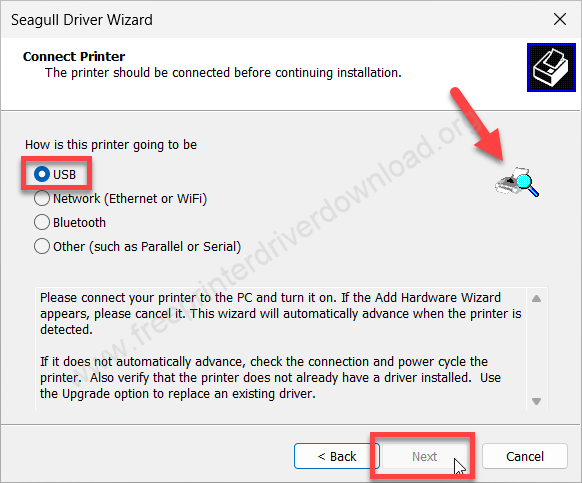
Step 9: Select the option “USB” and click on Next.
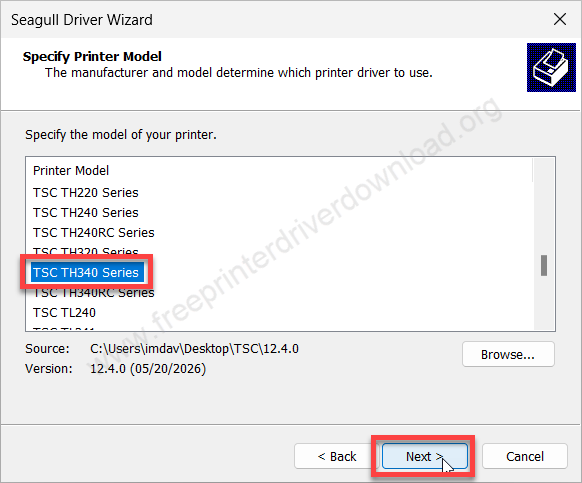
Step 10: Select the model number “TSC TH340 Series” and click on Next.
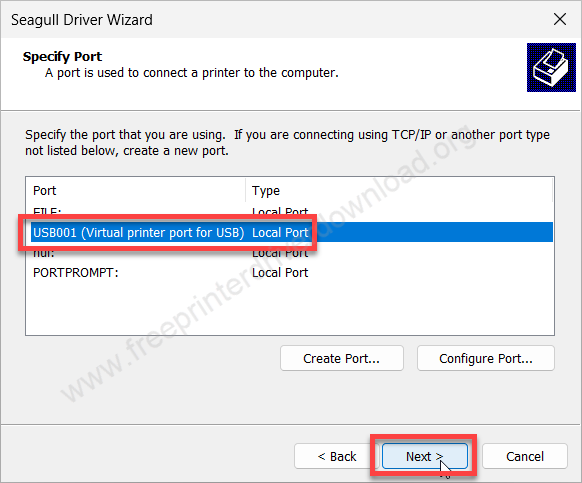
Step 11: Now select the port “USB001” and click on Next. You may select the port where the model number is listed.
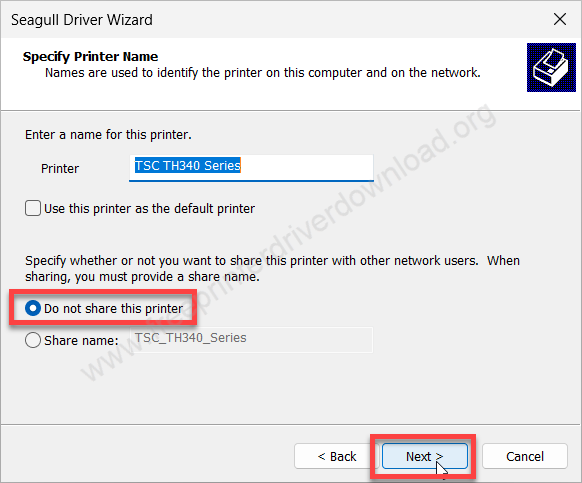
Step 12: Choose the option, do not share this printer and click on Next.
Step 13: Click on Finish.
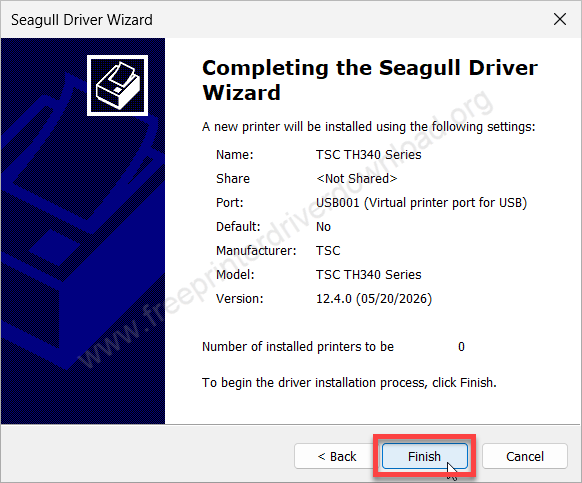
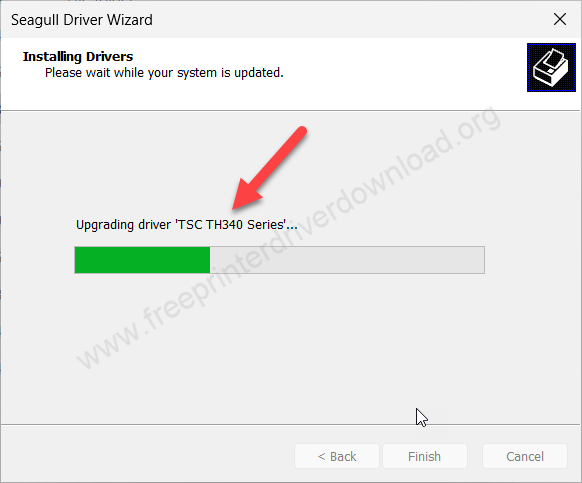
Step 14: It will now start installing the drivers, so please wait for that and then finally click on finish after that. The printer TSC TH340 has been installed successfully.
Step 15: The TSC TH340 series printer has been installed successfully. Click on close to complete the installation process.
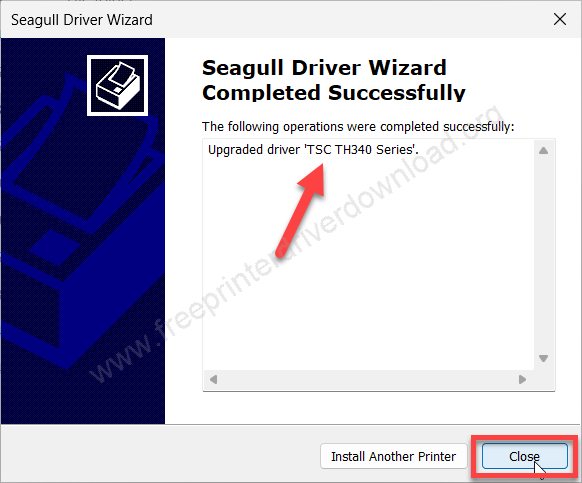
So, this is how you can install this TSC TH340 printer driver on a computer. I have installed it on my Windows 11 computer but the same steps and same drivers will work for Windows 10, 8, 7 and Server editions as well.