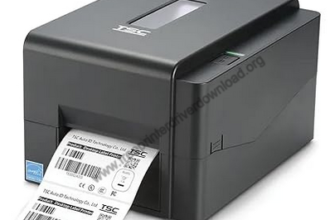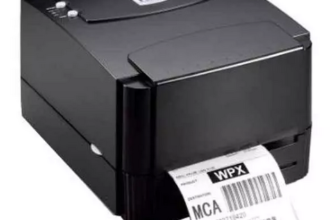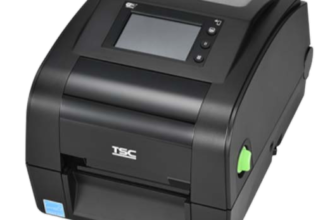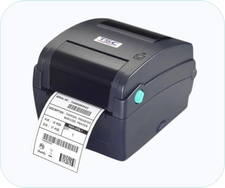
TSC TL240 is a 4 inch barcode label printer. This printer can only connect with the computer through USB. You will require its driver to install the printer. In this article, I am going to share the drivers of this printer. Please check out the download section to download the driver. Go to the installation section, where I have mentioned how to install the driver with the default method.
TL35T26110372 is the serial number of this printer. This printer supports Windows, Linux and Mac OS. Let’s start the installation process by downloading the drivers – Please follow the below given steps to download the drivers.
Download TSC TL240 Printer Driver for PC
In order to download the latest version driver, first determine the operating system version of your computer and then click on the below given download link accordingly. This printer supports: Windows 11, 10, 8, 8.1, 7, Vista, XP (32bit / 64bit), Server 2000 to 2026, Linux, Ubuntu, Mac OS X 10.x, 11.x, 12.x, 13.x, 14.x and macOS 15 Sequoia, 26.x operating systems.
Driver for TSC TL240 Printer for PC
Type: Full feature driver Operating System: Windows 11, 10, 8, 8.1, 7 File Size: 47 MB Version: 12.4 Download DriverOR
You can easily download the driver from TSC’s official website.
How to Install TSC TL240 Printer Driver on a PC
In order to install this TSC 240 printer properly on your computer, you will have to follow the below given step by step installation guide that will help you to set up this printer properly on your computer.
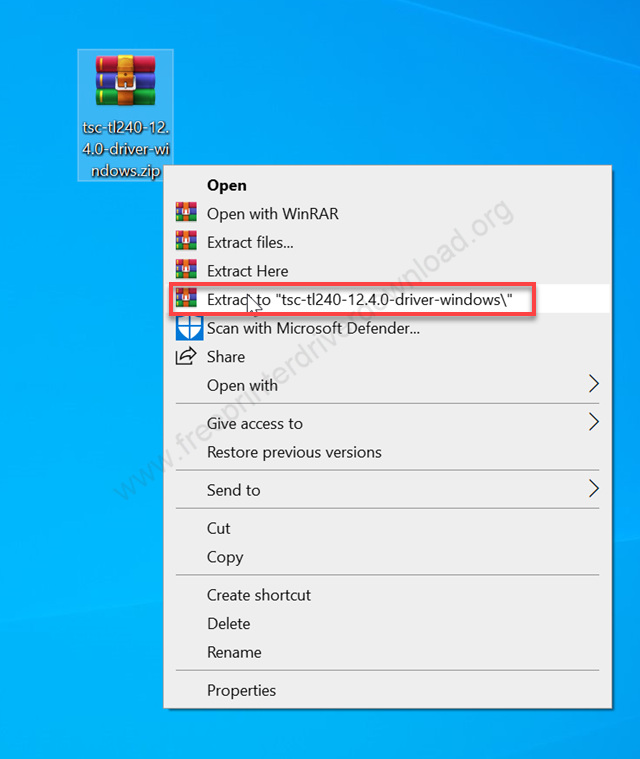
Step 1: After downloading the driver from the above link, just unzip the driver file by right-clicking on it and clicking on extract to.

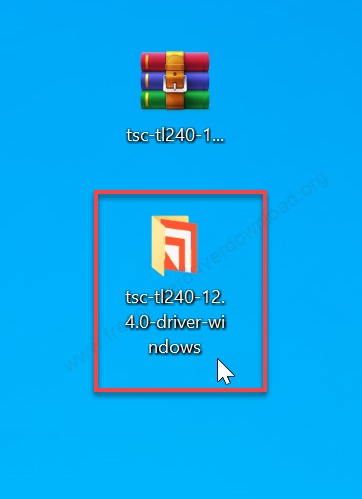
Step 2: After that, it will create a folder on the same location where you have downloaded the driver file. You just need to open the folder.

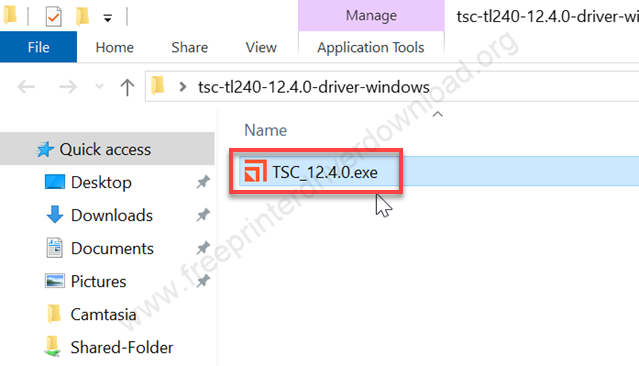
Step 3: In the folder you will get a file that is TSC_12.4.0.exe. Just double click on that.

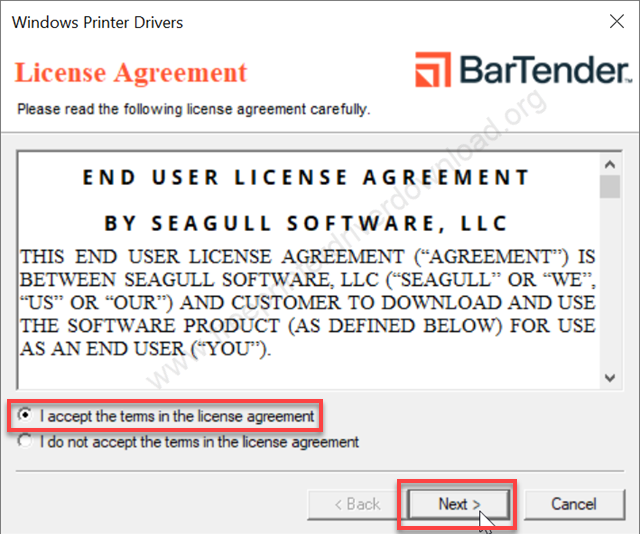
Step 4: Tick the checkbox “I accept the term in the license agreement” and click on Next.

Step 5: Click on Next. It is asking for the installation directory. Don’t change it, keep it default and click on Next.
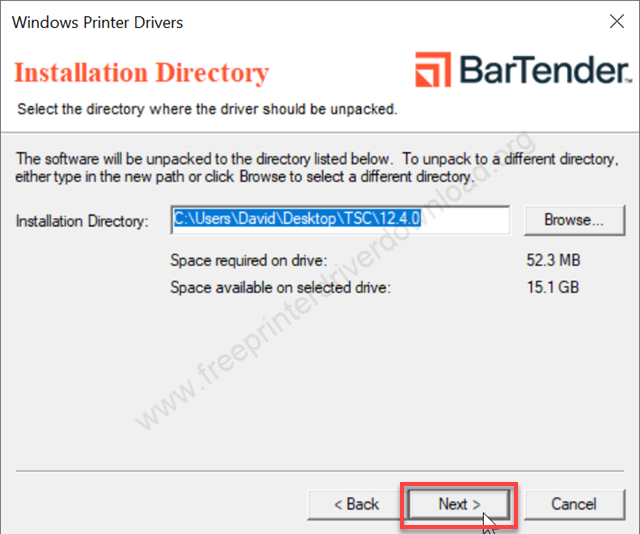
Step 6: Click on Next after that.
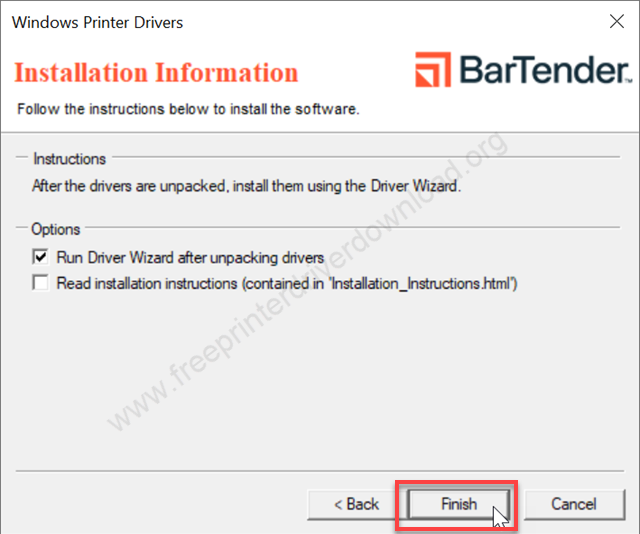
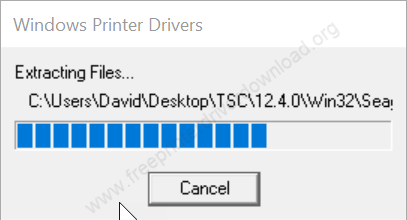
Step 7: Please let it be extracted and wait for that.

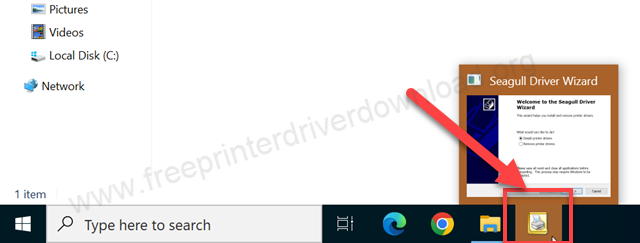
Step 8: After a few seconds, you will get a highlight in your taskbar. There is an installer which is minimized. You just need to click on it and maximize it.

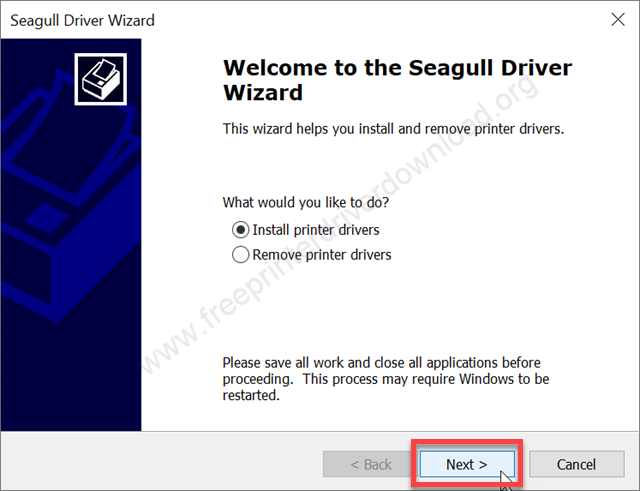
Step 9: Click on Next to start installing the drivers.

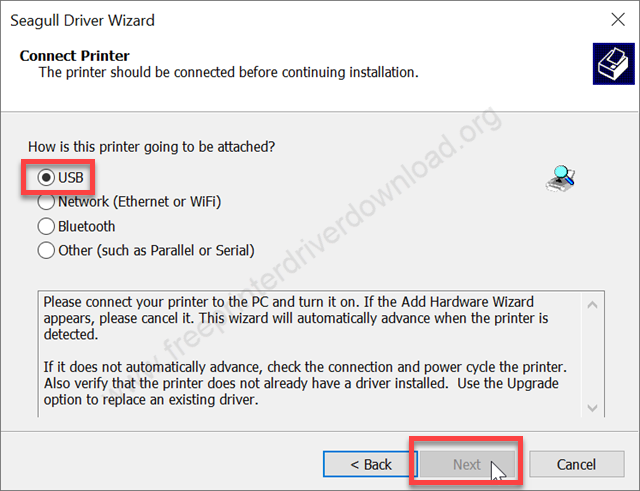
Step 10: Select the preferred connection type and click on Next. Recommend you choose USB because this particular model number printer supports only USB connectivity and click on Next.
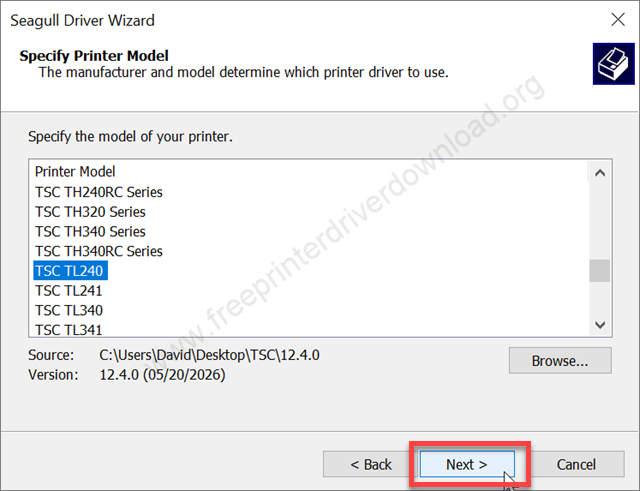
Step 11: Select this TSC-TL240 model number from the list and click on Next.
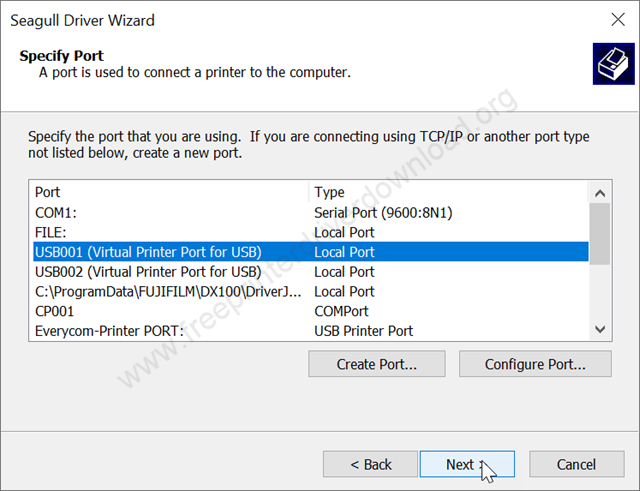
Step 12: Now it is asking for the printer port. Select the USB port and click on Next. Alternatively, you can select the port. If your printer model number is listed on the list, select that port and click on Next.
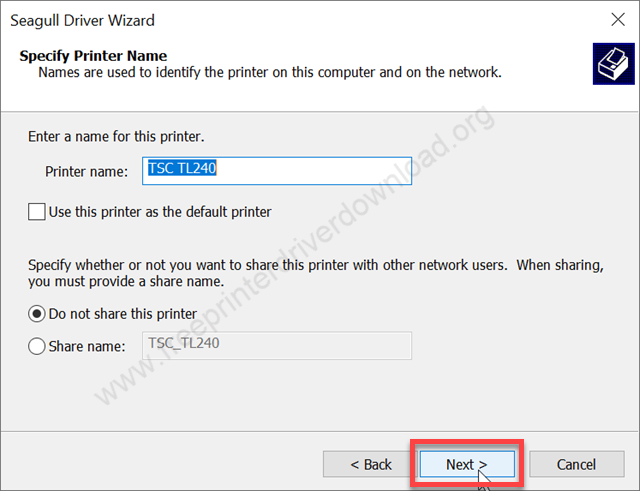
Step 13: Choose the option do not share this printer and then click on Next.
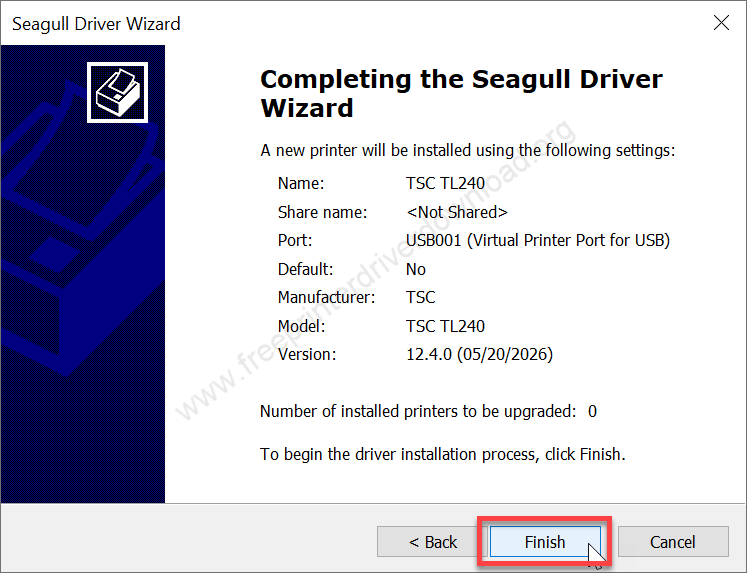
Step 14: Click on Finish

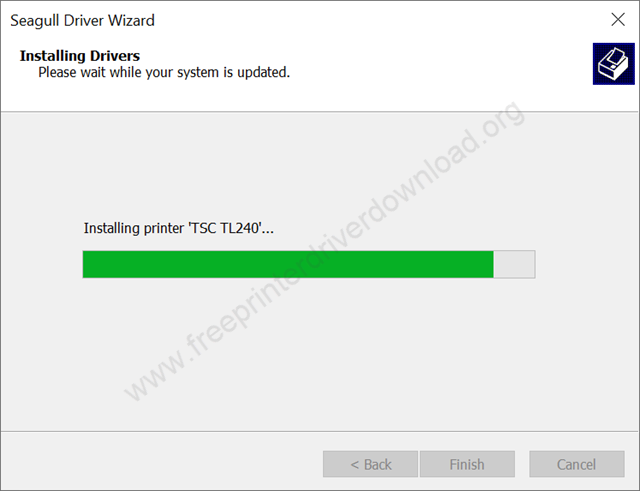
Step 15: Finally, it is installing the driver, so please wait for that.
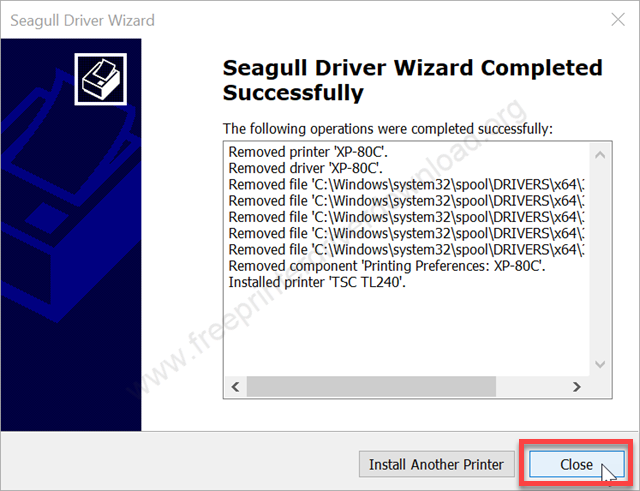
Step 16: As you can see, the printer TSC TL240 has been installed successfully. Click on Close to complete the installation process.
So that is how you can install this TSC TL240 printer on your computer. I have installed this on my Windows 10 computer. You can apply the same driver and same steps for Windows 11, Windows 8 and Windows 7 as well.
TSC TL240 Full Specifications
The model number is TSP TL240. This printer is suitable for shipping, dispatch, inventory, tracking packages, product identification and other labeling jobs. It is a desktop barcode label printer with a print speed of 152 mm per second (6 IPS). The printer has a print resolution of 203 DPI (8 dots per mm).
It can print labels up to 4.25 inches wide and supports a maximum print length of approximately 1,000 inches. TPH Care technology in their printhead helps it to diagnose and repair issues itself smartly.
The operation of this printer is very simple and steady. That’s why this printer is very popular in this category. Most of the POS are using this printer. It has a full-cut cutter, so you don’t have to cut the paper or label. The main highlight feature of this printer is that it has a dual printing technology: the direct-thermal printing and thermal transfer printing, which is very flexible to print receipts and labels.
The dimensions of this printer are 211 mm width, 164 mm height and 279 mm depth. The total weight of this printer is around 2 kg. It can be connected through the USB cable only.
So in this article I have explained how and where to download the TCS TL240 printer driver, and also given the steps on how to install, and given all the specifications of this printer. Hope you like it.