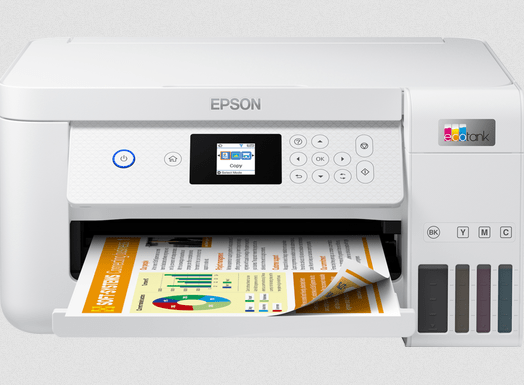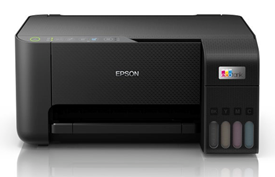
The Epson EcoTank ET-2860 series printer is an A4, color printer that comes with built-in Wi-Fi connectivity. This is a color multifunction printer that can print, scan, and copy documents. You can connect this printer to your computer using either a USB cable or Wi-Fi. However, you must install its driver on your computer before using it.
For your convenience, I have provided the drivers for all supported operating systems below. These are the same drivers available on the printer’s official website.
You can download the driver directly using the download link provided below or visit the official website if you prefer to download it from there.
Download Epson EcoTank ET-2860 Series Printer Driver
To download the et-2860 printer driver, you just need to click on the download link according to the operating system version of your computer.
Driver for Epson EcoTank ET-2860 Printer
Type: Full feature driver Operating System: Windows 11, 10, 8, 8.1, 7, Vista, XP File Size: 2.4 MB Version: 2.3 Download DriverOR
You may download the Epson EcoTank ET-2860 Series driver from Epson’s official website.
How to Install Epson EcoTank ET-2860 Series Printer Driver
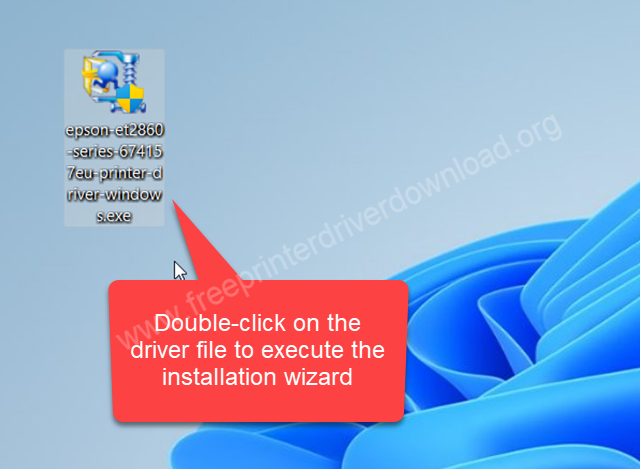
Step 1: Double-click on the driver file “epson-et-2860-series-674157eu-printer-driver-windows.exe” to execute the installation wizard.
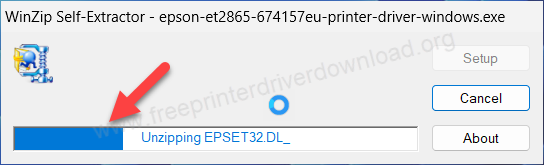
Step 2: It is now unzipping the driver files, so please wait for that and let it be done.
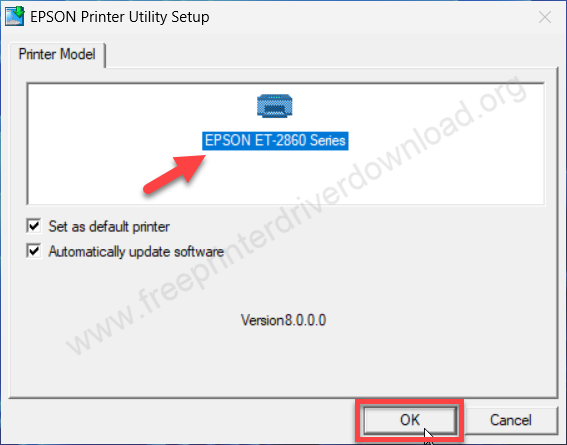
Step 3: Now please select the printer module number Epson ET-2860 series and then click on OK.
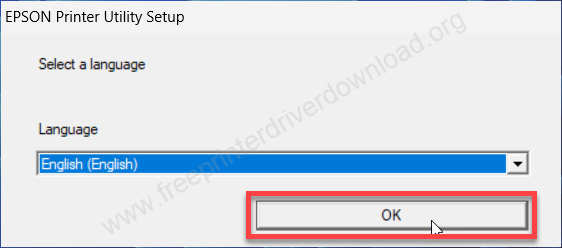
Step 4: Select the preferred language and then click on OK.
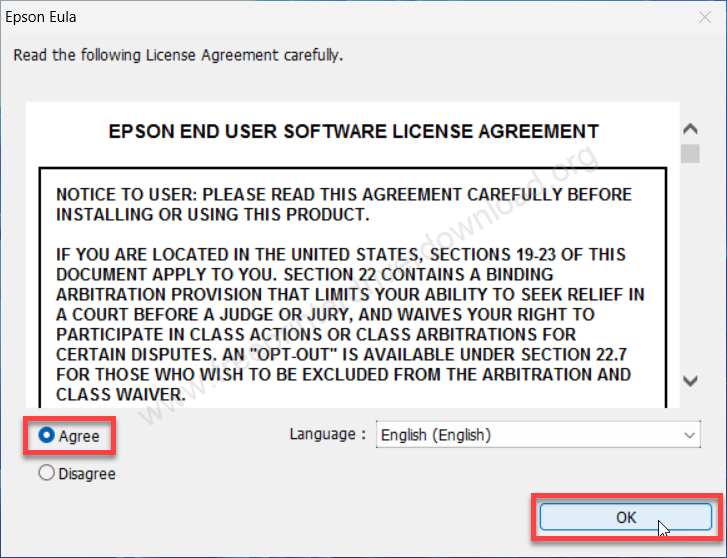
Step 5: Please select the check box “Agree” and then click on OK to accept the license agreement terms and conditions.
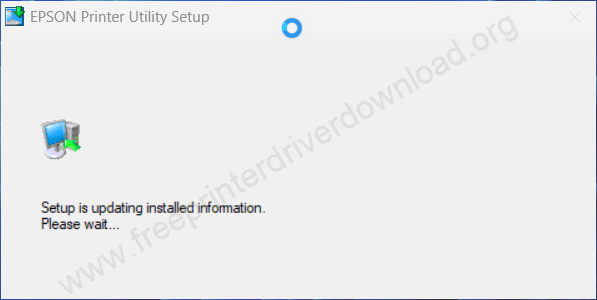
Step 6: It is now installing the driver, so please wait for that.
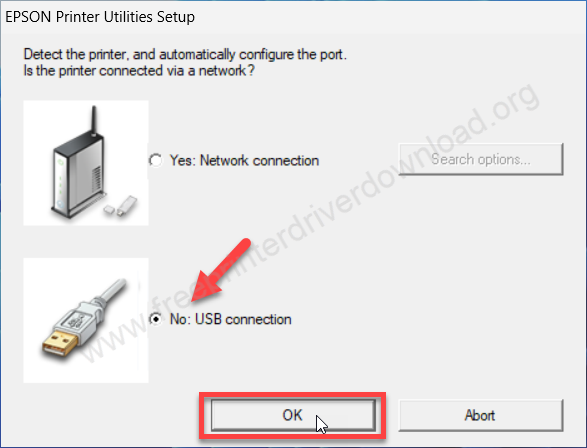
Step 7: It is now configuring the port of the printer – where the printer is connected right now. Please select the preferred connection type, either USB or network connection and then click on OK.
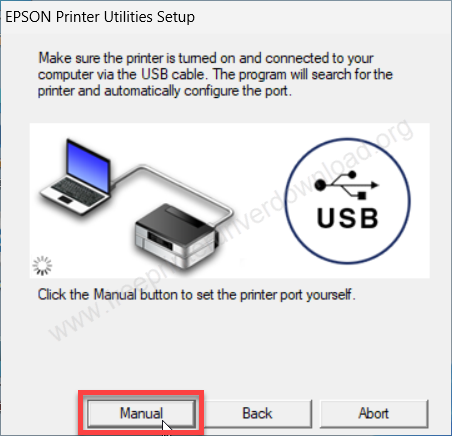
Step 8: Click on Manual button to configure the post manually.
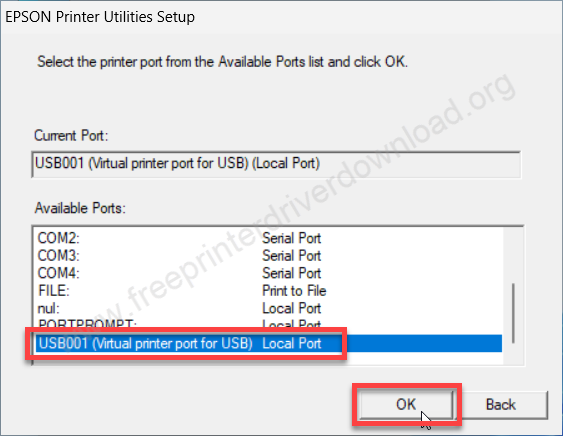
Step 9: Now please select the USB port or network port – where you have connected the printer and then click on OK. If you see your printer model number in the port list, then you can select that one as well. And then click on OK.
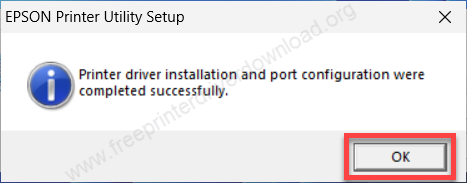
Step 10: It will take a few seconds to configure the port with the drivers. After that it will give you the the message “The printer has been installed successfully”. From there you will need to click on OK to complete the installation process.
How to Install Epson EcoTank ET-2860 Series Scanner Driver
Now it’s time to install the scanner driver. Please go through the following process to set up the scanner.
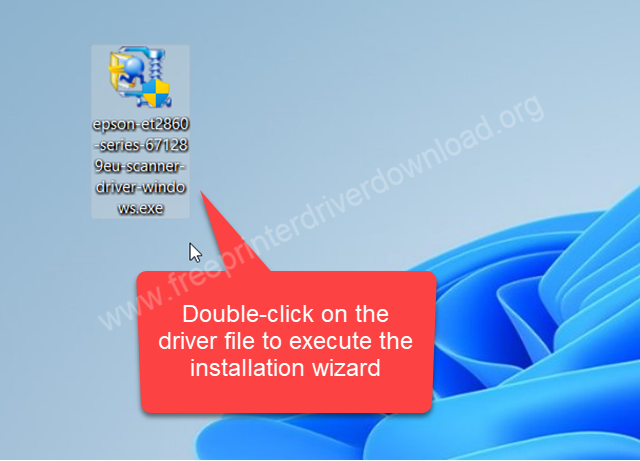
Step 1: Double-click on the driver file “epson-et2860-series-671289eu-scanner-driver-windows.exe” to execute the scanner installation wizard. If you have not downloaded the driver, then you can download the driver from the above given download section. Please download the driver from here and then follow the steps.
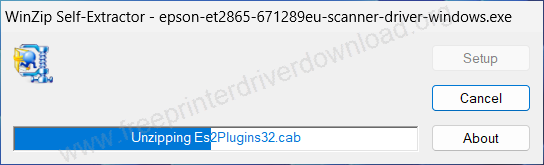
Step 2: It is now extracting the driver files. Please wait for that and let it be done.
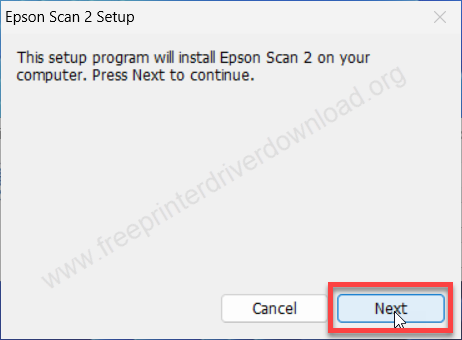
Step 3: Now it is ready to install the drivers, so please click on next to execute it.
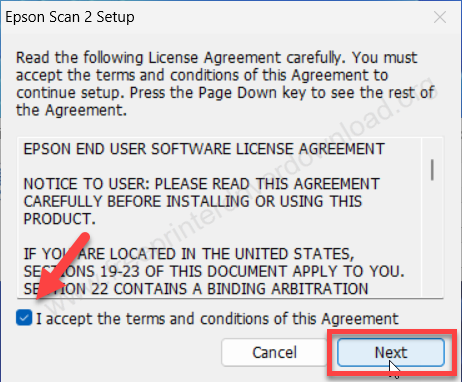
Step 4: Please tick the checkbox “I accept the terms and conditions of this agreement” and then click on next.
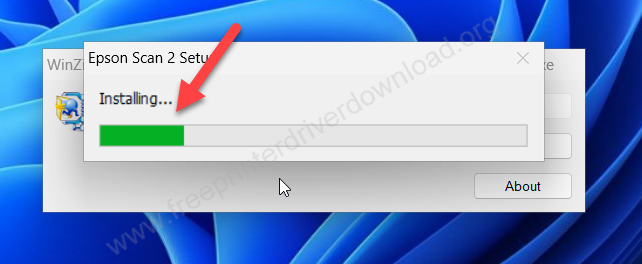
Step 5: It is now installing the scanner drivers. Please wait for that and let it be done.
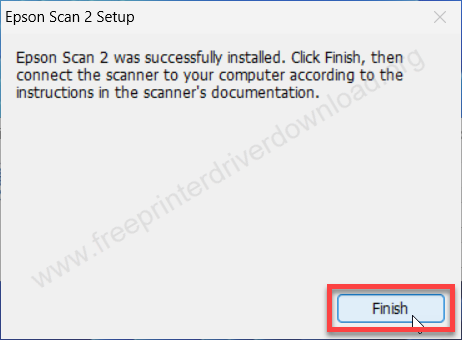
Step 6: You will get a message that says the scanner driver has been installed successfully. You will need to click on Finish to complete the installation process.
Epson EcoTank ET-2860 Series Printer Full Specifications
The print speed of this printer is 33 ppm in black & white, and 15 ppm in color. This printer uses Ink-tank technology which is very efficient. It has four ink-tank black, cyan, magenta and yellow. If it goes empty, you can refill it by buying the ink bottles from the Epson. In one ink-bottle you can print 4500 black & white pages and 7500 in color which is very good. It makes it an economical printer.
It has one inbuilt flatbed scanner with CIS technology along with the 2400 x 1200 DPI resolution. This scanner can scan in PDF, PNG, JPEG and all the supported image formats.
It has only one input paper tray that has 100 pages capacity to hold and the output tray capacity is to hold 30 pages at a time. This printer supports A4, A5, A6 and envelope to print and copy. There is no auto-duplex feature. You will have to do it manually if you want to print on both sides of the paper.
There are three connectivity options: a USB, Wi-Fi through the router and Wi-Fi Direct. You can connect your printer directly to the computer using this Wi-Fi Direct feature. This printer supports all the latest operating systems like Windows 11, Windows Server 2026 Mac 27.x.
This printer works with 220 volt power. The dimensions of this printer are 375 mm in width, 347 mm in depth and 179 mm in height. The total weight of this printer is 3.9 kg.
This is an all in one Wi-Fi color printer that has very economical running cost. Hope you like all the information that I have given on this page. I have given the driver download links, step-by-step installation guide and the full specification of this printer. Hope you like it. Thank you