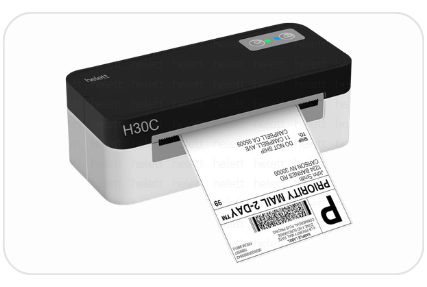
Helett H30C Lite is a label printer with thermal printing technology. This printer is used to print labels for shipping purposes – size of 4×6 inches. This printer has only one USB connectivity option which gives stable connectivity. In order to install this printer on your PC, you will require a driver which you can easily download it from its Helett’s official website or download the same from the download section given below.
After downloading the driver, I suggest you to install it properly by following its step-by-step guide which is also given just beneath the download section. This printer supports: Windows 11, 10, 8, 8.1, 7, Vista, XP (32bit / 64bit), Server 2000 to 2026, Linux, Ubuntu, Mac 10.x, 11.x, 12.x, 13.x, 14.x, 15.x, 26.x Tahoe Operating Systems.
Let’s start the installation process by downloading its driver first. Please follow the following steps:
Download Helett H30C Lite Driver for PC
To download the Helett H30C Lite driver, you just need to know the operating system version of your computer and then click on the below given download link accordingly.
Driver for Windows
Supported OS: Windows 11, 10, 8, 8.1, 7, Vista, XP (32bit / 64bit), Server 2000 to 2026
Full feature driver for Windows 11, 10, 8, 8.1, 7 → Download | Recommended
Driver for Mac OS
Supported OS: Mac 10.x, 11.x, 12.x, 13.x, 14.x, 15.x, 26.x Tahoe
Full feature driver for Mac OS → Download
Driver for Linux
Supported OS: Linux and Ubuntu
Full feature driver for Linux → Download
OR
You may download the Helett H30C Lite driver from Helett’s official website.
How to Install Helett H30C Lite Printer on a PC
In order to install this Helett H30C Lite printer properly on your computer, you just need to follow the following step-by-step installation guide. I have made instructions while installing this printer on my Windows 10 computer, but you can apply the same steps and same driver for your Windows 10, 8 and Windows 7 as well.
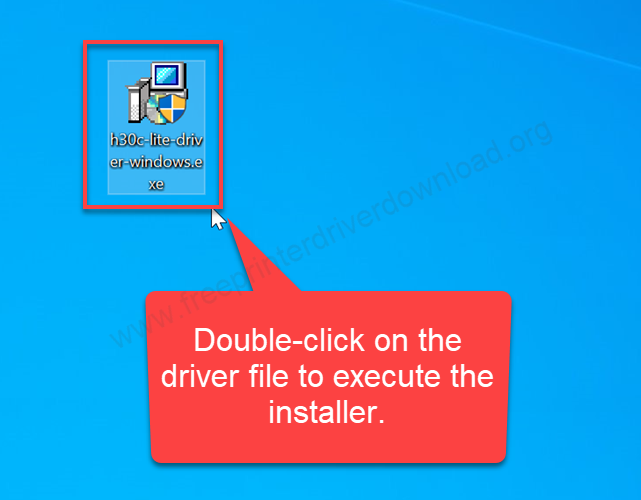
Step 1: Double-click on the driver file “h30c-lite-driver-windows.exe” to execute the installation wizard.
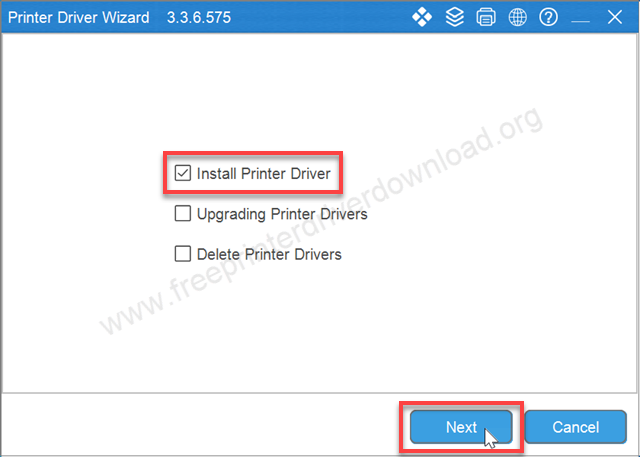
Step 2: Select the “Install Printer Driver” option and click on Next.
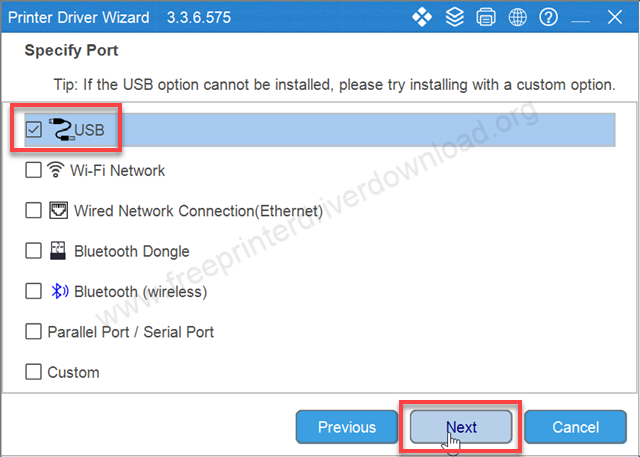
Step 3: Select the preferred connection type and click on Next.
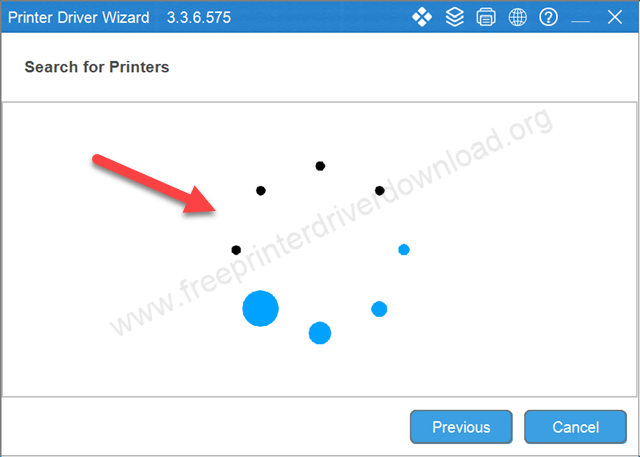
Step 4: It is now searching the Helett printer, so please wait for that and make sure the printer should be connected to the computer.
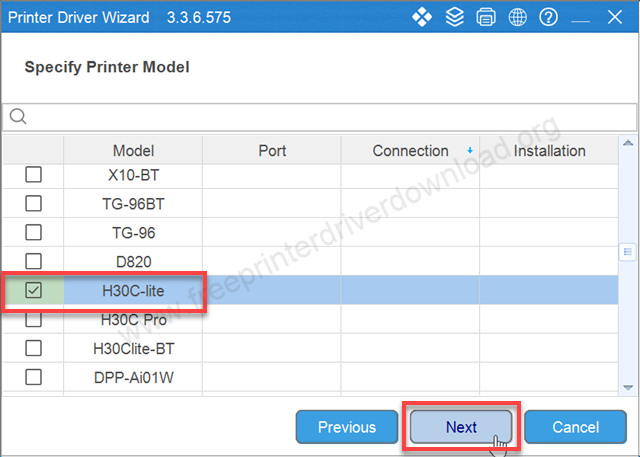
Step 5: Select the H30C-lite model number from the driver list and click on Next.
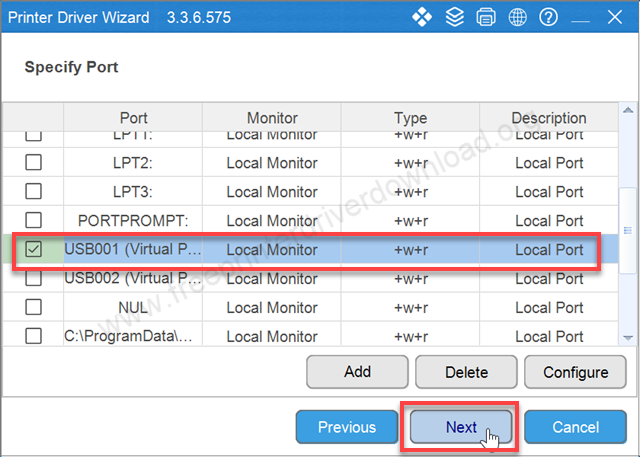
Step 6: Now, please select the port where your printer is connected to the computer. If it is connected through USB cable then please select USB001 and click on Next.
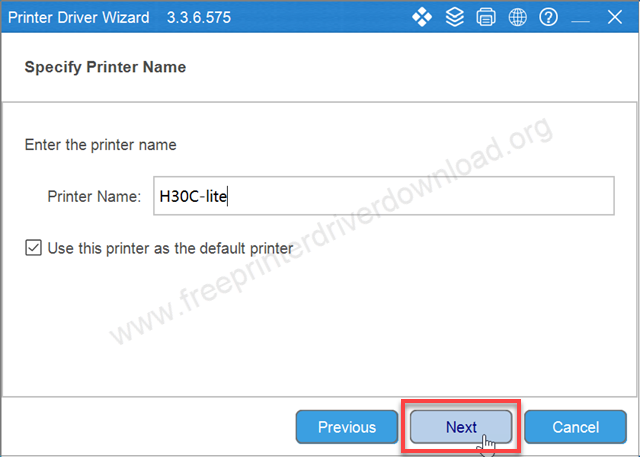
Step 7: Select the “default” option and click on Next.
Step 8: Click on install to the installation process.
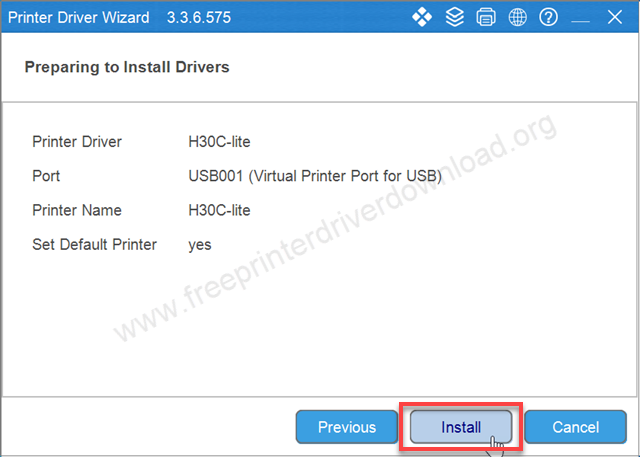
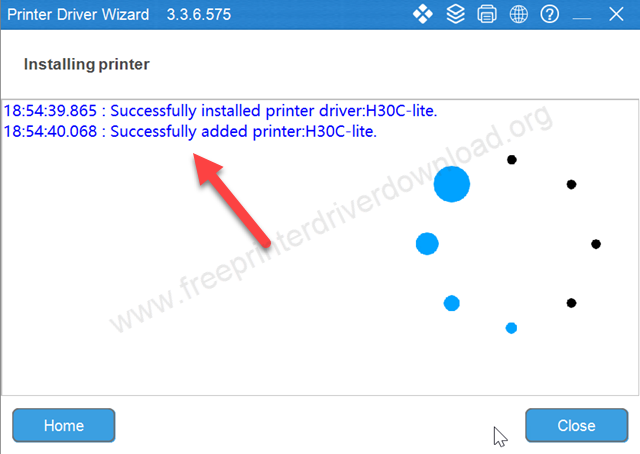
Step 9: The H30C printer is now installing, so please wait for that.
Step 10: The installation process has been completed, click on “close” or you may click on the “print test page” button to check the printer has been installed successfully or not.
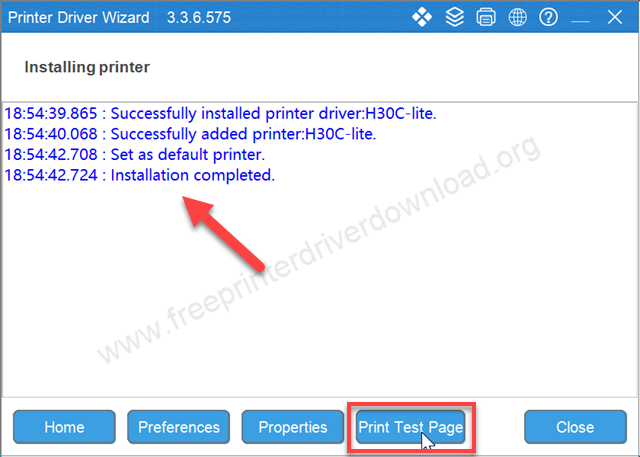
This is how you can install this Helett H30C printer on a Windows 10 computer but you can install it on Windows 11, 8, 8.1 and Windows 7 computer by using the same steps and same drivers.
Helett H30C Quick Specifications
Let’s talk about the quick specifications of Helett H30C printer. This H30C 4 inch Lite printer is a USB monochrome thermal printer. The print speed of this printer is around 6 inches per second (152mm/s) with a resolution of 203dpi which gives you crisp and clear text on the shipping labels.
So this is how I have downloaded and installed this Helett H30C Lite printer on my Windows 10 64bit computer. You can easily install it on your Windows 11, 8, 7 and server editions by following the same steps and same drivers. Hope you liked my efforts.