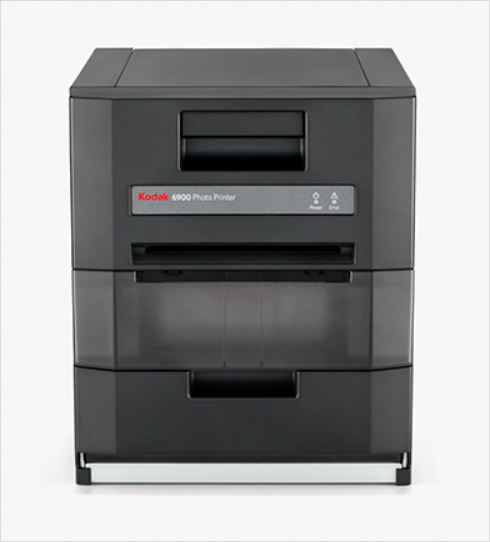
KODAK 6900 is a borderless photo printer that prints photos on glossy and matt finish papers with high quality – almost equivalent to lab quality photos. To give print commands from the computer, you need to install the latest version driver on your computer. And you will get this latest driver from the download section below. After download, the right installation is also very important. I request you to please follow the given instructions carefully. Let’s start the installation process by downloading the drivers first.
Download KODAK 6900 Printer Driver
In order to download the latest version driver, first know the operating system version of your computer and then click on the below given download link accordingly. This printer supports: Windows 11, 10, 8, 8.1, 7, Vista, XP (32bit / 64bit), Server 2000 to 2025, Linux, Ubuntu, Mac OS X 10.x, 11.x, 12.x, 13.x, 14.x and macOS 15 Sequoia, 26.x Tahoe operating systems.
Driver for Kodak 6900 Photo Printer
Type: Full feature driver Operating System: Windows 11, 10, 8, 8.1, 7, Vista, XP (32bit / 64bit), Server 2000 to 2025 File Size: 15.2 MB Version: 1.5 Download DriverOR
Alternatively, you may download the same driver from Kodak’s official website.
How to Install KODAK 6900 Photo Printer in Windows
In order to install the KODAK 6900 printer driver properly on your computer, you just need to follow the following steps carefully. I have installed it on my Windows 10 64bit laptop, you can apply the same steps on Windows 11, 8, 8.1.
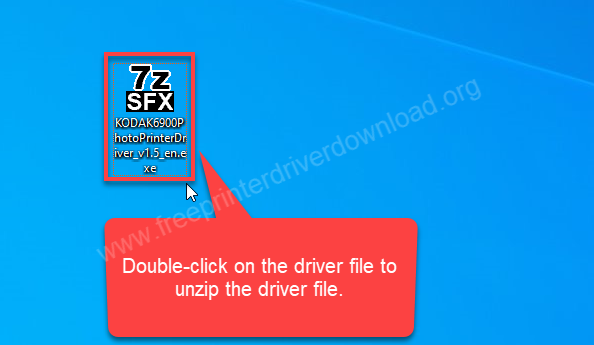
Step 1: Double-click on the driver file “KODAK6900PhotoPRinterDriver_v1.5_en.exe” to unzip all the files into a folder.
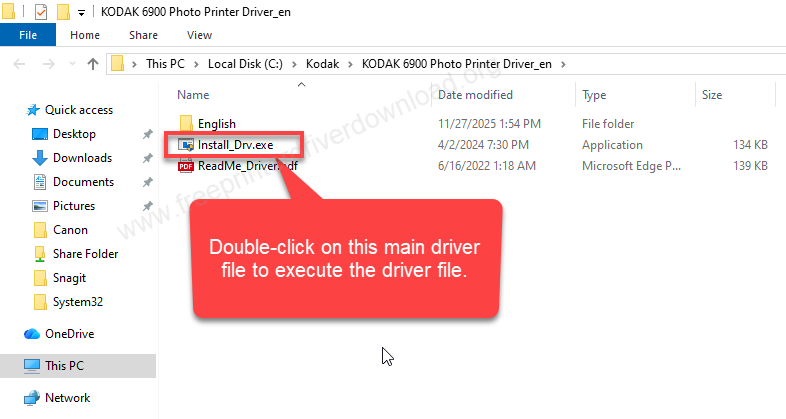
Step 2: Open up the extracted folder and double-click on the driver file “Install_Drv.exe” to execute the auto-installer.
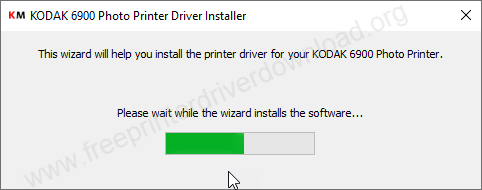
Step 3 It is installing the drivers. So please let it be done.
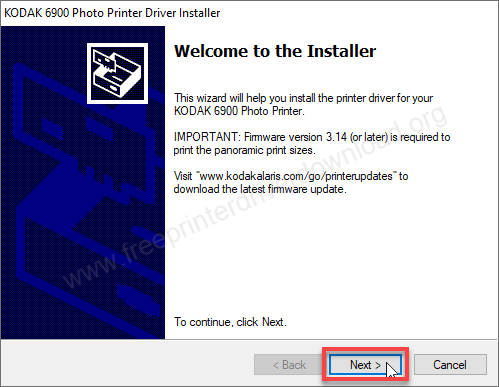
Step 4: Click on Next.
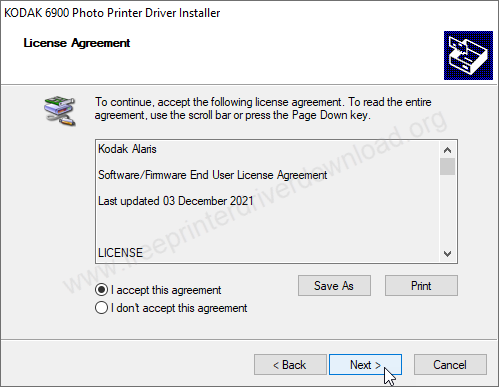
Step 5: Select the option “I accept” and click on Next.
Step 6: Click on Install. If you are not getting this screen, this means your “driver enforcement signature” option from the startup if you are installing it on later Windows 10. Here’s how to disable the driver signature enforcement option: https://youtu.be/LQKg_VTuZCQ.
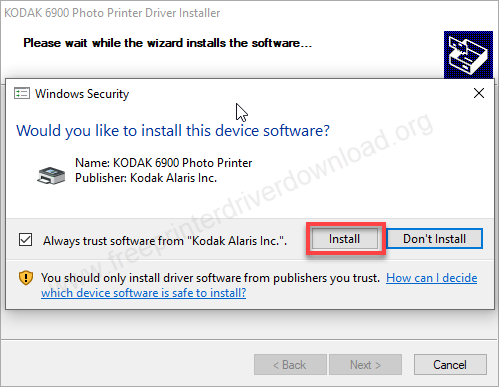
Step 7: The Kodak 6900 printer has been installed successfully. Click on the Finish button to complete the installation process.
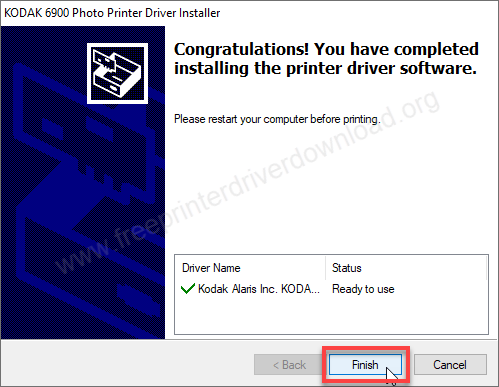
So, this is how you can install this KODAK 6900 printer on your computer by following the same way. I have installed this printer on my Windows 10 64bit laptop, you can apply the same steps for Windows 11, 8,8 .1, 7.
Specifications:
Kodak 6900 is a dye ink sublimation printer. It prints at speeds up to 8.7 seconds on 4×6” photo paper at 300 dpi resolution. If you print in high quality then it takes 18.4 seconds on the glossy and matt finish papers.
This printer supports the following paper sizes: 3.5×5″, 5×5″, 5×7″, 5×10″, 5×15″, 5×20″. The output paper tray can hold up to 750 pages max. The in-out tray uses a paper roll.
This printer connects with the computer only through a USB cable – there is no other connectivity option. The dimesnsion of this printer is : 14” in width, 11” in depth and 15” in height. The total weight of this printer is 17kg. This printer only takes 2.5 amps if you have a 240 volt variant.