Printer Driver Software DownloadPrinter Driver Software Download
  • Home
  • Printer Drivers
    • Brother
    • Canon
    • Dell Printer Drivers
    • Lexmark
    • Samsung
    • Epson
    • Request for Printer Driver & Software
  • Tutorials
  • Printer Troubleshooting
  • Disclaimer
  • Contact us
  • Donate
Font ResizerAa
Printer Driver Software DownloadPrinter Driver Software Download
Font ResizerAa
Search
Follow US
Home > Kodak > Kodak PD6000 Driver Download (Printer Dock Series)
Kodak

Kodak PD6000 Driver Download (Printer Dock Series)

Amit
Last updated: January 6, 2026 10:08 am
By Amit
4 Min Read

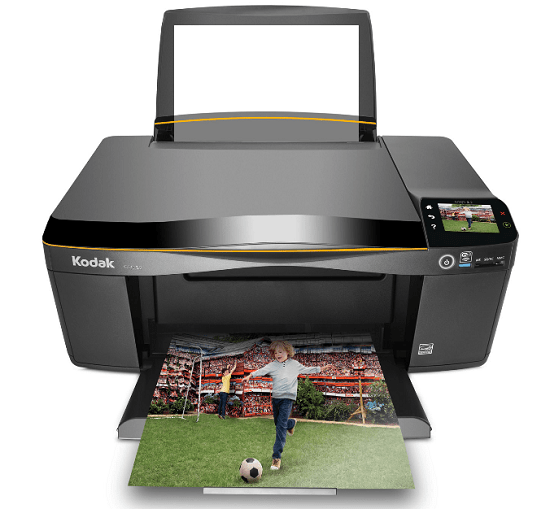
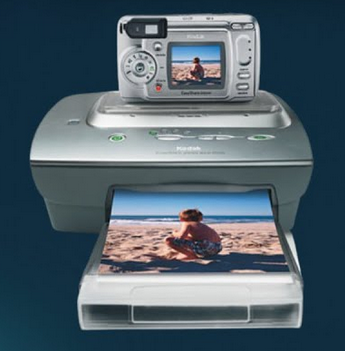
TKodak PD6000 printerhe Kodak PD6000 is a printer dock, which means it’s a compact, portable photo printer capable of instant printing from multiple devices. However, when connecting this printer with your computer you must ensure that the drivers you are using are of the latest version.

In this guide, I am sharing the download links of the latest version driver of this printer, and their detailed installation instructions.

Contents
  • Download Kodak PD6000 Drivers
  • Kodak PD6000 Driver for Windows
  • Driver for Mac
  • Driver for Linux
  • How To Install Kodak PD6000 Driver
  • More details about the drivers

Download Kodak PD6000 Drivers

  • Locate your OS version.
  • Click on its download button.

Kodak PD6000 Driver for Windows

Basic printer driver for Windows XP, Vista, 7, 8, 8.1, 10, 11 (32, 64-bit)
Download (32, 64-bit)
File Name: kodak-pd-6000-printer-inf-driver-windows.zip
Size:
2.40 MB
Version: 5.3.0
Type: Basic driver
Language: English
Driver Pack Contains: Printer driver

Printer driver for Windows Server 2003, 2008, 2012, 2016. 2019, 2022, 2025 (32, 64-bit)
Download

- Advertisement -

Driver for Mac

Printer driver for macOS All Versions
Download

Driver for Linux

Printer driver for Linux/Ubuntu
Download

OR

Download the driver directly from the Kodak PD6000 official website.

How To Install Kodak PD6000 Driver

Follow the steps given below to download and install the latest Kodak PD6000 printer dock drivers:

Step 1: Find the Driver

  • You will find the latest drivers on Kodak website or in the downloads section of this guide.
  • In the Kodak website, visit the downloads/support page.
  • Enter the name of your printer (PD6000), then select your OS version.

Step 2: Download the Driver

  • Click on the download link related to your preferred printer driver.
  • Wait for the driver download to complete.

Step 3: Install the Driver

  • Go to the folder where driver zip file is downloaded (usually in the downloads folder), and unzip the content of the downloaded file.
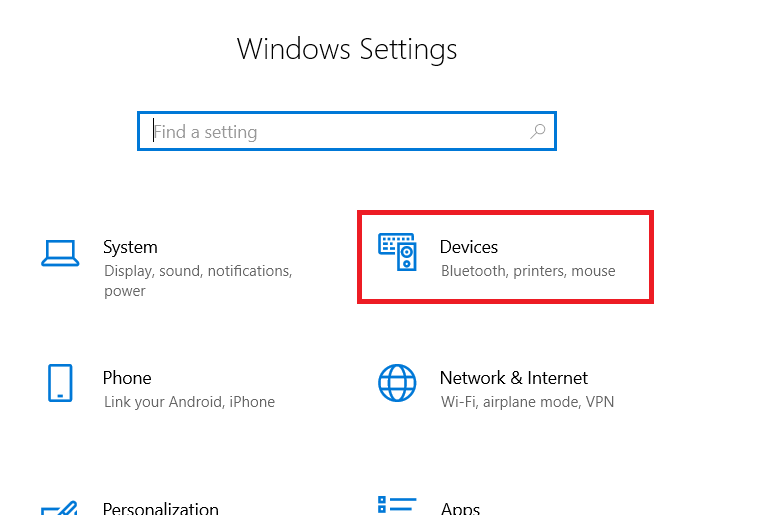
  • Click ‘Menu’, choose ‘Settings’, then select ‘Devices’ option.select devices option
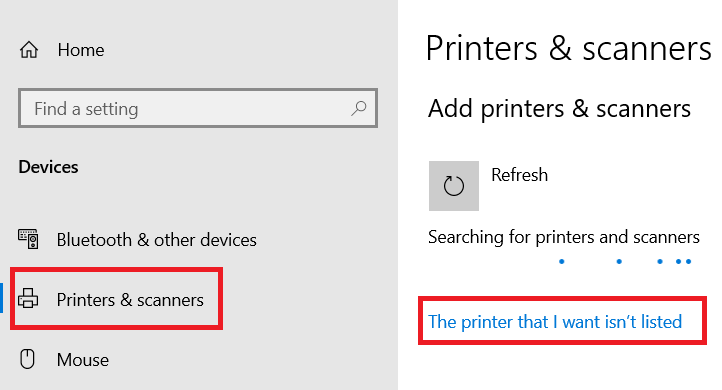
  • In Devices page, choose ‘Printers & scanners’, then click ‘Add a printer or scanners’ option, finally click on the ‘The printer that I want isn’t listed’ link.select printers and scanner option

Step 4: Connect the Printer

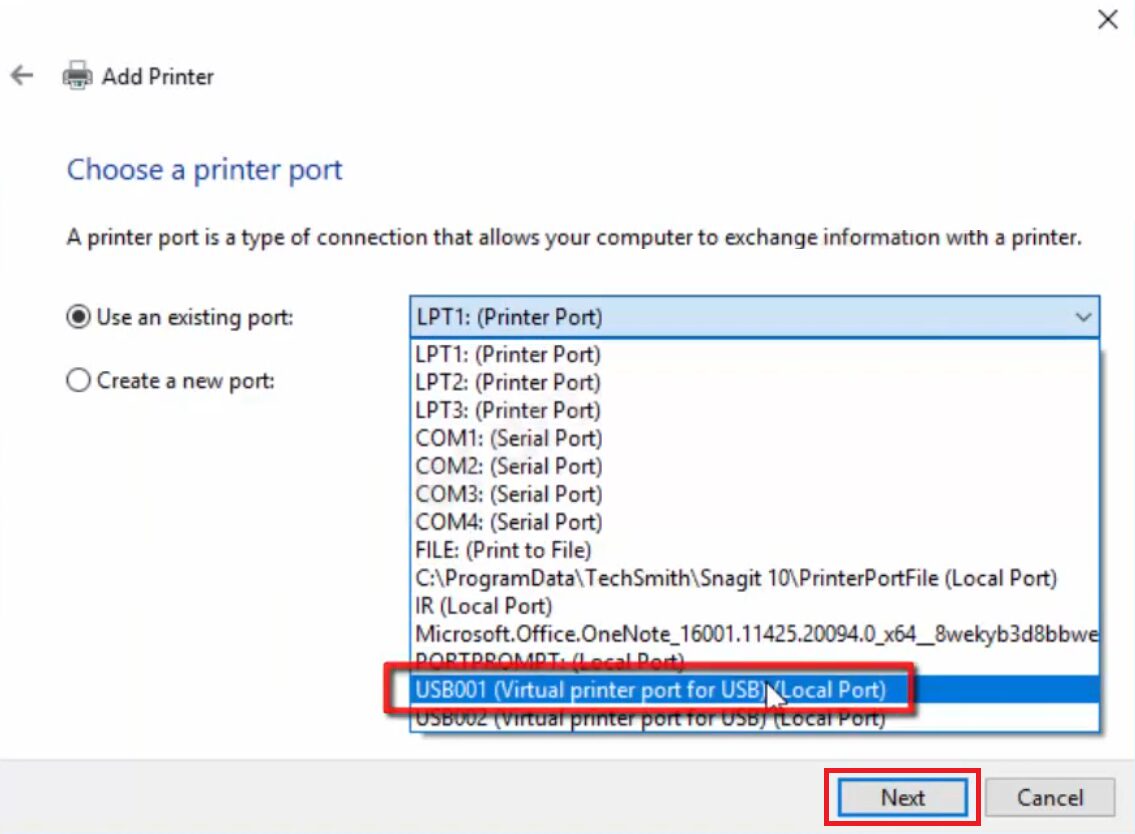
  • Proceed with ‘Add a local printer’ option, then choose ‘USB’ port and click ‘Next’.USB port connectivity option
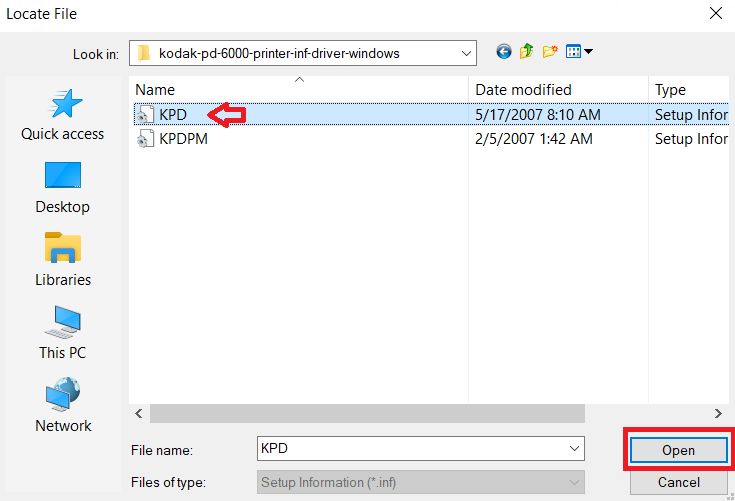
  • Ensure printer is connected to computer’s USB port, click on ‘Have Disk’ button, in the Browse window, find and choose the ‘KPD’ inf file from the driver folder, then click ‘Open’.select KPD inf file
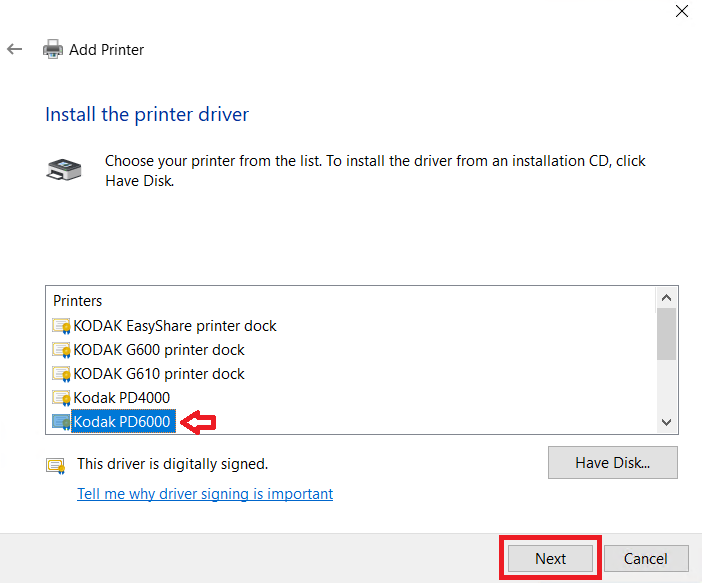
  • Select ‘Kodak PD6000’ model, then click on ‘Next’.select Kodak PD6000 printer model
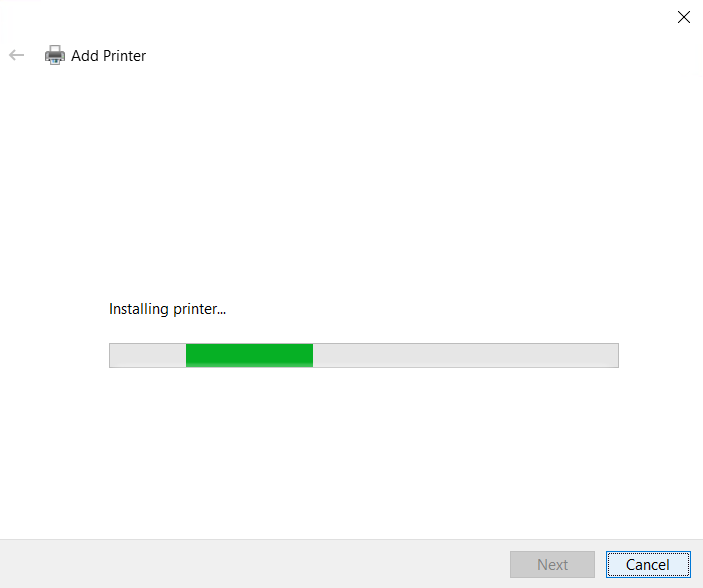
  • Proceed by selecting your preferred options, then wait for the driver installation to finish.wait for installation to complete

More information about installation:

  • How to install the printer driver with its installer
  • How to install the printer driver manually using its basic driver

That’s it, you have successfully installed your Kodak PD6000 printer.

More details about the drivers

Hardware Name: PD6000
Hardware ID: NA
Connection Type: USB, Serial (optional) connection
Installer Type: Setup File (without Installer)

Driver Compatibility

This Kodak printer dock is compatible with Windows XP or later OS versions, but doesn’t support any Server OS version. As for macOS, this printer supports macOS 10.3 to 10.6 OS versions, but not its later OS versions. Also, this printer doesn’t support Linux/Ubuntu operating system.

Driver Update

The latest version of a printer driver is released after removing all the bugs which were found in its previous versions. Therefore, when you update your printer driver with its latest version you make sure that your printer is running on its most stable support software.

Supported Operating Systems

Windows XP, Vista, 7, 8, 8.1, 10, 11 (32, 64-bit)
Mac OS 10.x, 11.x, 12.x, 13.x, 14.x, 15.x, 26.x.


ByAmit
Hi, my name is Amit. I am a computer expert and love to fix printer related issues. I do share my experience on this website. If you like my efforts, please subscribe to my Youtube channel to get updated with the new tech things.
Leave a Comment

Leave a Reply Cancel reply

Your email address will not be published. Required fields are marked *

Donate

Useful Links

How to find my printer model number?
How to check my Windows OS version?
Is my Windows 32bit or 64bit?
Printer Diagnostic & Repair Tools
Printer Driver Request

Tech News

1) Apple has just released macOS 15: Sequoia (Glow) on September 18, 2024. The latest drivers are already updated on their download page, please check the download page to download the drivers for maOS 15.2. Read More. January 07, 2025

2) Finally, Microsoft released Windows 11 (24H2) on December 2024. The drivers on this website are being updated according to the latest version; this will be done shortly. You can start downloading the driver from its download page. January 06, 2025

Printer Driver Installation Tips

  • - Always run the printer setup from the CD that came with the printer or downloaded from the official website in order to avoid potential errors and incompatibility issues.
  • - Never plug the printer USB cable to computer during the installation process unless prompted by the installer.
  • - Use only the USB cable that came with the printer
  • - Remove all other previous versions of printer drivers to avoid driver conflicts.
  • - Carefully install the printer cartridges first and then proceed with adding paper to the tray.
  • - Always restart your computer for the driver installation process to be fully completed.

Disclaimer

We are an independent website and is not associated with any brand unless specified. All brand names, trademarks, images used on this website are for reference only, and they belongs to their respective owners. We disclaim any ownership, rights of such third-party products or copyright material unless otherwise specified. We also do not provide any kind of paid support. If you have any question feel free to contact us. Read our full disclaimer.


Donate
Donate

You Might Also Like

kodak easyshare g600 printer dock
Kodak

Kodak EasyShare G600 Dock Printer Driver Download – Compact Photo Printer

July 5, 2025
Kodak Hero 4.2 Driver
Kodak

Kodak Hero 4.2 Driver Download (AIO Office Printer)

November 10, 2024
kodak 6900 printer
Kodak

KODAK 6900 Photo Printer Driver Download & Installation

November 27, 2025
Kodak Easyshare AIO 5300 Driver
Kodak

Kodak Easyshare AIO 5300 Driver Download (Basic Driver)

May 10, 2023
All rights reserved. Free Printer Driver Download (freeprinterdriverdownload.org)
  • Home
  • About us
  • Privacy Policy
  • Contact us
  • Disclaimer

Ask Question

Ask a question about your printer problem and we'll be happy to answer your query within 24 hours. It's completely FREE.
If this form is not working properly then please report it here.

adbanner
Welcome Back!

Sign in to your account

Username or Email Address
Password

Lost your password?