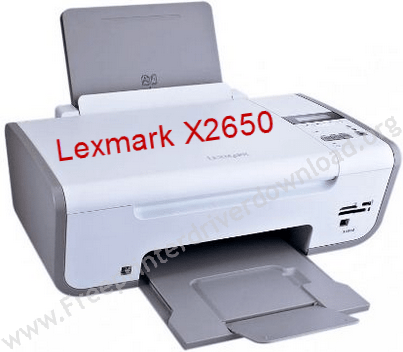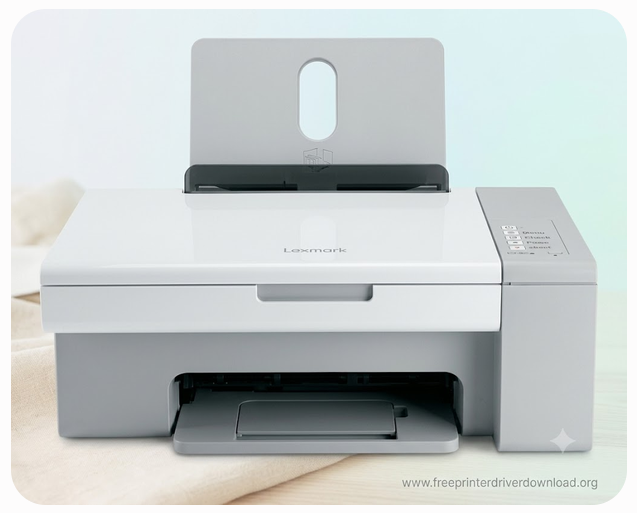
Lexmark x2580 is an all-in-one inkjet color printer with lot more functionality. To use all its functionality, you just need to install its driver on your computer and then you can able fully utilise all its features and give print, copy and scan commands from your computer.
I have made this page to help users who want to install Lexmark x2580 printer driver on Windows 11, 10, 8, 8.1 and Windows 7 operating systems. To download the driver, simply go to the below given download section and download the driver according to the operating system version you have. After that, don’t forget to read the step-by-step installation guide which will help you to setup the printer on a computer. So let’s start the installation process by downloading the drivers first.
Download Lexmark x2580 Printer Driver for Windows / Linux / Mac
To install the Lexmark X2580 printer on a computer, you need its driver the see how to install it. First, we will download the printer driver. Here’s how to download it: click the download button shown below that matches your computer’s operating system version.
Full Feature driver for Windows XP, Vista: Download 32bit / Download 64bit
Full Feature driver for Windows 7: Download 32bit / Download 64bit
Full Feature driver for Windows 11, 10, 8, 8.1: Download 32bit / Download 64bit
Full Feature driver for Mac OS 10.x, 11.x, 12.x, 13.x, 14.x, 15.x, 26.x: Not Available
Full Feature driver for Linux 32bit / 64bit: Not Available
OR
You may download the driver from Lexmark x2580 from its Lexmark’s official website.
How to Install Lexmark x2580 Printer on a PC
To setup this x2580 printer on a computer, you must know the correct method. In this how-to install section, I have prepared a step-by-step guide which will surely help you to setup this printer. Please follow the following steps:
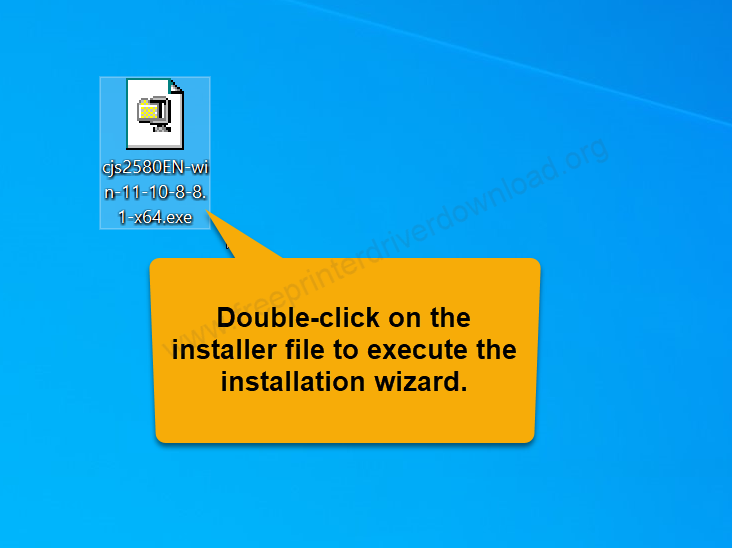
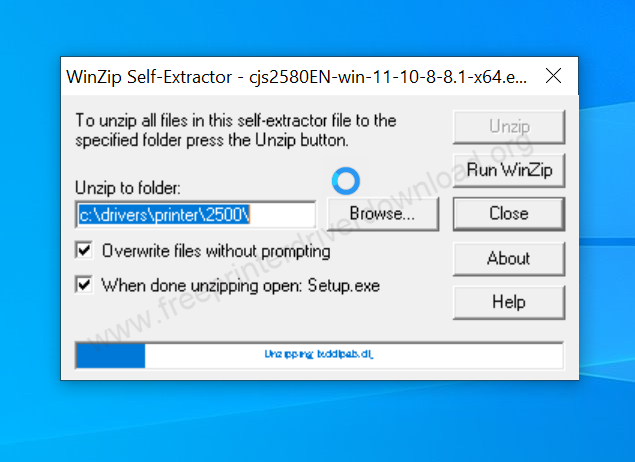
Step 1: Double-click on the driver installer (cjs2580en-win-11-10-8-8.1-x64.exe) to execute the installation wizard.
Step 2: Please wait while extracting the drivers. It will be automatic redirected when it is done.
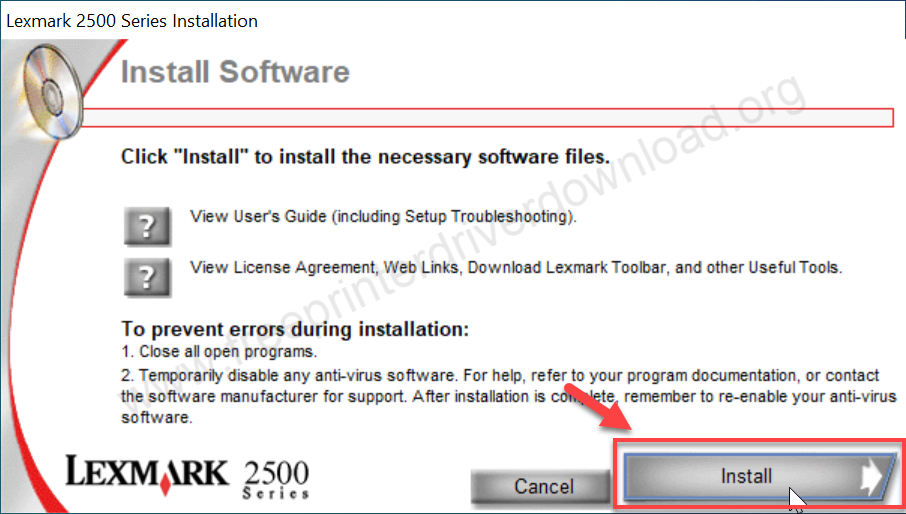
Step 3: Installation wizard has been executed, click on install button.
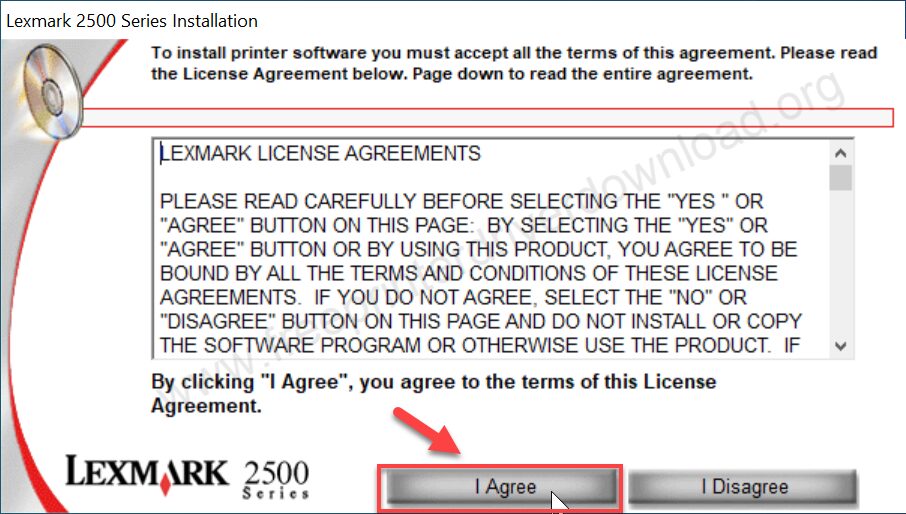
Step 4: Click on “I agree” to accept the license agreement.
Step 5: Click on continue to allow the firewall and software protection to access it. After that,
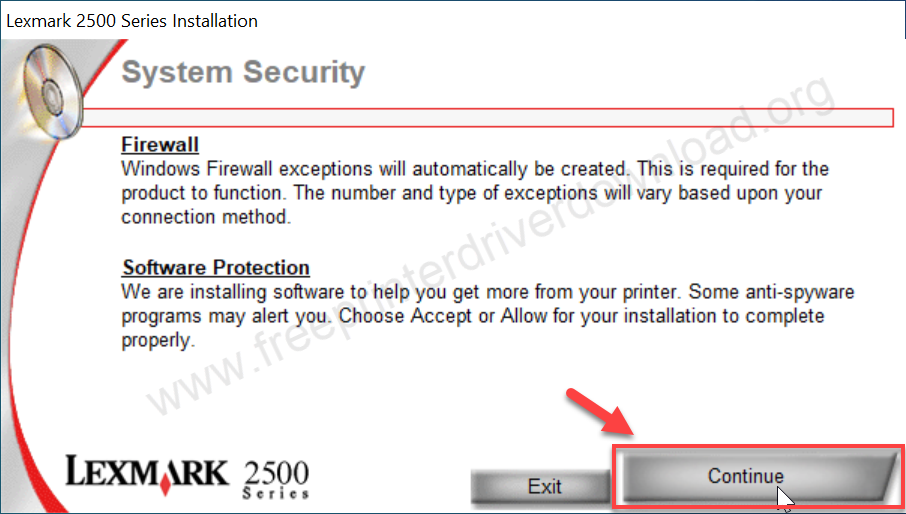
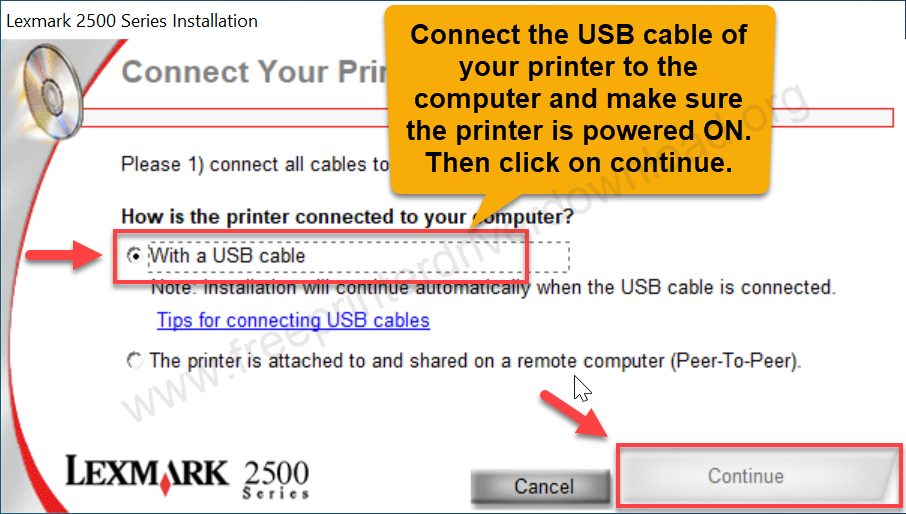
Step 6: Now, please connect the USB cable of your printer to the computer. Click on continue. After that, the printer will be installed successfully.
Specifications & Features
The X series from Lexmark is known for its all-in-one printers. The X2580 is an all-in-one printer that can print, scan and copy in black and white and in color. This printer can print normal documents and also print high quality photos, which would be borderless printing.
The inkjet technology using ink cartridges which are ideal for normal office work printing. The print speed of this printer is around 22 pages per minute in black & white and 16 pages per minute in color at 4800 x 1200 DPI resolution which is very rarely seen in inkjet printers.
It has a flatbed scanner with 600 x 1200 PPI optical resolution. The color depth of this printer is 36bits in color and 12bits in black and & white. You can scan documents like books, single color and black & white pages and photos etc.
One more feature it has is the ability to copy from the printer itself without using a computer. This means you can use it like a copier at your home and office – you can copy the document by touching a button on the printer. You can make 99 copies at once and then make the copy smaller or enlarge it by 25% to 400%.
The x2580 is design to print photos very well because it supports borderless printing on 4”x6” or 5”x7” photo paper. This printer can give you 4800 x 1200 DPI resolution printing to give you maximum print quality. Yes, the speed of the printer is less than usual but you will get the best quality photo prints.
This printer supports Windows 11, 10, 8, 8.1, 7, Vista, XP (32bit / 64bit), Server 2000 to 2025, Linux, Ubuntu, Mac 10.x, 11.x, 12.x, 13.x, 14.x, macOS 15 Sequoia, 26.x Tahoe Operating Systems. The provided full feature drivers include drivers, OCR software, Image studio software and other tools. You may download the driver & software from the above given download section.
So, here I have explained how and where to download the x2580 driver and a step-by-step guide on how to install it and all the information about this printer. Hope you like this info.