

The Mantra MFS100 driver download guide has been especially prepared for users who are looking to download the latest driver package for this Mantra MFS100 fingerprint scanning device. There are not many places on the internet where you will find an authentic, original and official Mantra MFS100 v54 driver with such ease. Please read this guide carefully and you will find a lot of information which is useful for the proper installation and handling of this fingerprint scanner.
On this page, we are sharing Mantra MFS100 driver download links for Windows, Linux, Ubuntu, Android and Mac operating systems. Whether you already have the Mantra MFS100 driver CD with you or you lost it (misplaced or were unable to access its content). It matters that you can safely install the Mantra MFS100 software package shared below on this page.
Steps to download Mantra MFS100 driver
You are just one click away from downloading your Mantra MFS100 driver setup file. We are providing an executable version of the driver which after download can be installed easily.
- Find the version of the operating system running on the computer where you want to install your Mantra MFS100 device (v54 Biomatric Machine).
- Select the OS version from our list and click on the associated download button to start the download of your full version of the Mantra MFS100 driver file.
Drivers List
- Mantra MFS100 driver for Windows XP (32, 64-bit) → Download
- Mantra MFS100 driver for Windows Vista (32, 64-bit) → Download
- Mantra MFS100 driver for Windows 7 (32, 64-bit) → Download
- Mantra MFS100 driver for Windows 8, 8.1 (32, 64-bit) → Download
- Mantra MFS100 driver for Windows 10 (32, 64-bit) → Download
- Mantra MFS100 driver for Windows 11 (32, 64-bit) → Download
Check out this set up guide1 / set up guide 2 (User manual) that will help you install mantra mfs100 on your computer. - Mantra MFS100 driver for Server 2003, 2008, 2012 (32, 64-bit) → Download
- Mantra MFS100 driver for Server 2016, 2019, 2022 (32, 64-bit) → Download
- Mantra MFS 100 driver for Windows Mobile → Download
- Mantra MFS 100 driver for Android Phone → Not Available
- Mantra MFS 100 driver for Mac OS X v10.x, 11.x, 12.x, 13.x → Not Available
- Mantra MFS 100 driver for Linux and Ubuntu (32, 64-bit) – Download
OR
- Download the above driver directly from the Mantra MFS100 official website.
How to install Mantra MFS100 Driver on Windows
Proper functioning of the Mantra MFS100 is important for the security of your establishment. Therefore, you must install the Mantra MFS100 driver downloaded from this page in the right way so that you can avoid any future malfunction of this fingerprint scanner due to its improper installation. For this reason, we are providing a driver installation guide below, which describes in detail the steps to install your Mantra MFS100 driver on various operating systems. Please remember that any mistake in the installation of this device can have serious implications so you must follow the installation process carefully to avoid any future complications.
Steps:
- Download the driver from the above download section.
- After downloading, double click on the downloaded file to execute the driver installation.
- User account control will ask you to allow it to run the installer, click on yes.

- Click on install.
- MFS100 will start installing. Waiting for its next instructions.

- Installer will confirm from you that you accept to install the non-digitally signed driver on your computer, click on Install. If you install it on Windows 10 then maybe it’s possible that this message will come and it will give you a “stop installing” error message here. To fix this issue, we suggest that you disable the driver signature enforcement option and then reinstall it again from the beginning.
- Once it’s all done, click on Finish.
- After it is finished, this driver and its software have been installed successfully and its application will start in front of you.
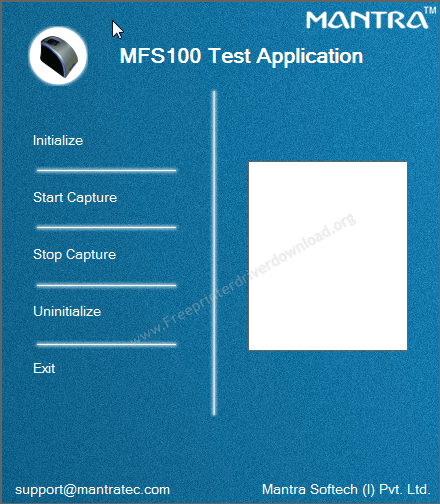
Biometric Fingerprint Scanner is a reliable and safe device which you can use for security. Also, using a fingerprint scanner or reader is not as vulnerable to fraud as password security or any other conventional security feature. Therefore, Mantra MFS100 Biometric Fingerprint is preferred by many users as a reliable security option. While installing this fingerprint scanner is really simple, but some users have doubts regarding its installation on an Android device. So, in this installation guide, we will clear all the doubts about how to install Mantra MFS100 Biometric Fingerprint into Android phone.
How to Install Mantra MFS100 on Android Phone
To install Mantra MFS100 on Android phone you will have to perform a few steps in the order mentioned below. Mantra MFS100 Driver for Android.
- Activate OTG feature in your phone
- Install Mantra RD Services app
- Install Mantra Management Client app
- Configure Mantra MFS100 Biometric Fingerprint Scanner
Steps
A. Activate OTG Feature in your Andriod phone
OTG or USB OTG is the USB On-The-Go feature in your smartphone that allows other USB devices to be attached to your smartphone. Therefore, this feature must be activated on your phone before you start the installation of Mantra MFS100 scanner.
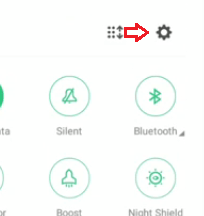
1. Open ‘Settings’ option in your smartphone.
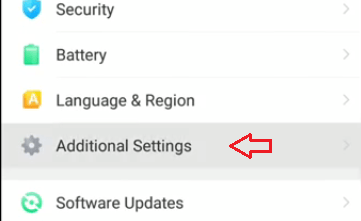
2. Tap on ‘Additional Settings’.
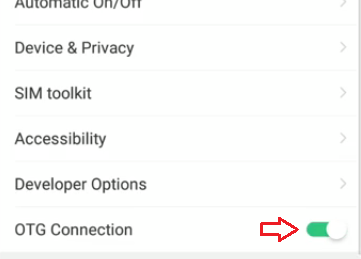
3. Enable ‘OTG Connection’ option. If it’s already enabled, then don’t make any changes.
B. Install Mantra RD Services app
Mantra RD (Registered Device) Service is an app you must install on your phone to enable the biometric based aadhaar authentication. This app is release by Mantra Softech India Pvt. Ltd. and can be installed by executing following steps.
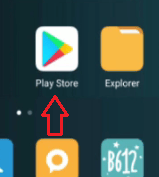
1. Go to Google ‘Play Store’.
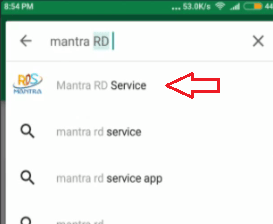
2. Search ‘Mantra RD Service’ and tap on the first search result.
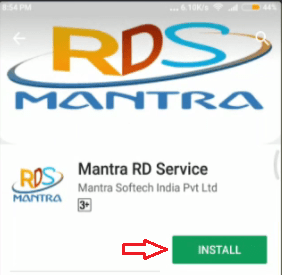
3. In this screen, tap on ‘Install’ option.
4. Your permission may be asked to install the app. Tap on ‘Accept’. If no permission is asked, then move to Step 5.

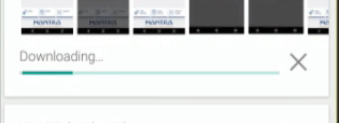
5. Wait for the download and installation of the app.
C. Install Mantra Management Client app
Now you have to install Mantra Management Client app on your phone. This is a service for client device, which converts a public device into aadhaar registered device. This service is supposed to be used with Mantra RD Service you installed earlier.
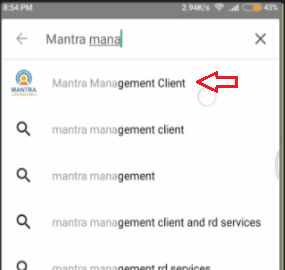
1. Go back to Google Play Store, search for ‘Mantra Management Client’ and select the first search result.
2. Tap on ‘Install’ option.
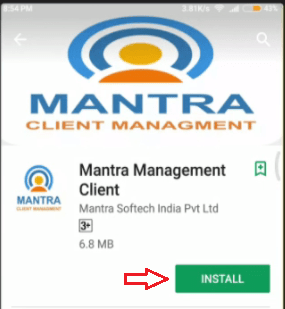
3. If prompted for permission, then tap on ‘Accept’, otherwise go to step 4.
4. Wait for download and completion of app installation.
D. Configure Mantra MFS100 Biometric Fingerprint Scanner
Configuring Mantra MFS100 device is really easy just follow the steps given below in their exact order.
1. After completion of ‘Mantra Management Client’ installation tap on ‘OPEN’ to run this app.

2. On top you will see 3 options. You should see ‘Internet available’ and ‘Management server reachable’. Third option should say ‘Device not connected’.
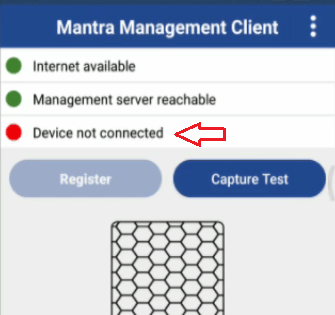
3. Now, connect Mantra MFS100 device. You will be asked for the permission to connect the USB device. Tap on ‘OK’.
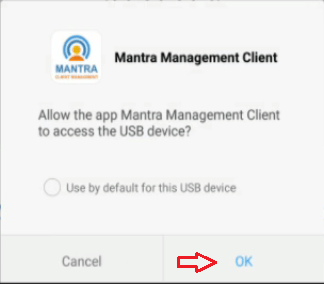
4. After some time you will see the message ’Device is ready to used’.

5. You should see ‘Registered device connected’. Tap on ‘Capture Test’. After you tap on ‘Capture Test’ the red light in your Mantra MFS100 device will start to glow, then you should keep your thumb or finger on your device for capture test.
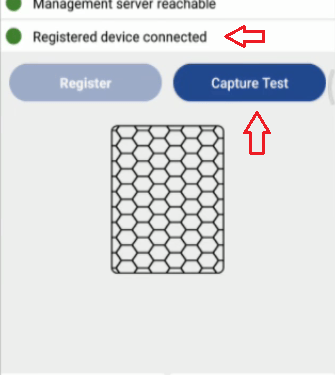
6. You will see the fingerprint in the capture box and a message will be displayed stating ‘Capture Success’.

That’s it. This completes the installation and configuring of Mantra MFS100 fingerprint scanner into Android phone.
Now you know how to install Mantra MFS100 biometric fingerprint into Android phone. One of the most prominent benefits of Mantra MFS100 Fingerprint Scanner is its ease of use. Also, this device is authorized by UIDAI for Aadhaar verification.
Driver Compatibility
Mantra MFS 100 is a device used for the verification, identification and authentication of individuals at various security check points. Therefore, while installing this device you must ensure that the driver you are using is fully compatible with this device and the operating system installed on your computer. The only place you can be sure of getting such a fully featured Mantra MFS100 driver is the official Mantra website. Therefore, its driver download links you will find on this page that allows you to download the driver of this device directly from the official Mantra website. All the drivers on this page are genuine and fully compatible with their respective operating systems.
Why Download From Here
As stated above, the compatibility of the Mantra MFS100 driver is important for the proper functioning of this fingerprint scanner, and also for all our drivers to download links given here access to their official Mantra MFS100 driver.
On the official Mantra site, you will have to fill out a captcha form and then select from multiple options the right driver of this device. However, on this site we have saved you from all this trouble as you can directly download your preferred driver by clicking on its download link just in one click. Therefore, by downloading from this site you get the original Mantra MFS100 driver by spending less of your time and effort.
Software of Mantra MFS100
Mantra MFS100 is a biometric innovation which can perform fingerprint scanning with high levels of accuracy and great ease. The application of this fingerprint scanner can be useful for a wide range of commercial and office establishments. You can install this scanner to secure your computer network from unwanted users.
Another application is for allowing or denying entries using a smart card. The scanner is widely used in the health and medical industries as the last line of security. It is currently being used to verify Adhaar’s card as well. Clearance of popular applications for the device includes time and attendance systems for UIDAI authorization, AFIS, groupware and at e-commerce establishments.
Supported Operating Systems
Windows 10, 8, 7, Vista, XP 32-bit or 64-bit
Windows Mobile
Android Phone
Linux, Linux.
Specifications
- Function: Biometric Fingerprint Scanner
- Generic Type: Portable Scanner
- Fingerprint Sensor: Hard Optical Sensor with Scratch Free Surface
- Sensor Resolution: 500 dots per inch/256 gray
- Rejection Rate: Lowest False Rejection Rate (FRR)
- Acceptance Rate: Lowest False Acceptance Rate (FAR)
- Connection Interface: USB 2.0
- Batch Scanning: No
- Quality Standards: ISO19794-2, ANSI-378
Mantra MFS100 Features
The Mantra MFS100 is a fingerprint scanning device which is used for authentication and identification through fingerprints. As a fingerprint reader, this biometric device has been designed to deliver superior precision, execution and toughness as a fingerprint reader. With the help of this device you can save yourself from the hassles of remembering passwords or codes and also secure yourself from the vulnerability of fraud and theft.
This scanner is safe to install and easy to operate at any commercial or business establishment. The device is fitted with a 500 dpi optical fingerprint scanner.
You can connect this device using its USB port and a USB cable, and for accessing its functions you can use the biometric software provided by the Mantra Softech. Once installed, this scanner is capable of acting like a computerized password to verify, identify and authenticate individuals.
The best thing about this type of security option is that you don’t have to worry about misplacing or forgetting your passwords or security codes. This fingerprint scanner is STQC certified and is made from a high quality hard optical sensor that is completely scratch-proof, impact resistant, and can withstand electrostatic shocks and vibrations.
Accessories
This is a standalone fingerprint reader or scanner and doesn’t come with any other additional accessories or add-ons.
FAQs

Q: We have installed it but the proxy setting to configure it is not understood
A: To set up the proxy settings properly, see this video tutorial: https://youtu.be/3fOrdb_EonU
Q: Sir/Madam, is there any other option for installation of MFS100 V54 software drivers for Mac OS X? Where should i get drivers and software for Mac?
A: I'm sorry to say but there is no driver for MAC. This MFS100 fingerprint scanner does not support Mac OS X.




CAN WE COLLECT ALL THE DATA WHICH WE SCAN BY MANTRA ?
after capture finger print of pensioner, message showed capture successfully then showing error message “KUA/KSA timeout 8013”
good
mantra is not working at lenovo laptop 14 inch slim model
Not working mantra device.
my device is not work model MSF100 V54 I connect this device in my computer one msg show ( error 4005 param fail ) what is the solution plz solved my problem
To fix this issue, try this video tutorial steps: https://youtu.be/yoNIxVtAO7s
mantra nahi connet ho raha hai
Very nice this mantra app
sir i want to install mantra fingerprint.model-MFS100 V54 OTG AND SERIEL NO-54SAXXC 1679945.I WANT INSTALL DRIVER IN MY PC.PLEASE AASIST ME HOW CAN I INSTALL THIS FINGERPRINT MACHINE
Try the following steps that are already given in the article.
hello sir
i want help to install mantra mfs 100 on my desktop
please help me to install
The driver is already given on this page above, please explain what the problem is facing while installing it on your computer so that we can give you my suggestion on that.
i am happy
mantra
why not work mantra device in spice money CSC
hello sir
please provision of Mantra Desktop drivers
am trying to install in window8.1 can’t open
?
?
?
Do right-click on the installer file and click on “Run as administrator” or restart your computer and try to run it again.
how to download in Mac
I have myntra biometric device mfs100 but i can’t connect to the computer, i also download driver for it. Now what i do
Make sure the device is connected properly. Troubleshoot your USB connection, see this: https://www.freeprintersupport.com/how-to-troubleshoot-a-usb-printer-connection/
what is proxy password
i want to use MFS100 SDK in Linux OS. How to install this and use ? i downloaded the SDK from the download section
Check out the registration process here: https://youtu.be/_IopMgjWWhI
i want to use it in Linux. this video is installation process in indows
i would like to install and use sdk in Ubuntu OS. this video is about Windows. Please help
I’m sorry to say that I don’t have the installation process for Linux OS, it is not available on its official website as well.
Hello Sir, I am trying to install Mantra MFS 100 finger scanner device on Ubuntu 16, but didn’t find the driver
Can you please help me how to install it on Ubuntu
Thanks,
Naresh Solanki
98****76
Sorry, there is no driver for ubuntu OS. It might be possible that Linux and Ubuntu OS are not supported.
i need to life cirtificate but mantra device is unable to detected
First, check and map your device’s RD service is active or not from here: https://servico.mantratecapp.com/Home/RD-Service-Mapping.html
sir service kaam keshi kerti hai
Im installed the software but its not worked, RD URL cann’t shows, how can I get RD URL?
Make sure your RD service is not expired. If it is expired, so renew it. Because this service is for 1 year only.
hy sir when we install mantra’s software after installing we are remove mantra device and reconnect we see error code on display
Could you please share the error code with us? Are you trying this on a PC or android phone?
mantra device not connect please
not work
What is the problem you are facing while installing it? Please explain and we’ll do our best to give you a solution.
Well,iam not expert in operating android phone. My set is Nokia3.2,modei1154 ,the version is English. Do the needful.
Iam need to apply live certificate ,for that I need fingerprint .your assistance is needed
Install Mantra client app and Mantra RD service to install it on Android phone. Please see this video tutorial: https://youtu.be/UWbZzV7UVBk
Try this to get life certificate guide: https://youtu.be/5D_jUcl59E0
Iwant to install mantra MPS 100i hae to submit life certificate which heed biometrics.it is difficult to go outside now now.
Sure, we’ll do our best to help you.
Please let me know your operating system version so that I can provide you with its driver to install in on your computer.
Also, check out this user manual (self troubleshooting guide) to fix fingerprint scanner minor and major issues.