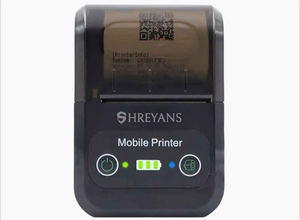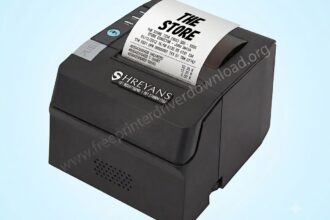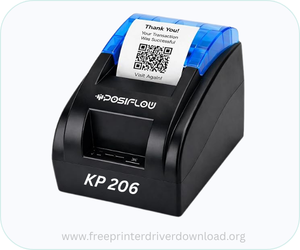
Shreyans KP-206 / 206B-UB is a 58mm (2 inch) very lightweight and portable thermal printer with dual connectivity options of USB and Bluetooth. As you know, thermal printers don’t consume any ink, it works with ink that is already placed on the printer. This printer supports Windows 7, Windows 8, 10, 11, Vista, XP, all the editions of servers, Linux and Mac operating systems.
To set up this printer on the following operating systems, you just need to install its driver on a computer. If you are going to set up this printer on your phone, you just need to install its app on your mobile. The setup process is really very easy. I have given the setup process as well just beneath the download section. You can check it out from there. To download the drivers, just go to the download section below and download the drivers according to the operating system version you have.
Download Shreyans KP-206 / 206B-UB Printer Driver for Windows / Linux / Mac
In order to download the KP206/207 drivers, go to the download list below according to the operating system version where you want to install this driver.
Driver for Shreyans KP-206 / KB206b-ub printer
Type: Full feature driver Operating System: Windows 11, 10, 8, 8.1, 7 and Server all versions File Size: 2.8 Version: 11.3 Download DriverOR
Download the latest driver from Shreyans’s official website.
How to install Shreyans KP-206 / 206B-UB Printer Driver on Windows 11
After download, just follow the below given step-by-step instructions which will help you install this printer properly on a Windows computer. Follow these steps:
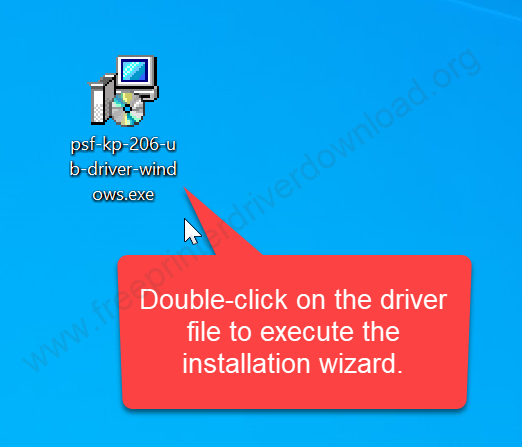
Step 1: Double-click on the downloaded driver file “psf-kp-206-ub-driver-windows.exe” to execute the installation wizard.
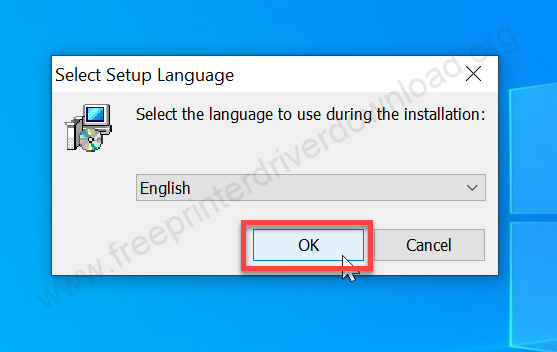
Step 2: Select the preferred language and then click on OK.
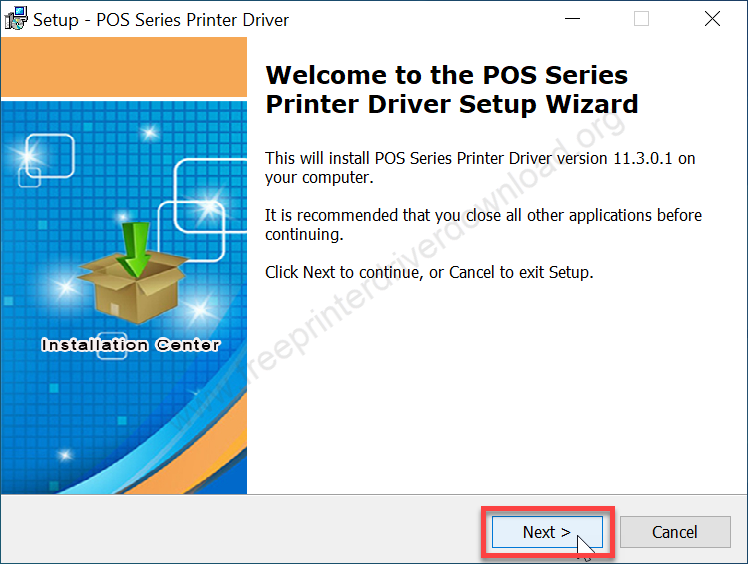
Step 3: Click on Next.
Step 4: Select the checkbox I accept the agreement and then click on Next.
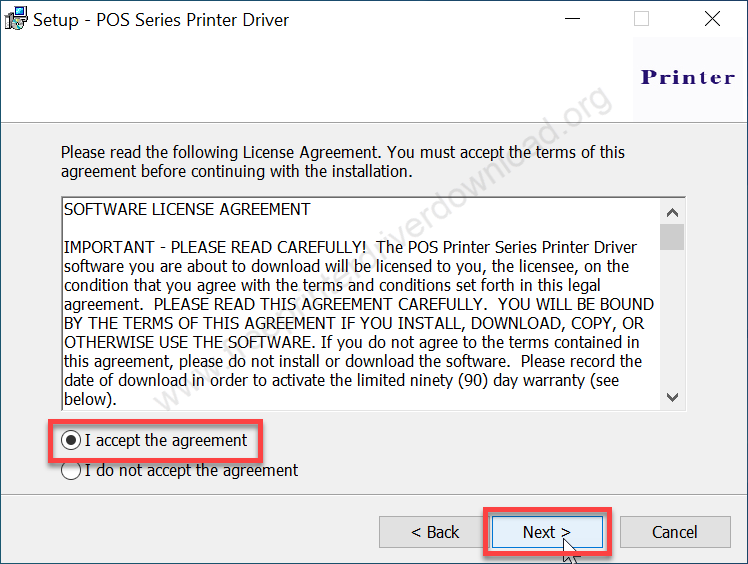
Step 5: Click on Next.
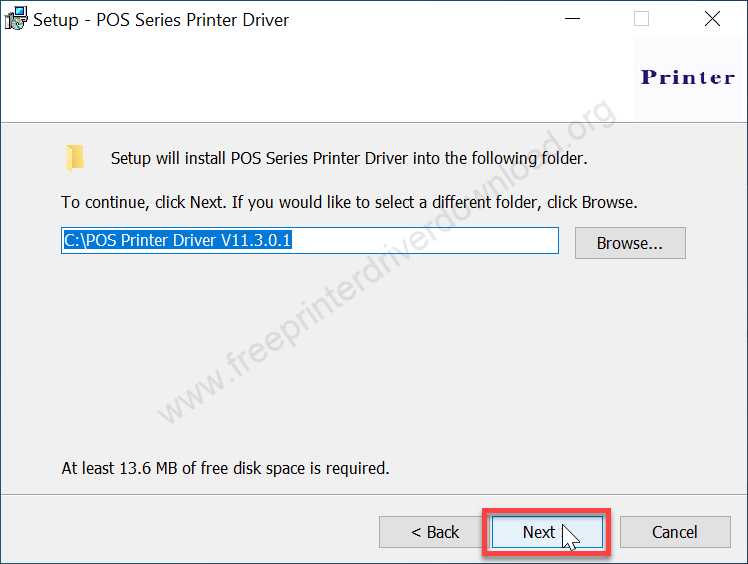
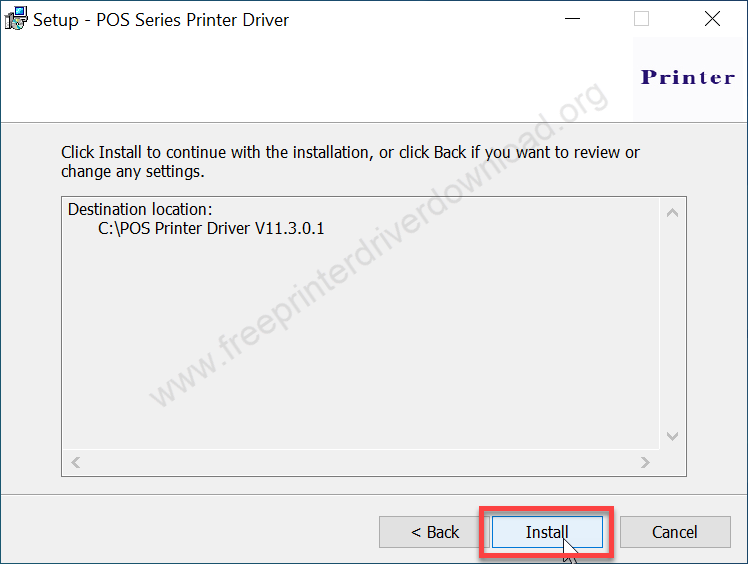
Step 6: Click on install button to go ahead and install it.
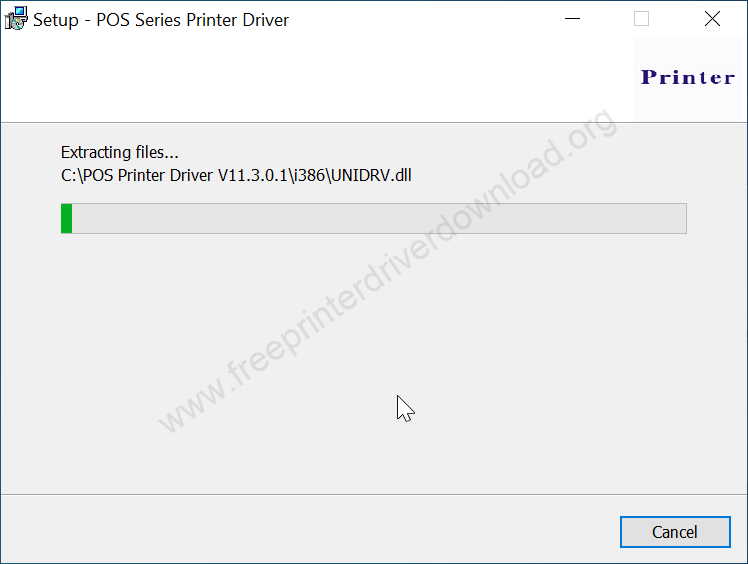
Step 7: It is extracting the drivers now, so please wait for that.
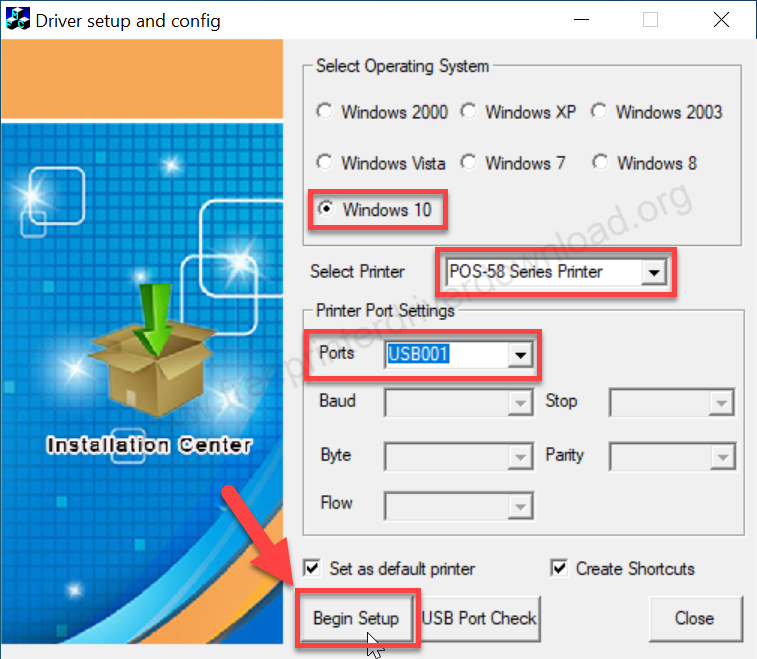
Step 8: Here you need to select three things: Select the operating system version, then select the printer POS-58 and then finally select the printer port “USB001” or according to where your printer is connected to the computer right now. Then click on the “Begin Setup” button to start installing. It will install silently so you will have to wait here for the next screen.
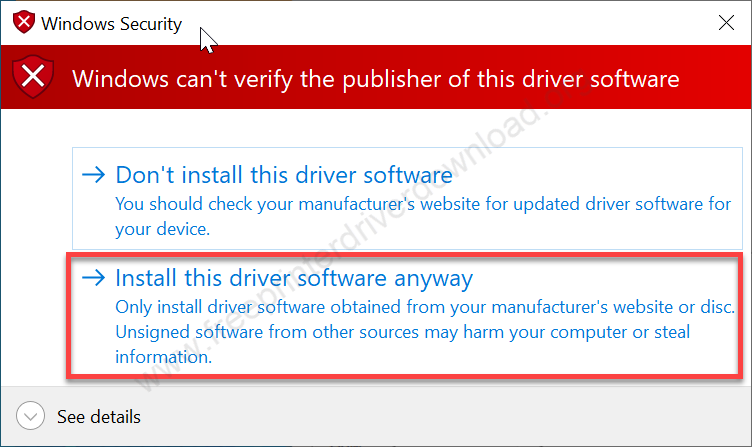
Step 9: Click on the option “Install this driver software anyway”. If you don’t get this option it means the “Driver signature enforcement” option is turned ON, you will have to turn this option off from the Windows startup. If you don’t know how to do it, then please check out the following video tutorial, where I have explained how to turn off the driver signature enforcement option. https://youtu.be/LQKg_VTuZCQ. After that it will install silently
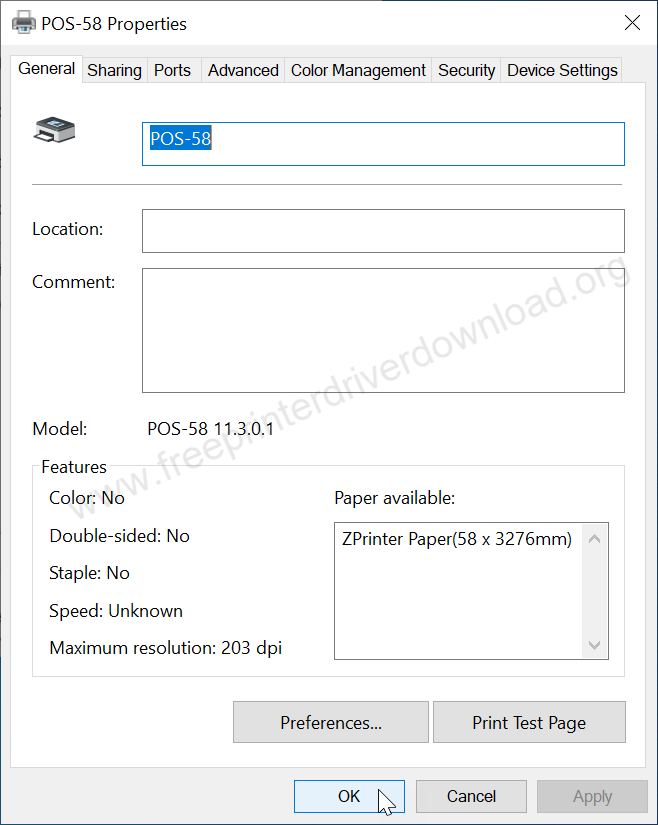
Step 10: It will open up the printer properties page. Go to the “Ports” tab.
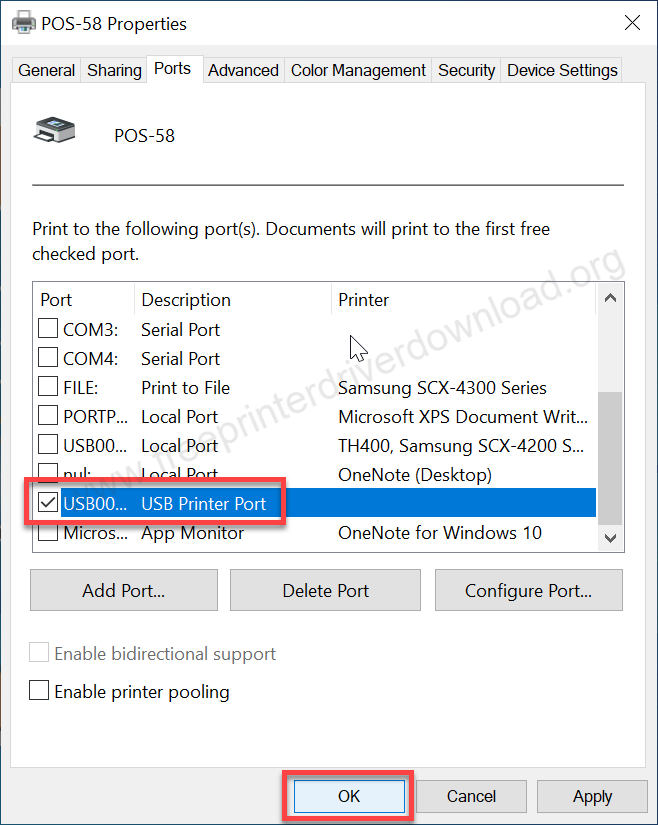
Step 11: Go to the ports tab and make sure the right port is selected. If you find the wrong port is selected, then please select the right one and click on OK.
That’s it, the printer Shreyans KP 206 has been installed successfully. You can click on “Print a test page” and check if the printer is installed successfully or not. I have installed it on my Windows 10 computer and it worked perfectly fine, but you may install this printer on Windows 11, 8, 8.1, 7 using the same driver and same steps.
Shreyans KP-206 / 206B-UB Printer Specifications
The print speed of this printer is very impressive @ 100 mm per second with the resolution of 203 DPI. This is not an auto-cutter printer, you will have to tear that manually. This printer also connects to the cash drawer through an RJ11 port. The dimensions of this printer is 175mm length, 124mm width and 93mm height. This printer is fully compatible with Windows, Mac, and Linux operating systems.
When you purchase this printer, you will get following things in the package box: the printer unit itself, a paper roll, a USB cable and an installation guide with how-to video links, which will help you to set up this printer on your devices.