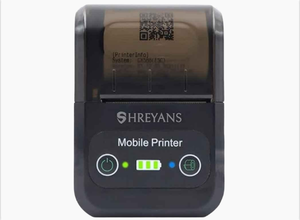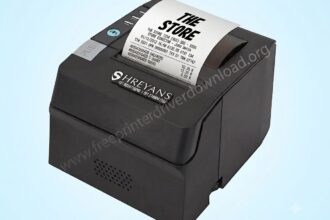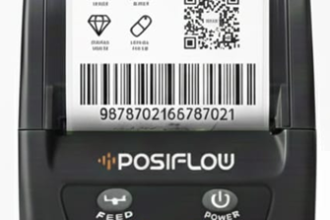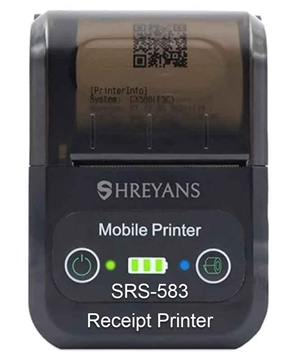
Shreyans SRS 583 is a mini (2inch) rechargeable battery operated mobile receipt printer with Bluetooth & USB connectivity that is mostly used on POS. It is a very low priced portable printer, so it is very popular in its class. In order to set up this printer on a computer or mobile, you will require its driver to be installed. On the page below, I am going to share its drivers and a proper installation guide which will help you on how to install Shreyans SRS-583 printer. Drivers are given in the download section below and the how to install guide has also been given beneath the download section. So please check out both of them.
Download Shreyans SRS 583 Printer Driver for PC & Mobile
Downloading the Shreyans SRS 583 driver is easy, you just need to click on the below given download button according to the operating system version of your computer.
Driver for Shreyans SRS 583 Printer
Type: Full feature driver Operating System: Windows 11, 10, 8, 8.1, 7, Vista, XP File Size: 1.84 MB Version: 1.6 Download DriverOR
Alternatively, you may download the same drivers directly from Shreyan’s official website.
How to Install Shreyans SRS 583 Printer on PC
In order to install this Shreyans SRS 583 printer on a computer, you just to follow the below given step-by-step guide.
Step 1: Click on the Start button and then click on Settings.
Step 2: Click on Devices.
Step 3: Click on Add a Bluetooth or other device
Step 4: Select the Bluetooth option.
Step 5: Then select MPT-II Printer
Step 6: If asked, enter the password: 0000.
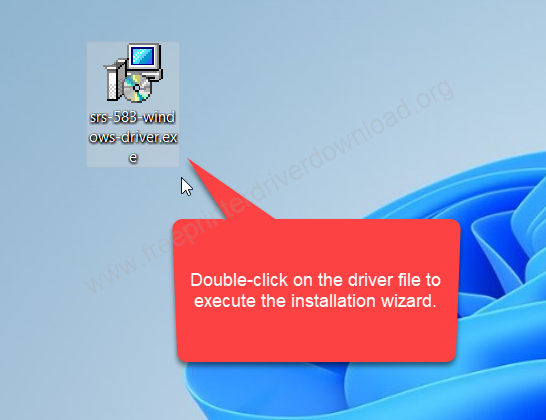
Step 7: Double-click on the driver download file to execute the installation wizard. If you don’t have this driver, then you can download this driver from the download section given above. I have given the download link there.
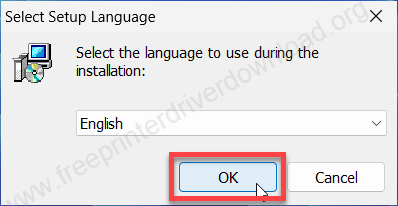
Step 8: After that, select the preferred language and then click on OK.
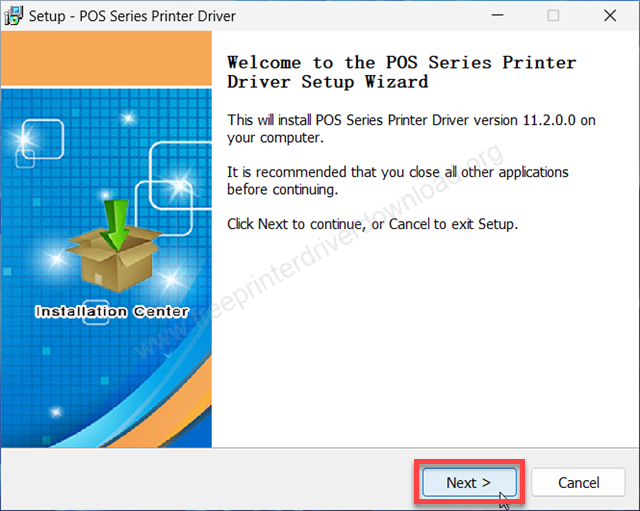
Step 9: Click on Next to start the installation process.
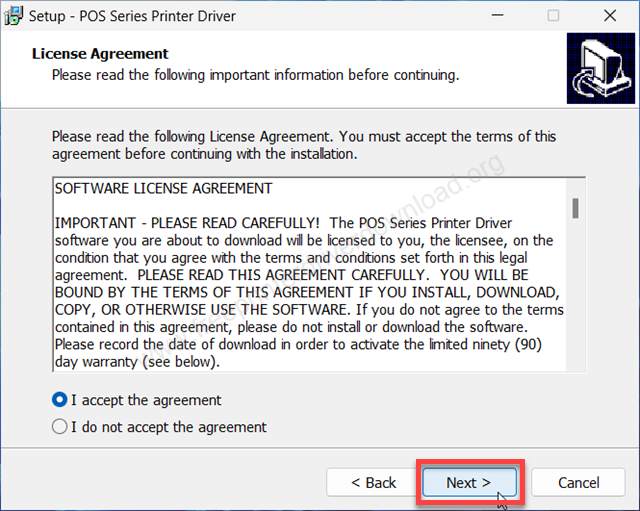
Step 10: Now please select the option I accept the agreement and then click on Next to accept the software license agreement.
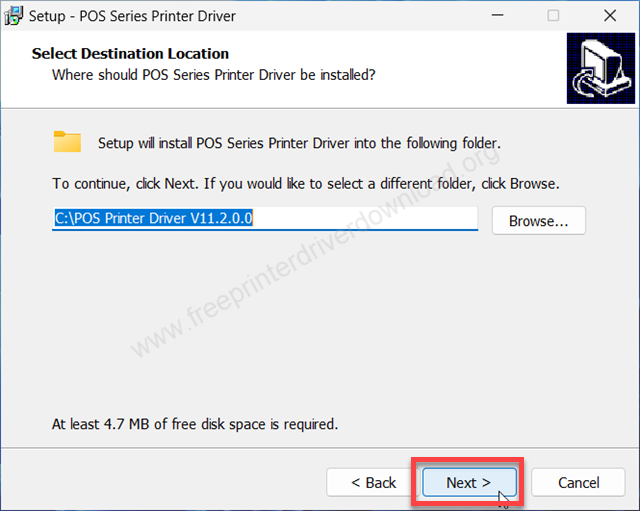
Step 11: It is asking for the location where you want to install this software and drivers. Keep it as the default and click on Next.
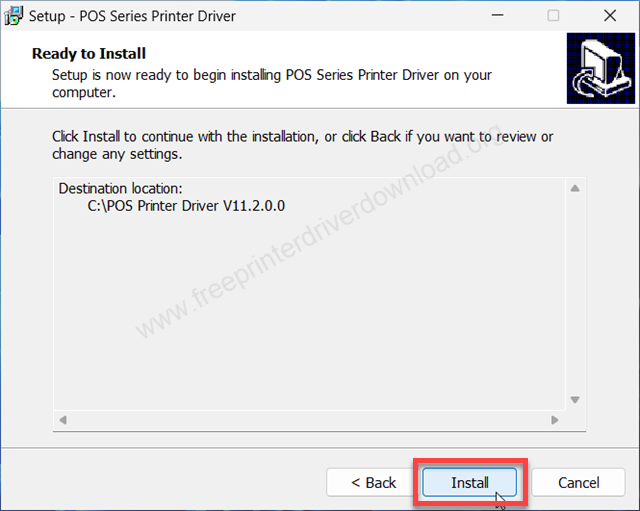
Step 12: Now please click on install button to start the main installation process.
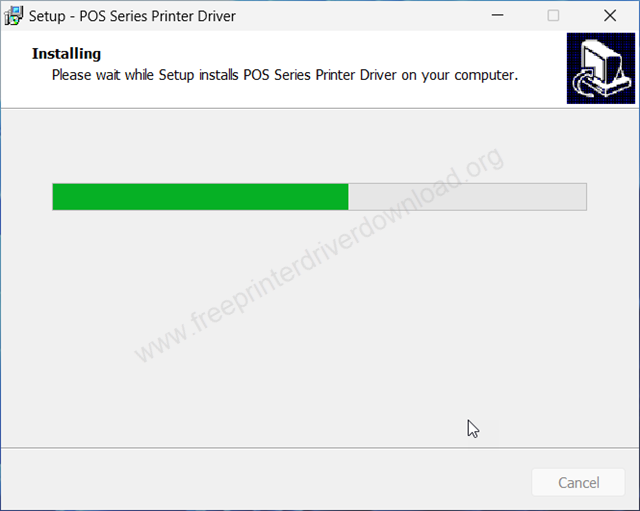
Step 13: After that it will start installing the drivers and software. Please let it be done and wait for that.
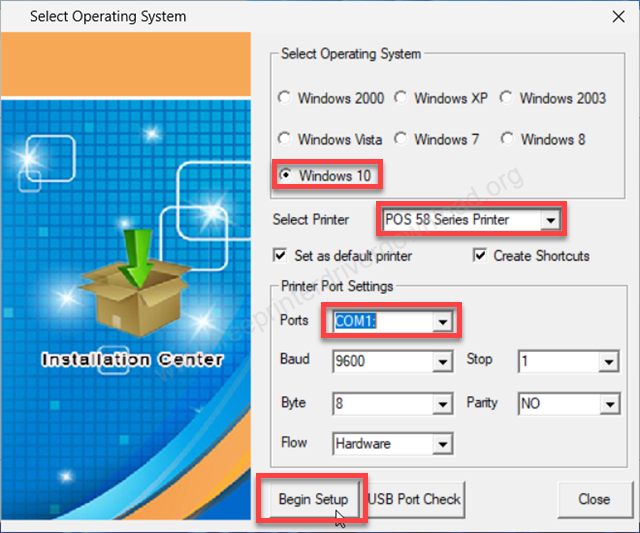
Step 14: Now please select the operating system where you want to install this driver. If you have Windows 11, then you can select Windows 10 because Windows 10 driver will work with Windows 11 as well. After that select the printer “POS 58 series printer” and then select the preferred port, and then click on Begin Setup.
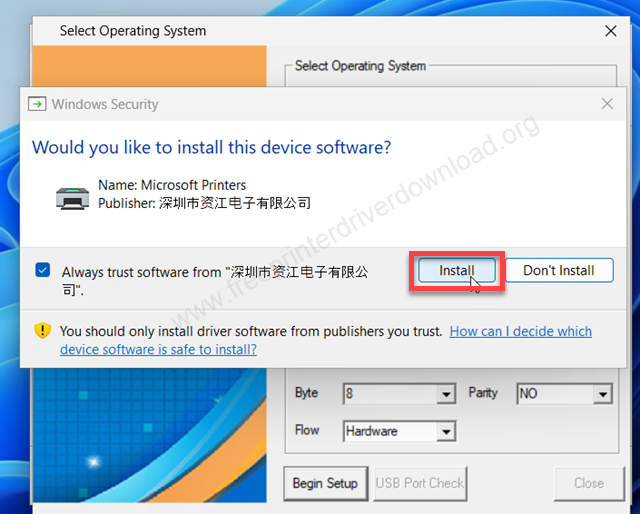
Step 15: Now please click on install button.
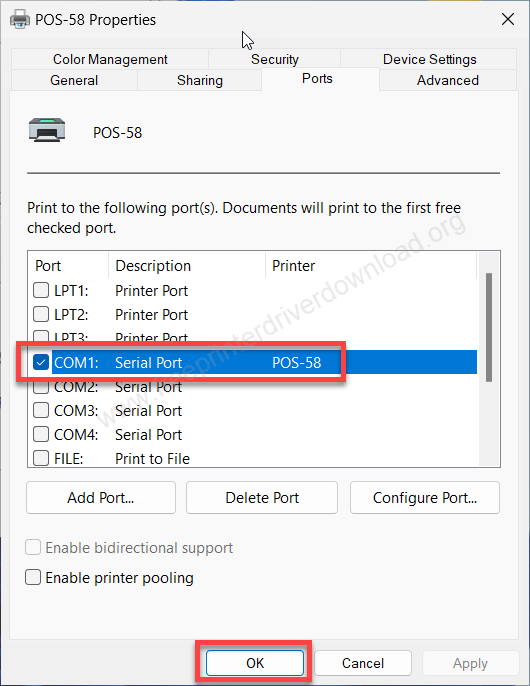
Step 16: After installing the printer, it will open up the Printer Properties page where you can select the Ports tab and select your preferred port and then click on OK.
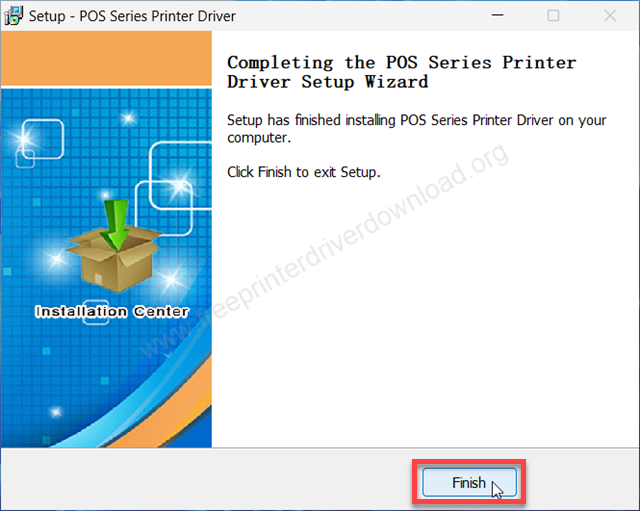
Step 17: The printer has been installed successfully. Click on the Finish button to complete the installation process.
This is how you can install this Shreyans SRS 583 printer on a Windows based computer. I have installed it on my Windows 11 computer, but you can apply the same steps and same drivers for Windows 10, 8 and Windows 7 as well.
How to Install Shreyans SRS 583 Printer on Mobile
To set up this printer on a mobile phone or tablet, you need its app to be installed on the mobile and then follow the below given step by step installation guide.
Google Play Link: https://play.google.com/store/apps/details?id=ru.a402d.rawbtprinter&hl=en_IN
Step 1: Turn on the printer and then go to your Bluetooth settings and search for new devices and then select: “MPT-II”
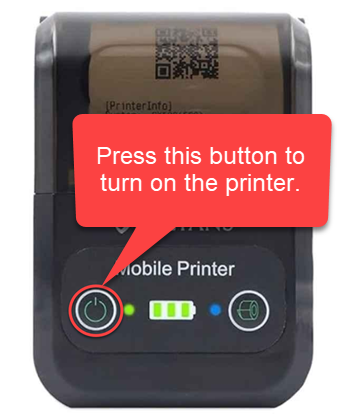
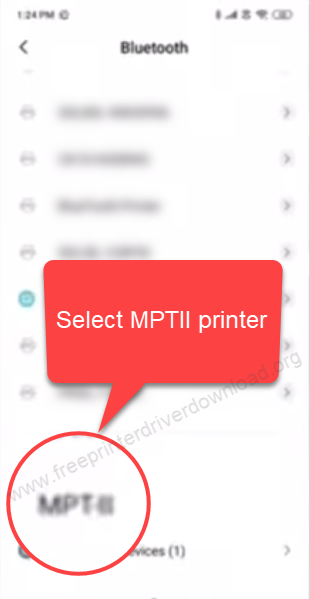
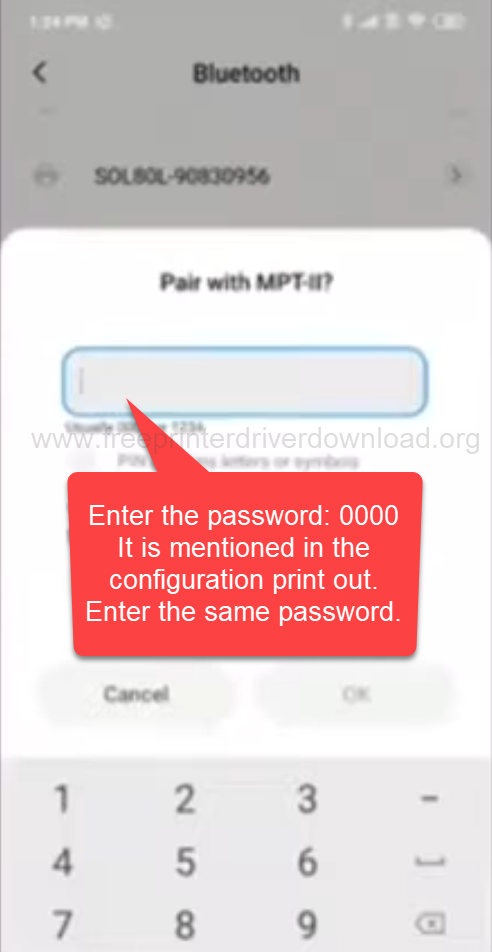
Step 2: Now, it will ask for the password. Enter the password: 0000 and then go further.
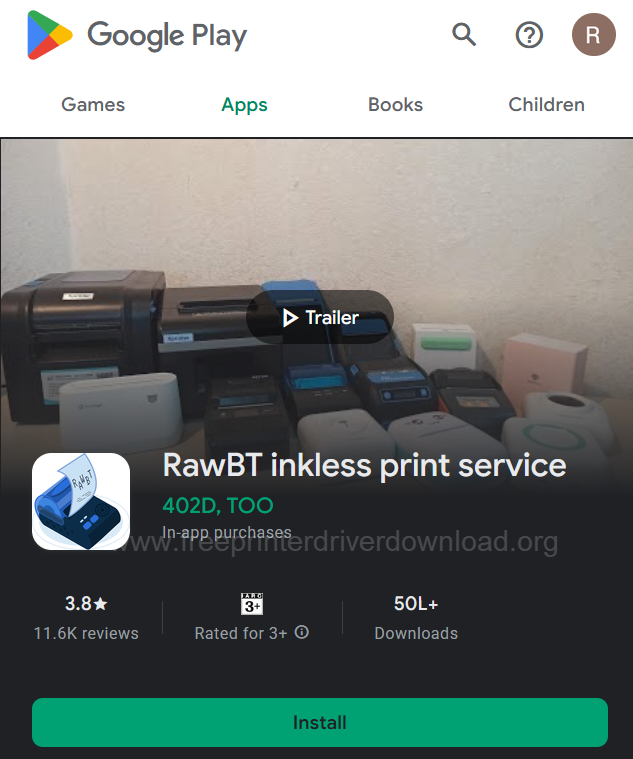
Step 3: After that, go to the Google Play Store and search for the RawBT inkless print service app. Install this app on your mobile phone. Screenshot is given below, please check.
Step 4: Tap on the menu (three lines icon) on the left side.
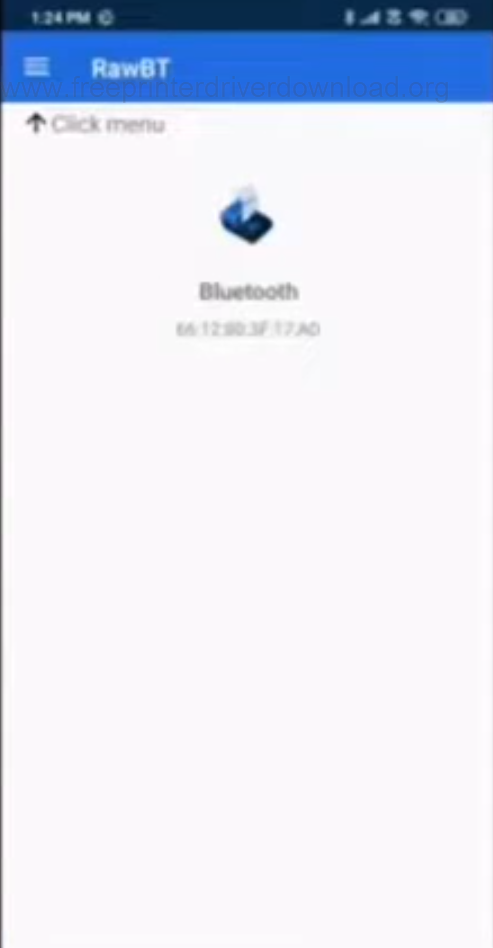
Step 5: Then click on settings.
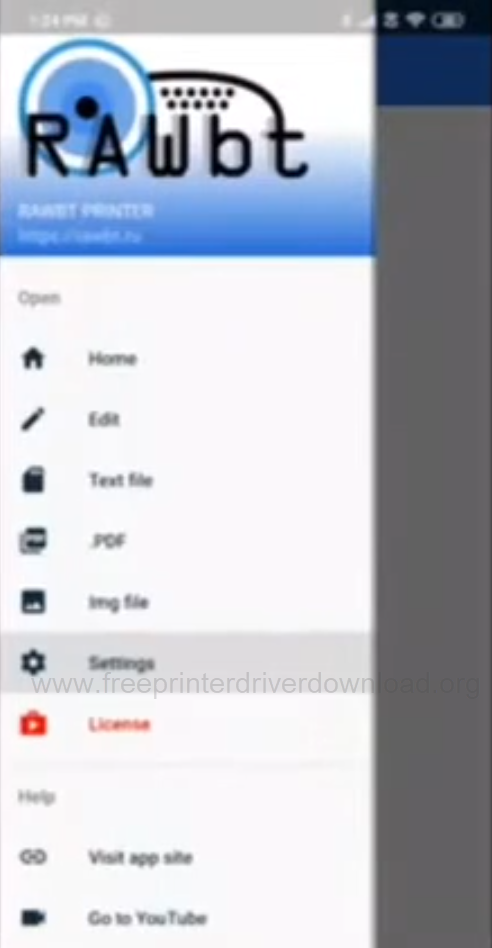
Step 6: Now, click on the Bluetooth option.
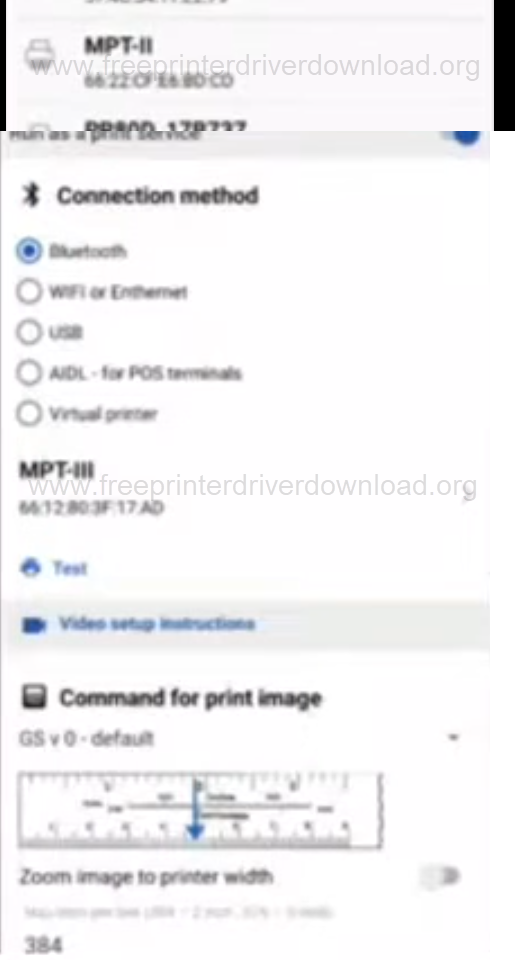
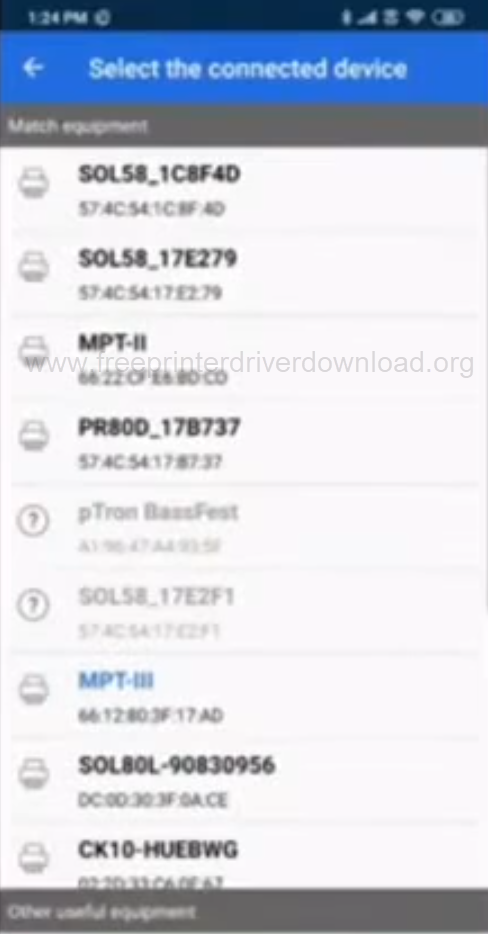
Step 7: Select MPT-II printer.
Shreyans SRS 583 Full Specification
Shreyans SRS 583 is a Bluetooth & USB mini portable receipt printer with 2,600 mAh rechargeable battery which makes it a 2inch (58mm) portable printer. There is USB-C port for recharging. It comes with a leather pouch which will help you to carry this mini portable printer.