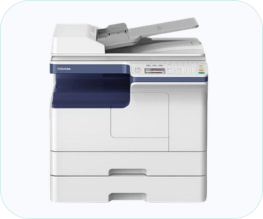
Toshiba e-STUDIO 2006, 2306 and 2506 printers are very similar. The main difference between them is the print speed. 2006 model will give you a 20ppm print speed, the 2306 will give you 23ppm speed and the 2506 will give you 25ppm print speed. Other than this, they are completely the same. All three model numbers use the same driver & software. On this page I am going to share the drivers for the Toshiba e-STUDIO 2006/2306/2506 printers and also give a step by step guide to install one of these printers properly.
On this page, you will find two sections. In the first section, you will get driver download links, how and where to download the driver, and the second section you will get the help – the step-by-step installation guide, how to install this printer on a PC.
This printer supports Windows 11, 10, 8, 8.1, 7, Vista, XP (32bit/64bit), Server 2000 to 2026, Linux, Ubuntu, Mac 10.x, 11.x, 12.x, 13.x, 14.x, macOS 15 Sequoia and 26.x Tahoe Operating Systems. operating systems. So let’s start the installation process by downloading the drivers first.
Download Toshiba e-STUDIO 2006 / 2306 / 2506 Driver for PC
Download the driver. You just need to click on the below given download button according to the operating system version where you want to install this printer.
Driver for Toshiba e-Studio 2006/2306/2506 Printer
Type: Full feature driver Operating System: Windows 11, 10, 8, 8.1, 7, Server 2000 to 2026 File Size: 472 MB Version: 2.01 Download DriverOR
Download the Toshiba 2006/2306/2506 drivers from Toshiba’s official website
How to Install Toshiba e-STUDIO 2006 / 2306 / 2506 Driver on PC
In order to install the driver, you will have to follow the following step-by-step installation guide, which I have prepared while installing this printer on my Windows 10 computer. You can apply the same steps for your Windows 11, Windows 8, and Windows 7 as well. The steps may vary according to the operating system version.
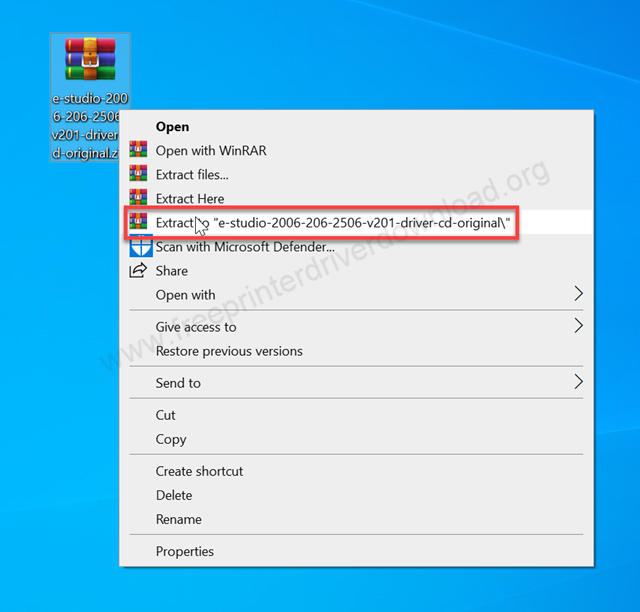
Step 1: After downloading the driver, right-click on it and click on extract to. Basically, unzip the driver file into a folder. You may download the driver from the above given download section.
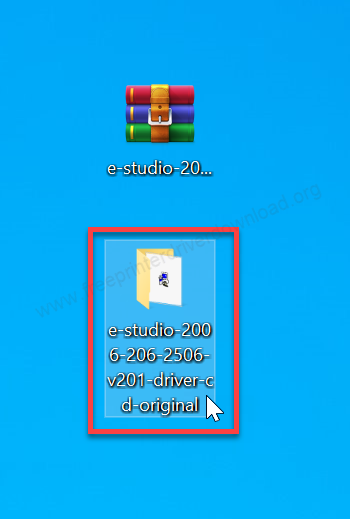
Step 2: Open up the extracted folder.
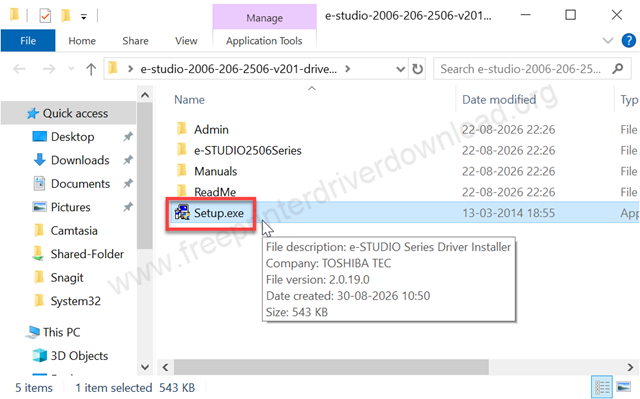
Step 3: In the extracted folder, you will get a setup.exe file. You just need to double-click on it to start the installation process.
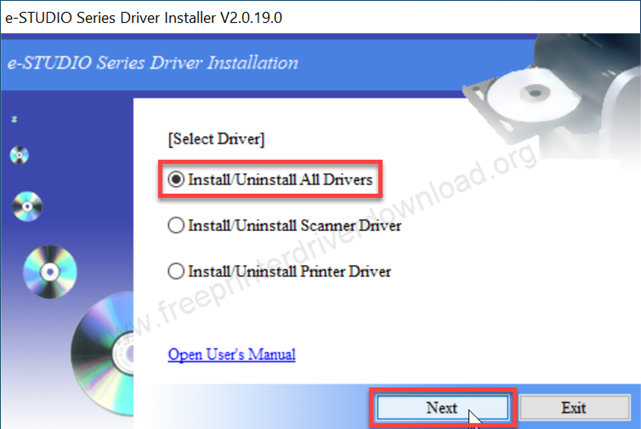
Step 4: Choose the first option: “install all the drivers”, and click on Next. It will install both the printer and scanner drivers together.
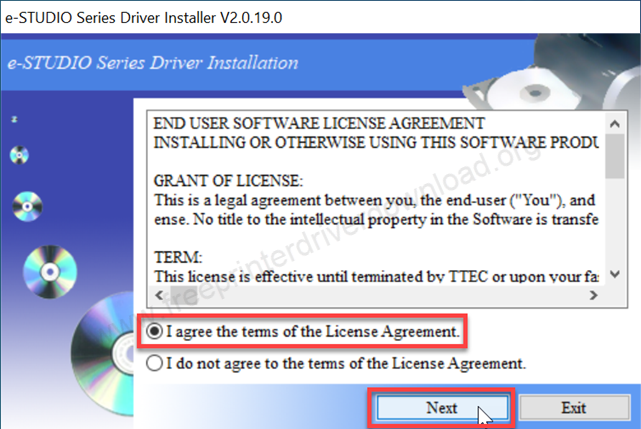
Step 5: Select the first option “I agree and term of the license agreement” and then click on Next.
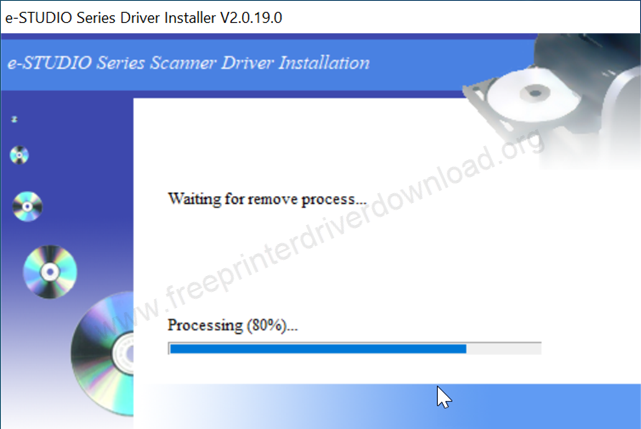
Step 6: It is installing the drivers now, so you will have to wait for that.
Step 7: The installation process has been completed.
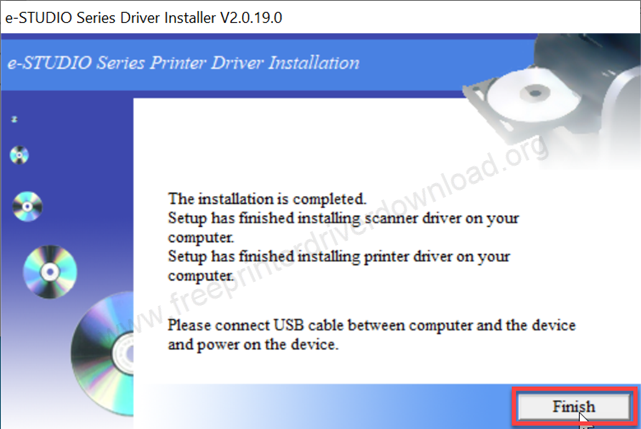
This is how the Toshiba e-Studio 2006 printer driver has been installed successfully.
Toshiba e-STUDIO 2006 / 2306 / 2506 Full Specifications
Toshiba e-Studio 2006 is a multifunctional A3 printer that can print, scan and copy with ADF. It has multiple cassette type trays which looks like a copier machine. Many users use this printer as a photocopy machine. It has an auto-duplex feature. With the help of this, you can print both sides of the page without flipping it manually.
As it has multiple paper trays, each paper tray can hold up to 200 pages (A3 or A4). The total capacity of all the input trays is around up to 600 pages. The ADF can hold up to 50 pages at a time. The copy speed of this printer is 7 seconds on A4 paper with a resolution of 2400 by 600 DPI. You can make multiple copies of up to 999 copies.
It has one flatbed scanner with ADF feature, which can scan at 25 SPM scan speed with up to 600 DPI resolution. If you want to scan a picture – a single picture, then you can use JPEG format. If you want to scan multiple pages and want to save them into a file, then you can use the PDF format.
There is only one connectivity option, which is USB. You can connect this printer to a computer only through a USB cable. There are no other connectivity ports. If they could be given an Ethernet port to connect to the network, that would be great.
On this page, I have explained how and where to download the driver and given the driver download link and also given a step-by-step installation guide on how to install this printer on a PC.