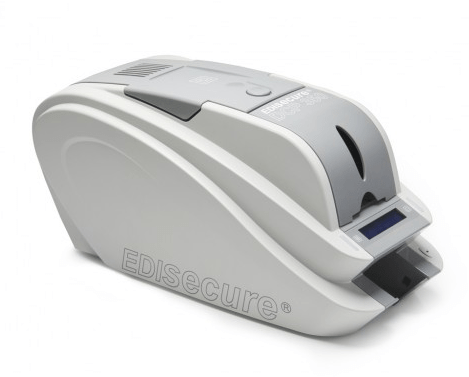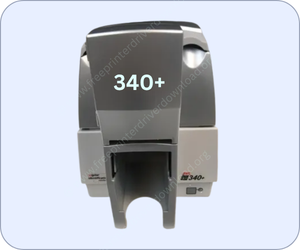
The EDISECURE DCP 340+ printer is manufactured by Digital Identification, specifically designed to print PVC ID cards. It is a double-sided borderless printer that prints both sides of the card in one command. To use this printer through your computer – so that you can give card print commands from PC, you will have to install its driver on the computer. Either you can download the driver from its official website or from the below given driver download section as well – both are the same driver.
To make the driver download and installation process easy, I have given the driver download link and how to install guide in this article. Please click on the download link according to the version of your operating system and then follow the how to install instructions to properly install this DCP340+ printer driver. This printer support Windows 11, 10, 8, 8.1, 7, Vista, XP, Server, Linuac and Mac OS. So, let’s start the installation process by downloading the drivers first.
Download EDISECURE DCP 340+ Printer Driver for PC
In order to download the EDIsecure DCP 340+ printer driver, you just need to click on the below given download link accordingly.
Driver for EDISECURE DCP 340+ Printer
Type: Full feature driver Operating System: Windows 11, 10, 8, 8.1, 7, Vista, XP, Server 2003 to 2026 File Size: 10.8 MB Version: 1.3 Download DriverHow to Install EDISECURE DCP 340+ Printer Driver
After download the driver, you need to install it properly on your computer. To know how to install it properly, please follow the below given steps.
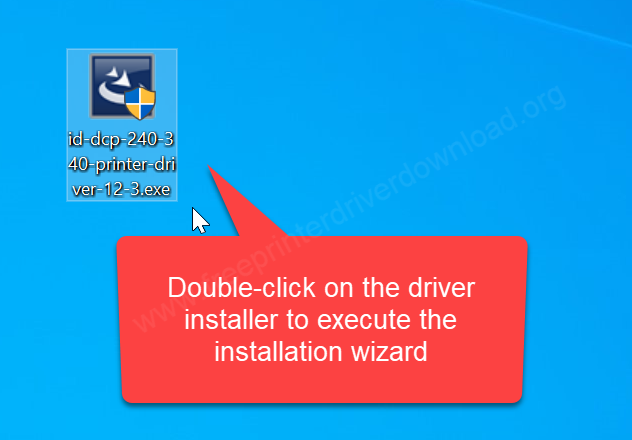
Step 1: Double-click on the downloaded driver file to execute the Installation wizard.
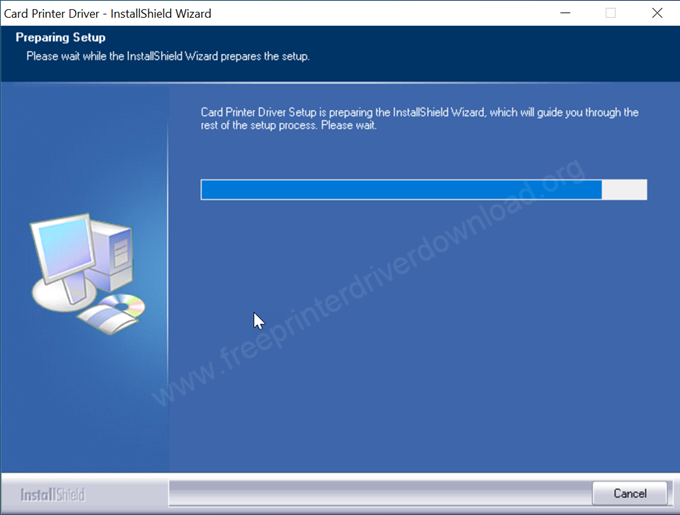
Step 2: It is preparing the installation process so please wait for that.
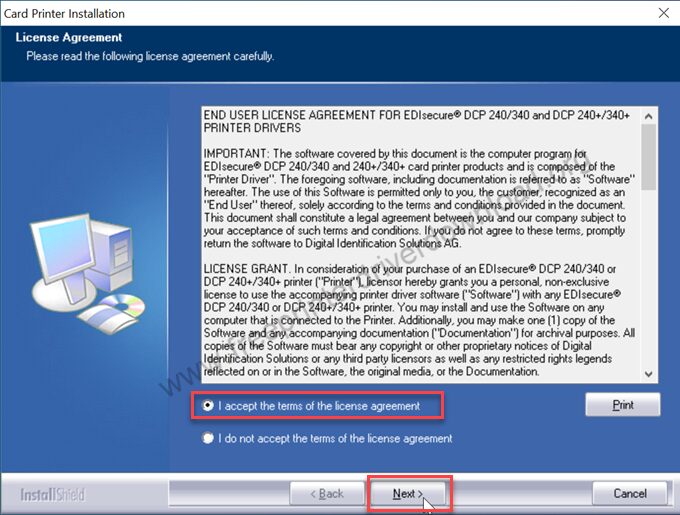
Step 3: Choose the option “I accept the term and condition” and then click on next.
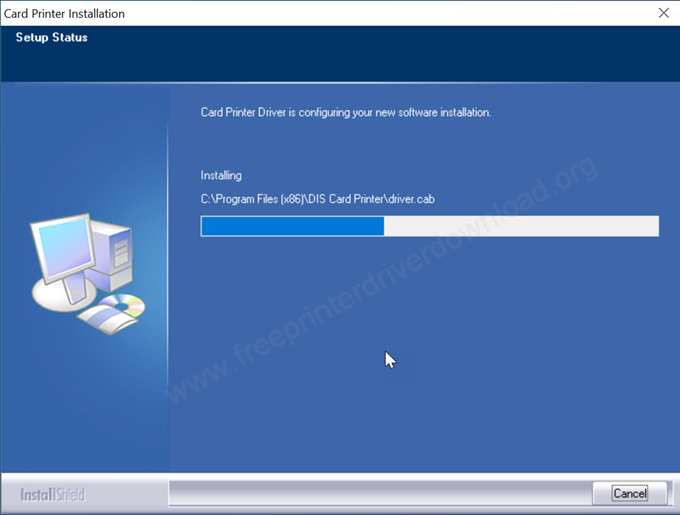
Step 4: It is now installing the driver so please wait for that.
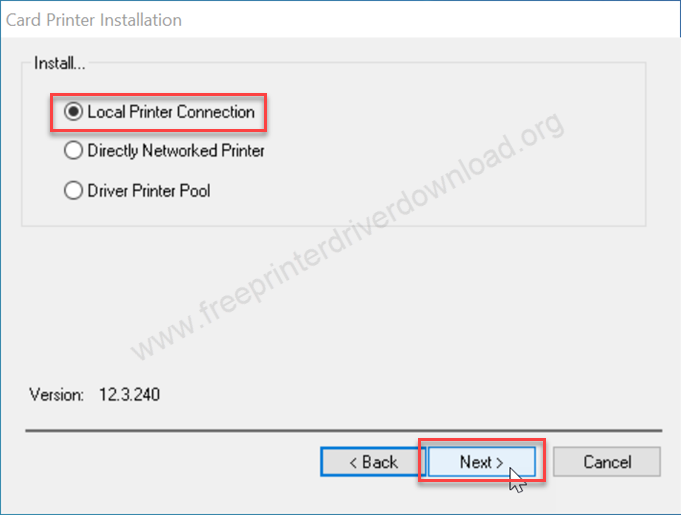
Step 5: Choose your preferred connection type and click on Next. I recommend you choose the first one, the local printer connection.
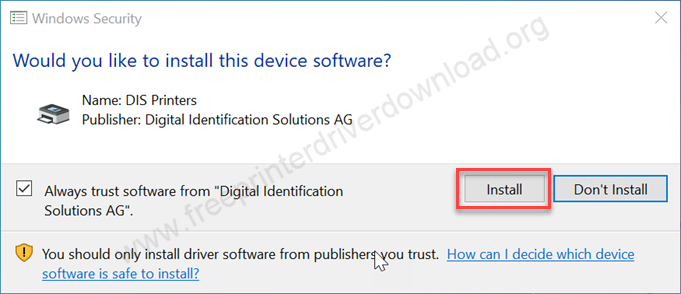
Step 6: It will ask you to to trust the software. Here you need to click on install. If you don’t get this popup, it means the driver enforcement signature option is turned ON, you will have to turn it off from the computer startup. Here’s how to disable the driver signature enforcement option: https://youtu.be/LQKg_VTuZCQ.
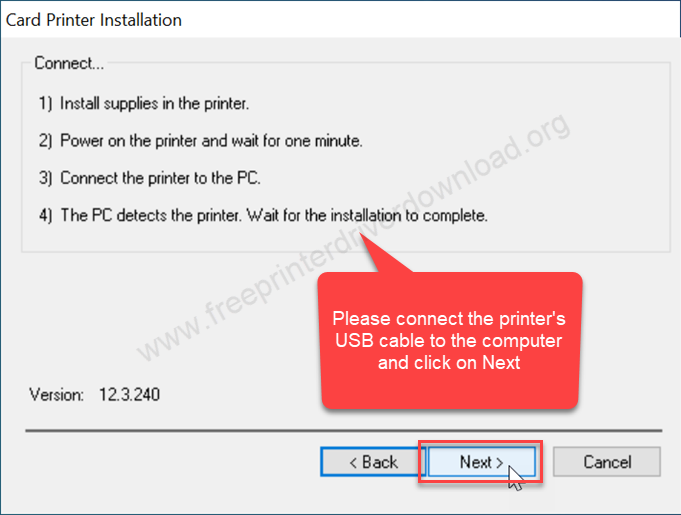
Step 7: Here it is asking to connect the USB cable of the printer to the computer and make sure the printer is turned on, then click on next. After that, it will auto-detect the printer. From there you need to select the detected printer and click on next and finish to complete the installation process.
Features & Specifications
The print speed of this 340+ model number printer is 180 cards per hour. You can load 100 cards at a time in the input hopper and it can print and hold 40 cards in the output hopper. This printer supports specific card sizes from 0.25mm to 1.25mm PVC card.
The printer can connect to the computer through USB connectivity which is known to be a very consistent connection. The dimensions of this printer are 150mm wide, 293mm deep and 235mm high. The total weight of this printer is 4.2 KG. It is a very silent printer with a 44db noise level. It works on 100-240 volts of electricity.
In this articles, I have covered how and where to download the EDISECURE DCP 340+ driver and how to install it on a Windows computer with step-by-step guide. Hope you like it.