
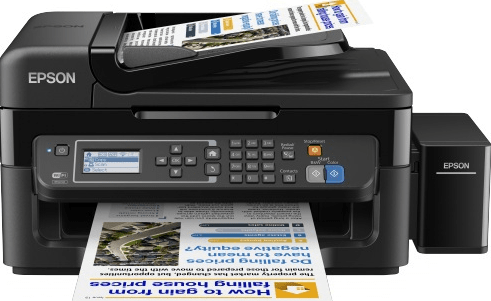
The Epson L382 is a multifunction inkjet printer with built-in inktank technology that makes printing reliable and cost effective printing cost. Users sometimes lose or damage the software CD that came with their Epson L382 printer, and they are eventually unable to install it.
In this scenario, they can install the latest Epson L382 driver by downloading it from Epson’s official website or other online source. If you choose a non-official website to download the driver, make sure that it should be legit.
Therefore, I have provided L382 driver for Windows 11, 10, 8, 8.1, 7, Vista, XP (32bit/64bit), Windows Server 2000 to 2022, Linux, Ubuntu, and MAC 10.x, 11.x, and 12.x operating system in the download section. Check out the download section below.
I have also shared a video tutorial as well which will surely help you to install this L382 driver on your Windows computer. Check out the “how to install” section as well.
Index:
- Go to Download Section
- Go to How to Install Section (Video Tutorial).
Epson L382 Printer & Scanner Driver Download
First, identify the operating system version of your computer where you would like to install this printer. After that, click on the download link given below to get your Epson L382 driver setup file.
Driver Download Links
- Web Installer Driver for Windows All editions → Driver Installer (Live Web Installer)
- Epson L382 printer driver for Windows 10, 8, 7, Vista, XP (32-bit) → Printer Driver (32bit)
- Epson L382 scanner driver for Windows 10, 8, 7, Vista, XP (32-bit) → Scanner Driver (32bit)
- Epson L382 scanner updater for Windows All Editions (32bit) → Scanner Updater (32bit)
- Epson L382 printer driver for Windows 11, 10, 8, 7, Vista, XP (64-bit) → Printer Driver (64bit)
- Epson L382 scanner driver for Windows 11, 10, 8, 7, Vista, XP (64-bit) → Scanner Driver (64bit)
- Epson L382 scanner updater for Windows All Editions (64-bit) → Scanner Updater (64bit)
- Epson L382 Basic INF Driver for Windows 11, 10, 8, 7, Vista, XP (32/64-bit) → Download (Basic Driver)
Here’s a guide to learn how to install a printer driver manually using its basic driver.
- Epson L382 driver for Server 2003 to 2022 (32/64bit) → Not Available – User basic driver
- Epson L382 driver for macOS 11.x, 12.x, 13.x, 14.x, 15.x, 26.x → Printer Driver / Scanner Driver
- Epson L382 driver for Mac OS X 10.5 to 10.15 → Printer Driver / Scanner Driver
- Epson L382 driver for Linux, Ubuntu (32/64bit) → Not Available
OR
- Download the driver directly from the Epson L382 official website.
Driver Compatibility: Downloading a fully compatible driver for this printer from the official Epson website is a free but complex process. However, you can easily download the official full feature Epson L382 drivers for this printer from this page using our single-click download links.
Driver Update: Computer experts recommend that you should regularly update your printer driver to its latest version. Whenever a new device driver is released, it usually fixes the existing bugs. This helps to make your printer work smoothly.
Supported Operating Systems
Windows 2000
Windows XP
Windows Vista
Windows 7
Windows 8
Windows 8.1
Windows 10
Windows 11
Mac OS 10.x, 11.x, 12.x, 13.x Ventura
Linux and Ubuntu
How to Install Epson L382 Driver
Proper installation of the L382 printer driver is as important as downloading the right printer driver. Therefore, I am providing below the detailed installation guide for the full feature driver and basic driver (inf driver). For the basic driver I will be describing automatic as well as manual installation method. Follow the instructions of the guide which is related to your driver type to properly install the Epson L382 printer drivers on your computer. I have also made a video on the Epson L382 installation and I am sharing it with you have. Please check out the articles and video tutorial below.
1) Full Feature Driver
In this guide, I will explain how to install full feature Epson L382 printer driver on your computer. Since this is the full feature driver, it will install printer & scanner drivers simultaneously, along with other necessary applications. You can follow these steps for all the supported versions of the Windows operating system.
- Run the full feature driver setup file and wait for the setup program to load on your computer.
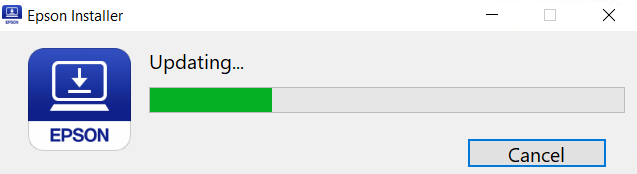
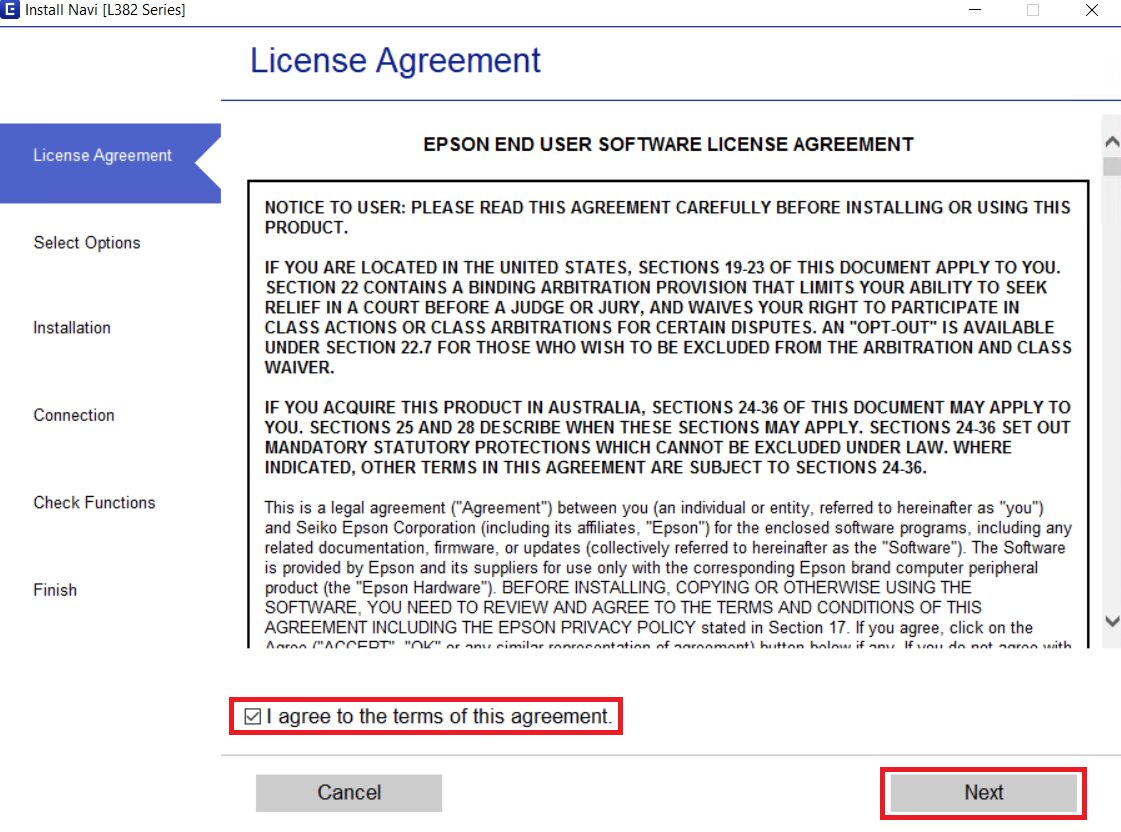
- In the License Agreement screen, select the ‘I agree to the terms of this agreement’ option, then click on the ‘Next’ button.
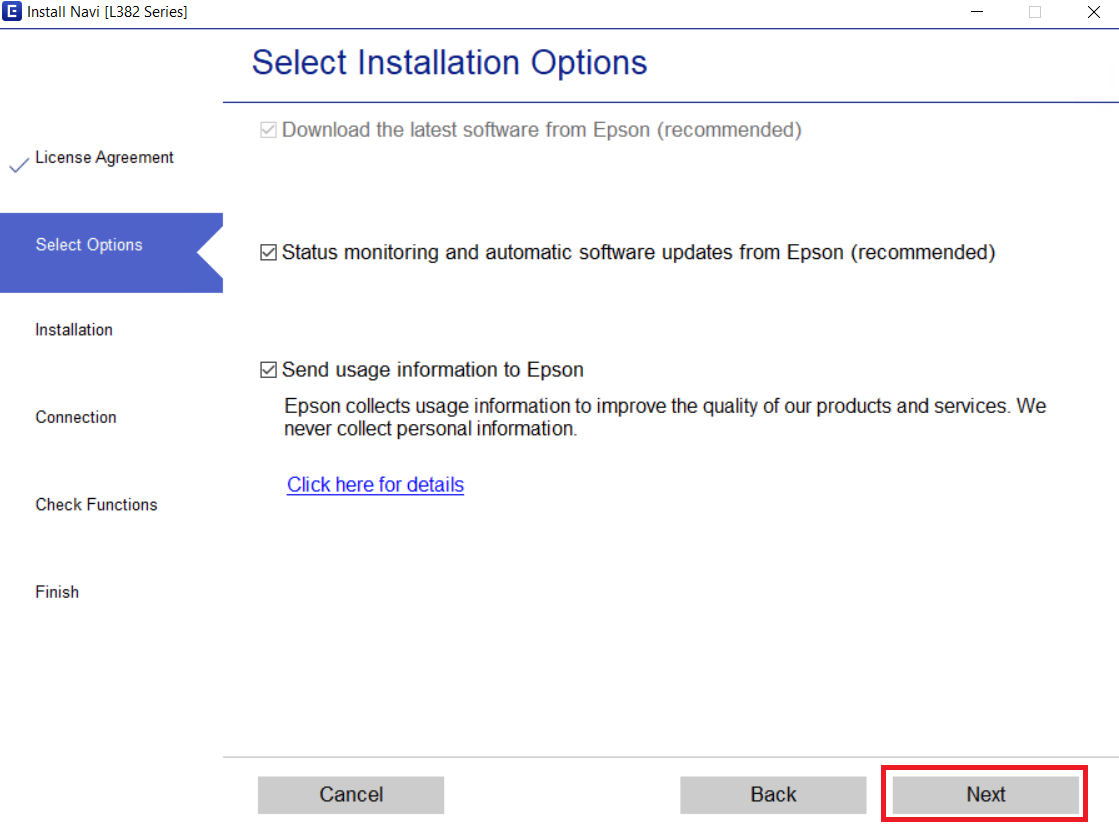
- Select your preferred installation options, then click on the ‘Next’ button.
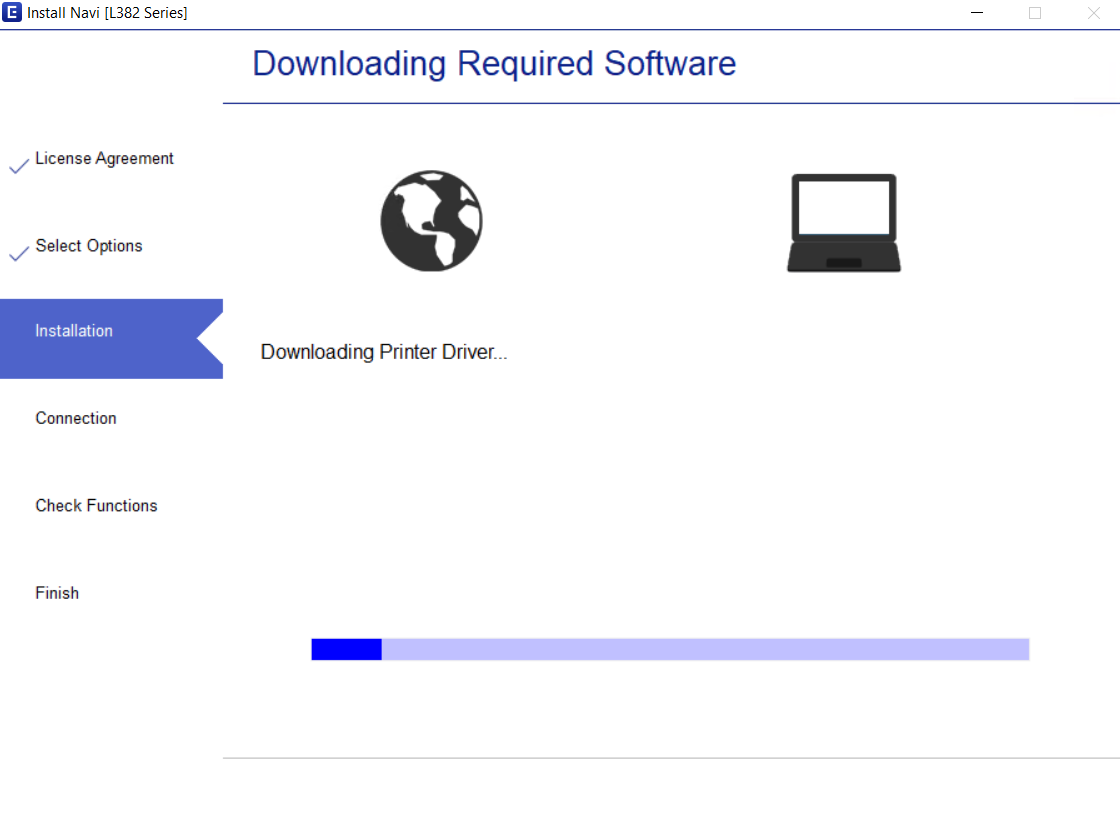
- Wait for the drivers and software to download on your computer.
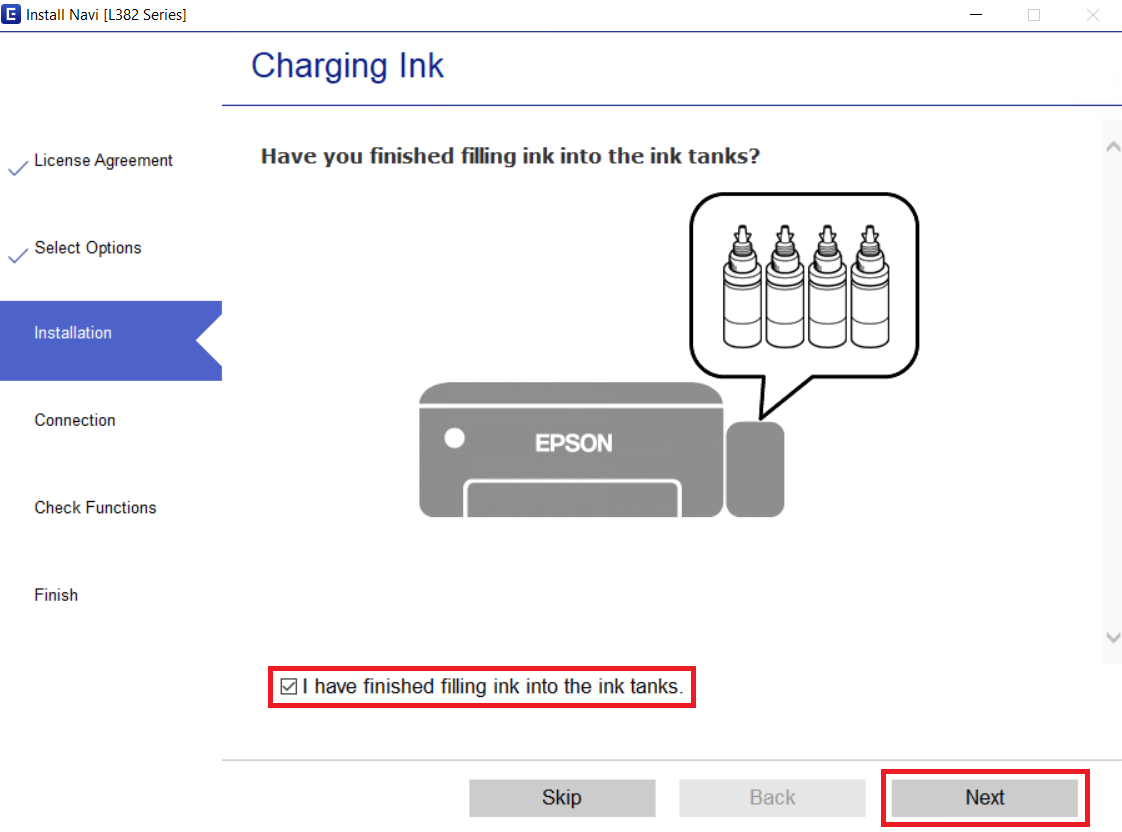
- Make sure ink tanks of your printer are properly filled, then select ‘I have finished filling ink into the ink tanks’ option. Finally, click on the ‘Next’ button.
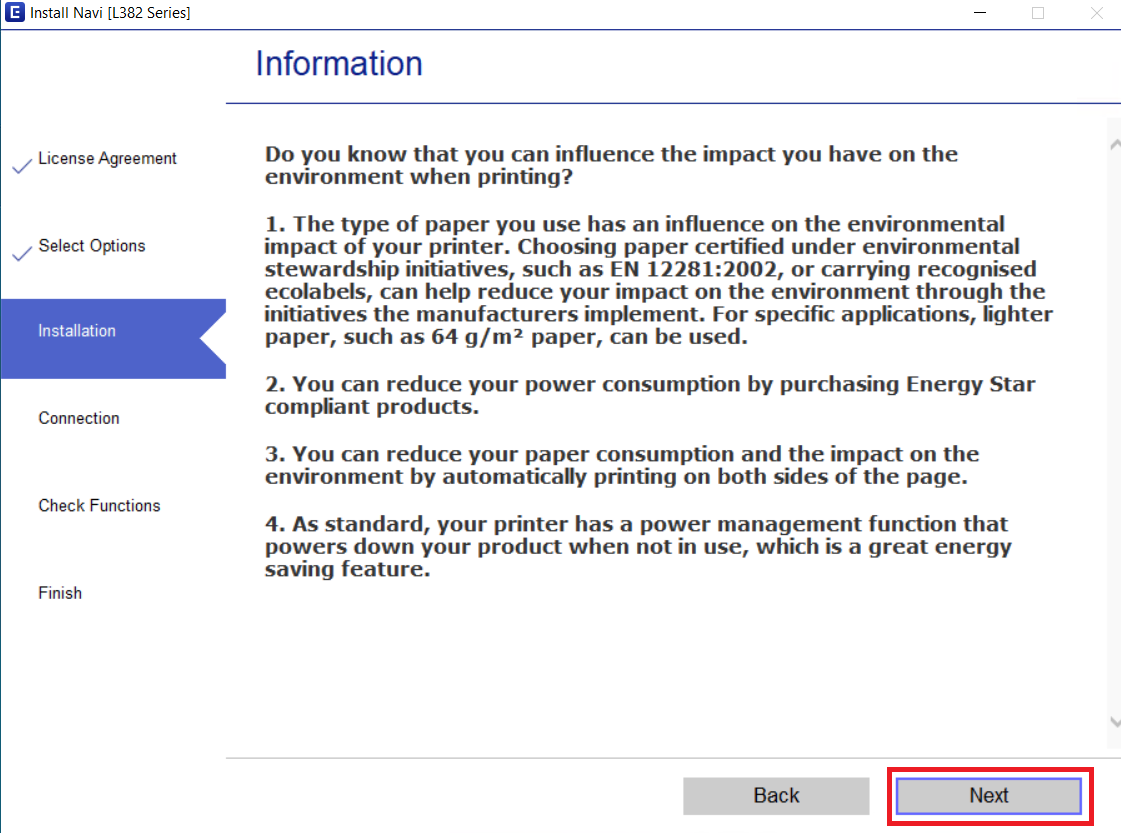
- Read the displayed information, then click on the ‘Next’ button.
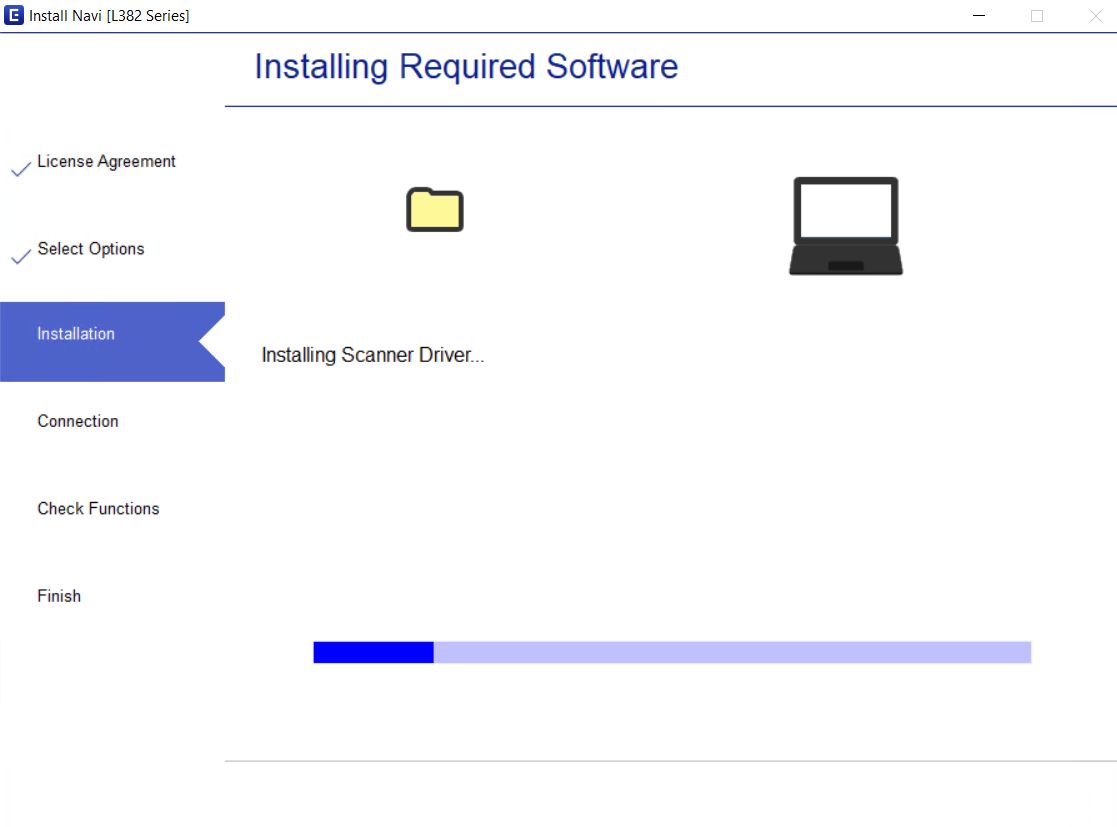
- Wait for the drivers and software to install on your computer.
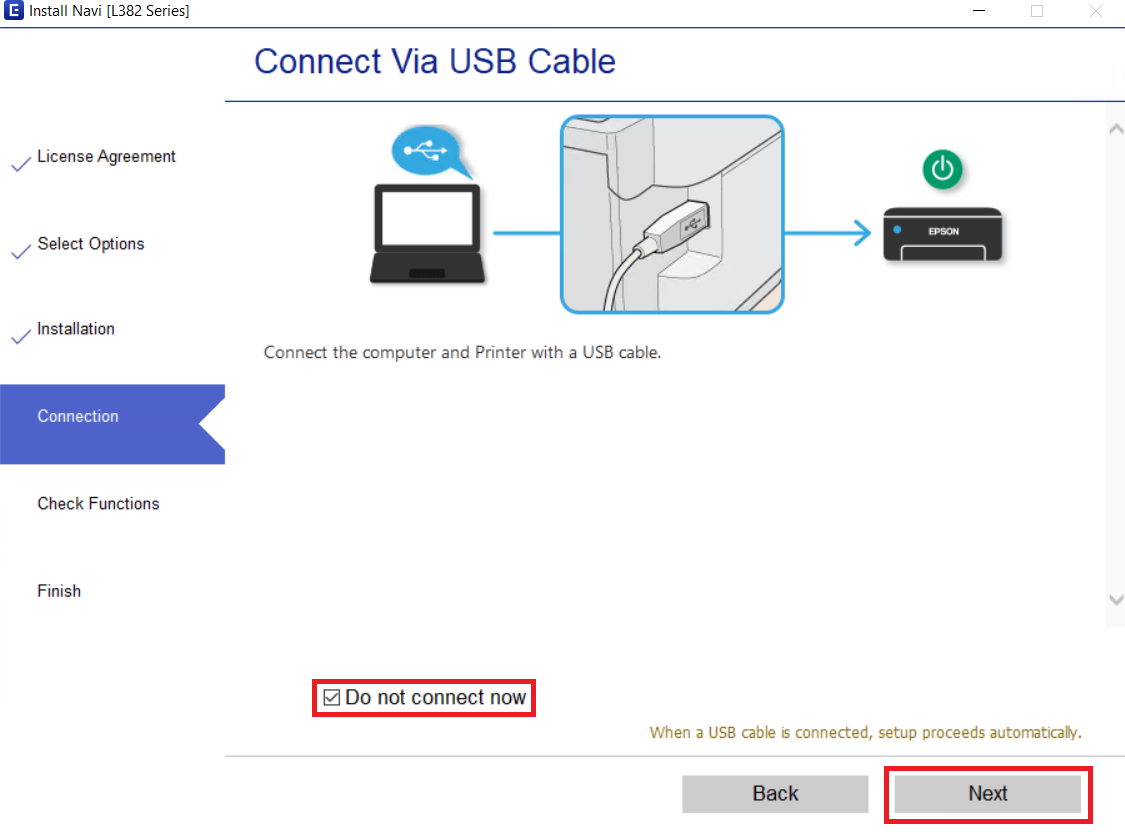
- If you want to connect your printer now, then connect it with your computer via USB cable. Otherwise, select the ‘Do not connect now’ option. Finally, click on the ‘Next’ button.
- Click on the ‘Finish’ button to complete the setup.
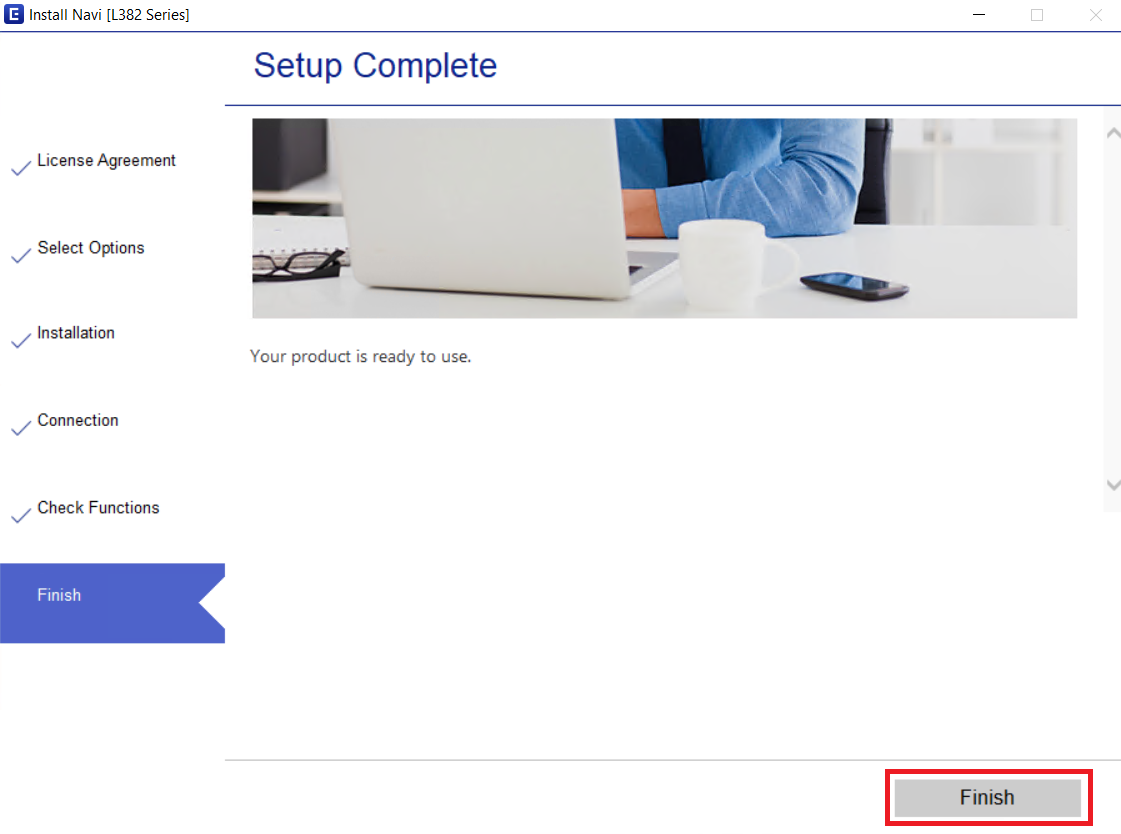
That’s it, you have successfully installed the Epson L382 driver package on your computer.
2) Basic Driver (With Installer)
In this guide, I will describe the steps for installing the Epson L382 basic driver on all the supported versions of the Windows operating system. Since this version of the basic driver comes with installer, you can automatically install the driver just by running the setup file. Follow these steps:
- Run the basic driver setup file, then click on the ‘Setup’ button.
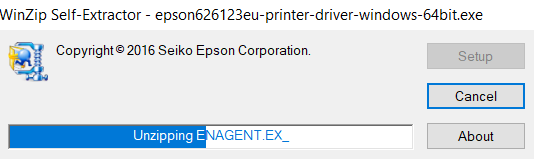
- Wait for the installer files to extract on your computer.
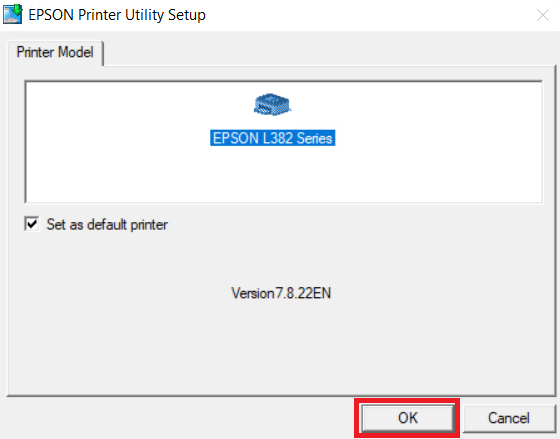
- Make sure that the Epson L382 Series icon is selected, then click on the ‘OK’ button.
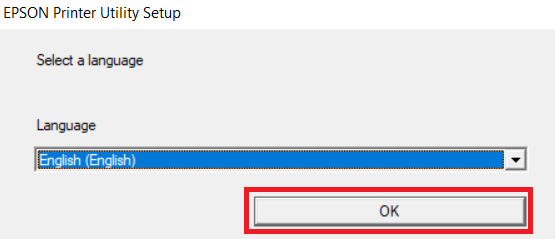
- Select your preferred language, then click on ‘OK’ button.
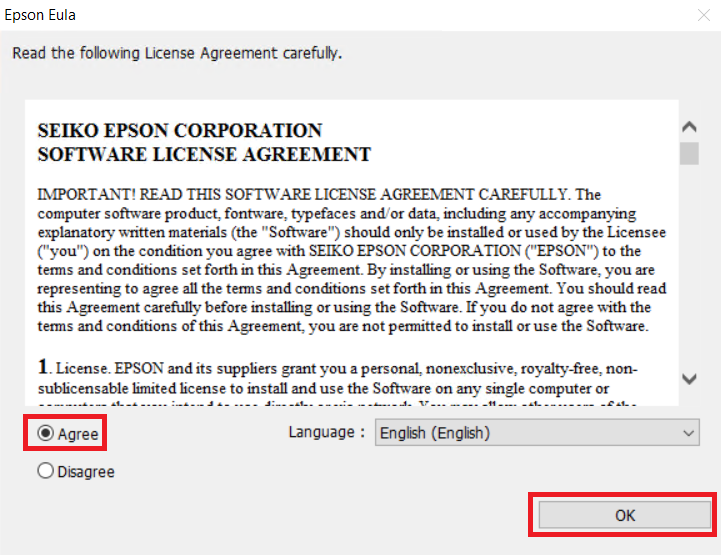
- In the License Agreement screen, select the ‘Agree’ option, then click on the ‘OK’ button.
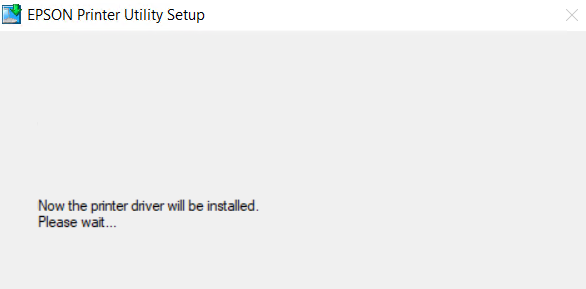
- Wait for the printer driver to install on your computer.
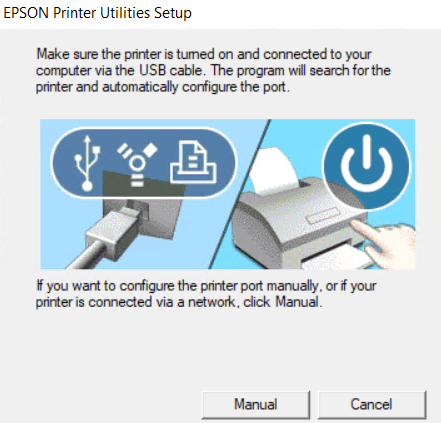
- Connect your Epson printer with your computer by using a USB cable and wait for the installation process to complete.
- Click on the ‘OK’ button.
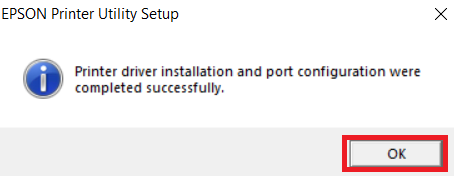
That’s it, you have successfully installed the Epson L382 basic printer driver on your computer. You can use the same process for installing the basic scanner driver.
3) Basic Driver – INF Driver (Without Installer)
In this guide, I will explain how to manually install the Epson L382 INF driver on all the supported versions of the Windows operating system. Since this type of basic driver doesn’t come with an installer, you will need to install this driver manually by using its INF file. Follow these steps:
- Click on the ‘Start’ button, then select the ‘Settings’ option from the menu.
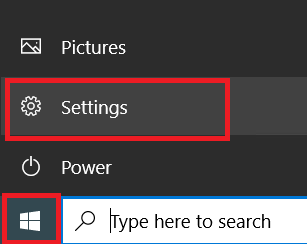
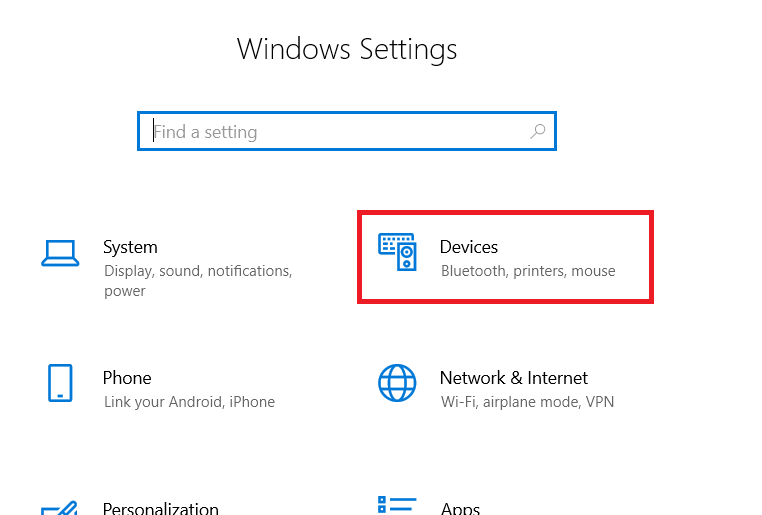
- In the Windows Settings page, click on the ‘Devices’ option.
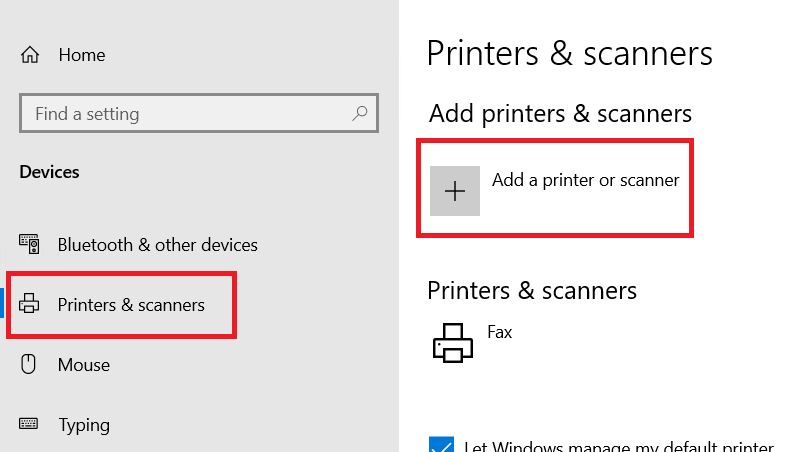
- Select the ‘Printers & scanner’, then click on the ‘Add a printer or scanner’ option.
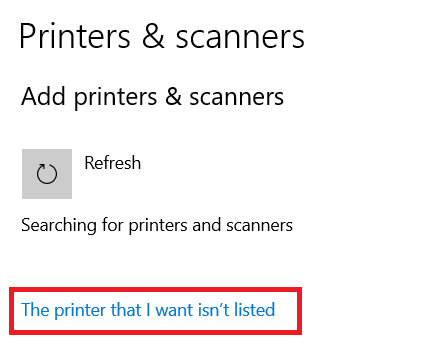
- Wait for the ‘The printer that I want isn’t listed’ option to appear, then click on it.
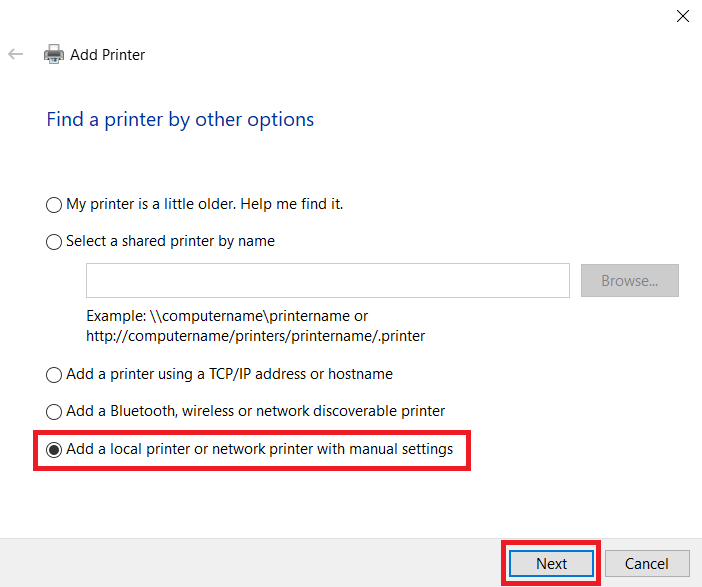
- In the Add Printer window, select the ‘Add a local printer or network printer with manual settings’ option, then click on ‘Next’.
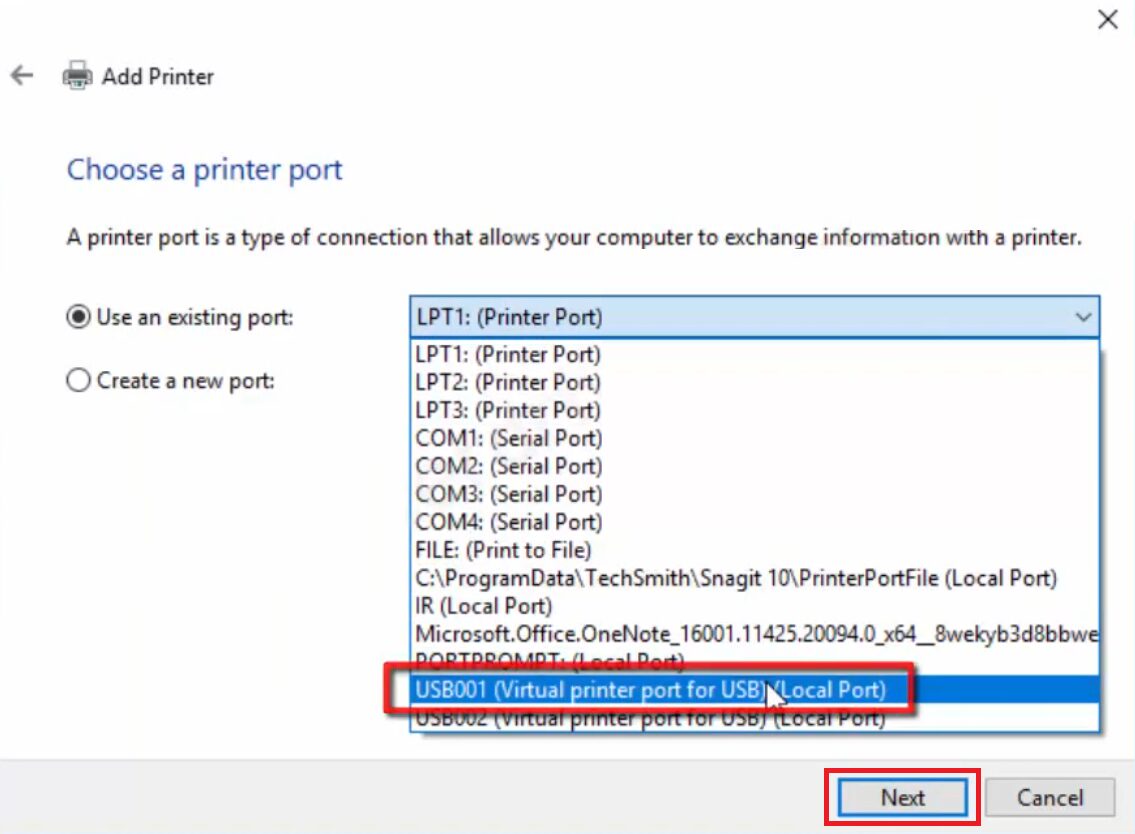
- In the Choose a printer port screen, select the ‘USB’ port from the list of available ports, then click on ‘Next’.
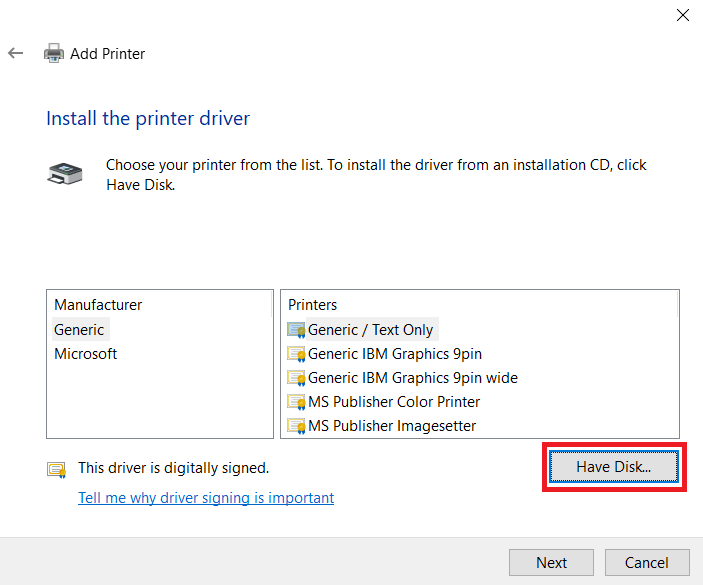
- Click on the ‘Have Disk’ button.
- Click on the ‘Browse’ button.
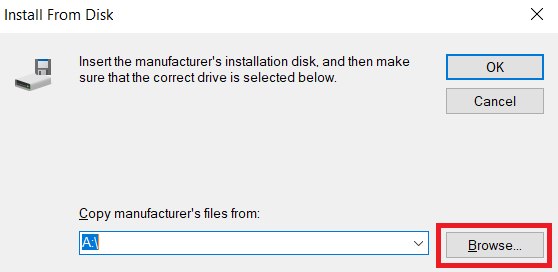
- In the Browse window, go to the folder where you extracted the basic printer driver files, then choose the ‘EPUSBADD’ inf file. Finally, click on the ‘Open’ button.
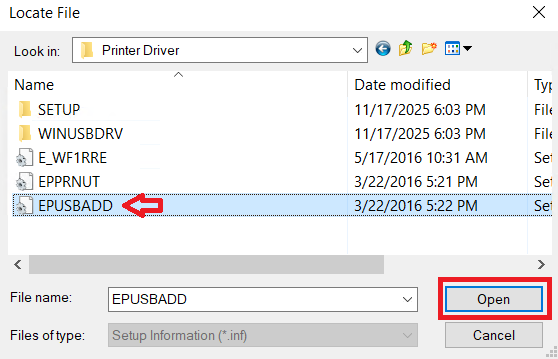
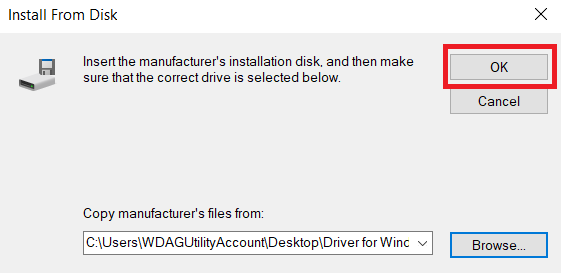
- Click on the ‘OK’ button.
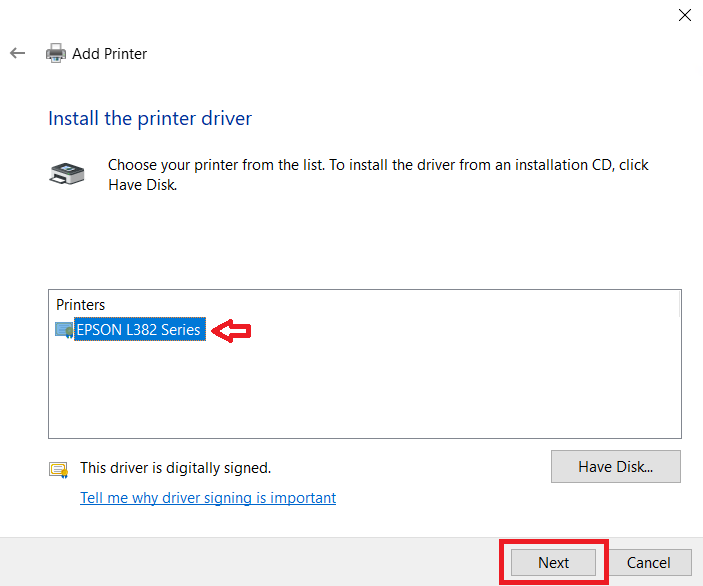
- Select the ‘Epson L382 Series’ printer, then click on ‘Next’.
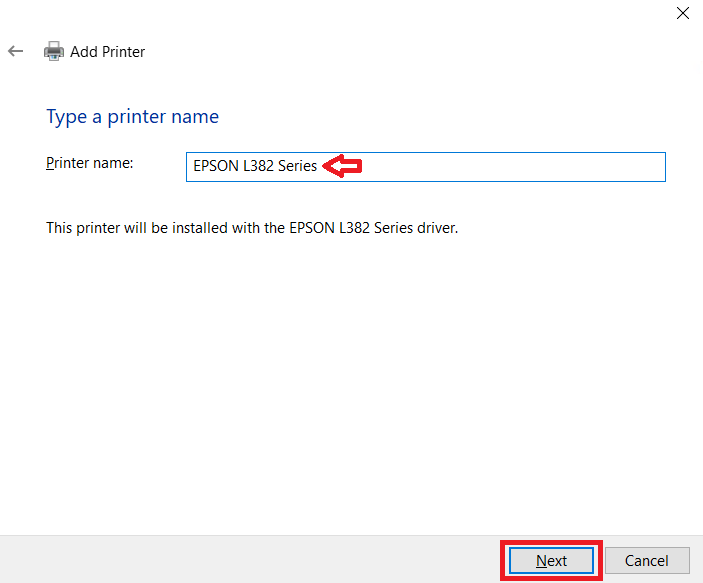
- If you want, then you can type your preferred printer name, otherwise, you can proceed with the default printer name. Finally, click on the ‘Next’ button.
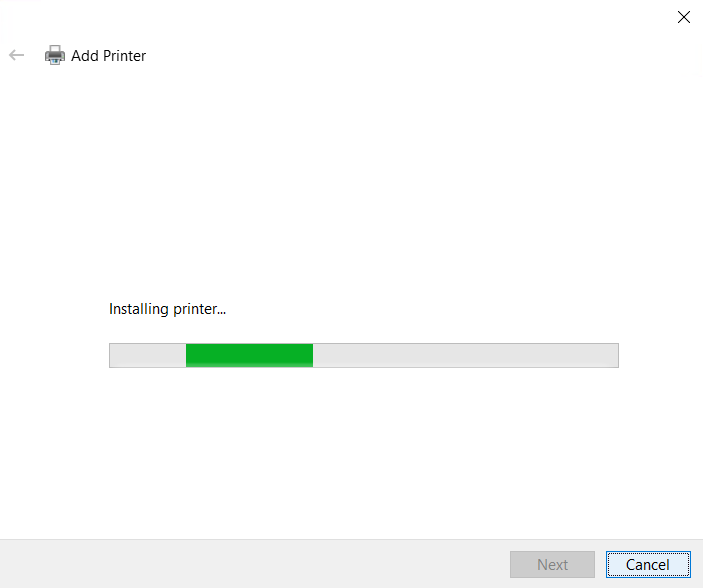
- Wait for the installation of the printer driver to complete, then follow the onscreen instructions to complete the installation process.
Watch the how-to install Epson L382 video tutorial:
That’s it, you have successfully installed the Epson L382 INF printer driver on your computer. You can follow the same steps for installing the INF scanner driver as well.
Epson L382 Features
Epson L382 offers low-cost printing, copying, and scanning features. Due to its ink tank system, it can print high volumes of pages at an ultra-low-cost. Setting up this printer is extremely easy and hassle-free. The device delivers high-quality prints and supports borderless printing.
Which ink cartridges are used in the printer?: The ink for this inkjet printer comes in Black (C13T66414A), Magenta (C13T66434A), Cyan (C13T66424A) and Yellow (C13T66444A) ink bottles.



its have prablem and good
Thank you so much guys for your support for giving us the option to download Epson driver for especially with macOS big sur its drivers for Epson
You’re most welcome!!
When i try to install the printer drivers i get the following error message:
The printer driver and / or utilities cannot be installed on your windows system.
If the full feature driver did not work for you, then try installing it using its basic driver. Here’s a guide to learn how to install a printer driver manually using its basic driver. https://www.freeprinterdriverdownload.org/how-to-install-a-printer-driver-manually-through-usb-add-a-printer-method/
If the full driver did not work for you then try to install it manually using Epson L382 basic driver.
How can I download scanner for Epson L382
You can download the L382 scanner driver using this driver: https://download.epson-europe.com/pub/download/6361/epson636150eu.exe
how can i get driver or install of epson l382 on my laptop
Try to install it using this driver: Printer Driver / Scanner Driver.
If a printer’s ink pad is at the end of its service life then what can I do in order to fix it.
thank you.
Try this L382 Adjustment Program: https://www.freeprinterdriverdownload.org/epson-l382-resetter-tool-download-for-free-adjustment-program/
can epson l382 printer print wirelessly?
No, Epson L382 is not a WiFi printer, so you cannot connect it wirelessly.
Yes, thank you it worked perfectly but again if i may ask, we can’t scan now on different laptops, we have to use one laptop connected with the USB to scan is it possible to scan on the other possible, the printer is L382.
thanks again
No, scanning is not possible in this sharing mode for this particular printer.
my epson printer L382 can’t connect to wifi any help pls?
i want to be sharing it 3 laptops all on the same network
all laptops are using windows 10
Yes, you can install this printer on a computer through USB and then share it on your local network. After that, you can easily print wirelessly. See this article for more help on this: https://www.techsupportall.com/how-to-share-a-printer-in-windows-10-on-local-network/
My L382 printer does not print photo on photo glossy paper
L382 IS NOT INSTALLING IN MY SYSTEM WHAT IS WRONG
Did it give you any error message while installing? When and what happens while installing?
Hi My laptop is windows 10 64bit, can you please help me with an Epson L382 scanner software
Sure, here is the scanner driver: https://download.epson-europe.com/pub/download/6361/epson636150eu.exe
Click to the windows start key and search the word scan,click Epson scan or if your printer is from HP company click Hp scan
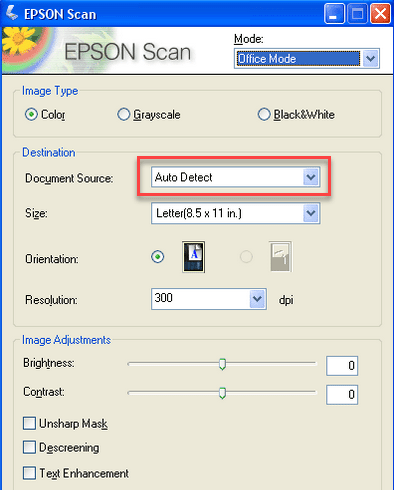
Is it possible to scan multiple pages via the document feeder of Epson L382, instead of single page scan?
Yes, it should be possible. If so, there must be an option to select the scanner source in the scanner software, see the following screenshot. Try this guideline to to do so.
my epson scanner l382 cant work
What is the problem with that, please explain.
My computer is windows 8.1 pro type 32-bit operating system x64 based processor, kindly share with me link so that i can easily download thank you..
Yes, it will work with Windows 8.1 32bit as well.
what is the best ICC profile for sublimation print?
The print color does’not match monitor color.
Don’t know about the profile stuff but I can suggest you to clean your printer’s print head and nozzles.
Could you help me to install printer into my computer?
Sure, we’ll help you. Please explain the problem that you are facing on your computer in detail and then we’ll try our best to give appropriate suggestions to you.
Am not able to scan despite downloading the scanning drive. After running the drive cant see the scanning command option. please assists. How do i scan my documents using the epson l382
When you install Epson L382 full feature driver, you must get “Epson scan” icon on your desktop, like this:

Here is a guide to learn how to scan:
epson 382 driver please
Go to the download section given above and download the driver form from there. If there is any problem in installing and downloading then ask in the comments section down below.
My Epson L382 is not printing picture,Kodak digital paper 4R 240g/m2, what can do and need to print passport size now.
Try 180gm papers if it works. Does it give you any error message or gets paper jam, what happens?
My Epson L382 scanner is not scanning and I don’t have the drivers for scanning. Kindly assist me.
Here’s the scanner driver. Kindly install it and then let us know again if it doesn’t work:
https://download.epson-europe.com/pub/download/6361/epson636150eu.exe
this doesn’t work, keeps going to SCANNER SEETINGS. Please Help!
If the scanner driver reinstall doesn’t work, then run this Epson scanner software updater after installing the scan driver.
Thanks a lot for your assistance
My l382 Scanner is not working. i need assistance.
It keeps on bringing me scanner settings every time i want to scan/.
My epson l382 printer doesn’t scan. I need assistance
Sure, you can share your scanner problem (in detail) with us here, we’ll diagnose and help you. Let’s diagnose it first, please answer the following questions:
1. From where you are scanning? Are you using its scanning software or using any other platform to scan?
2. Is it giving you any error message when you give scan command? If yes, so please share that whole error message with us.
3. Are you getting any noise from the printer when you give a scanning command?
4. Have you done any changes recently with your computer or printer hardware physically?
I want my scanner to scan mutiple pages in pdf, how do i go about it?
or how can i combine all the pages to one document?
You just need to go to scan settings and change the file format to .pdf. For more detail check out this article: https://epson.ru/es/upload/ManualTypes/100511/html_s/projs_5.htm