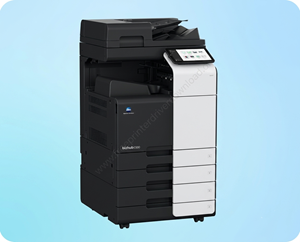
Konica Minolta Bizhub C250i is a high-speed color laser printer that can support up to A3 paper size. It is a color photocopy machine by Konica Minolta. This machine can connect to the local network through an Ethernet cable. You can also connect this C250i printer directly to your PC through a USB cable, which is not recommended because its network connectivity is very stable and convenient. Once you connect this printer to your local network then you can easily give print and scan commands through WiFi enabled devices as well.
To install this printer on your local network or through the USB cable, you will require its driver. I have given the driver download link in the download section below. You can download the driver from there, according to your operating system version – where you want to install this printer. Or you may download the same driver from its official website as well. Both the drivers are the same.
After download the driver, I request you to please follow the step-by-step installation guide so that you do not make any mistakes while installing this printer. I have prepared these instructions while installing this printer on my computer, and I am going to share this installation process which is given below in the how to install section. Please check it out.
So let’s start the installation process by downloading the drivers first.
Download Konica Minolta Bizhub C250i Driver for PC
To download the driver, click on the download button which is given below, according to your operating system version where you want to install the driver.
Driver for Konica Minolta c250i Printer
Type: Universal Driver Operating System: Windows 11, 10, 8, 8.1, 7 File Size: 143 MB Version: 1.2 Download DriverOR
Download the Bizhub C250i printer driver from its official website.
How to Install Konica Minolta Bizhub C250i Printer on Windows
After downloading the driver, you should know the right process to install it in the right way. That is why I am going to share the step-by-step installation guide.
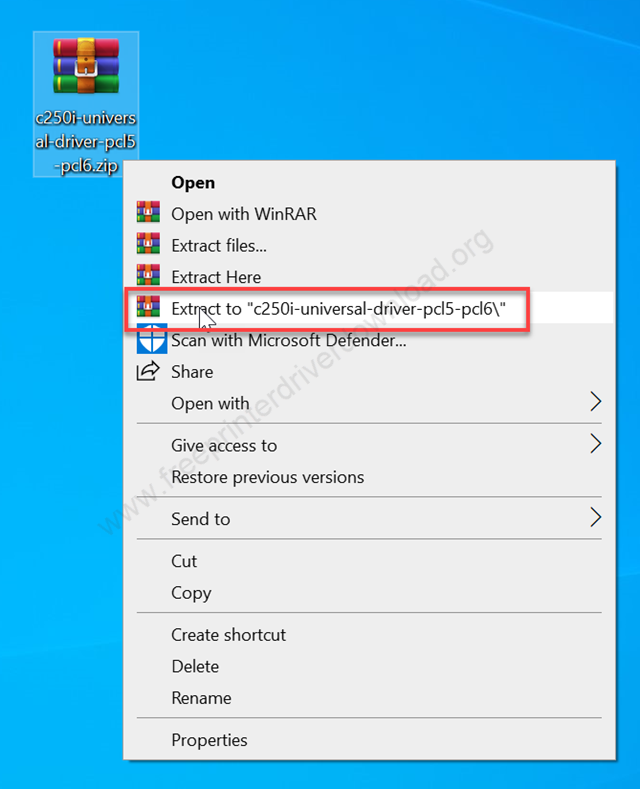
Step 1: After downloading the drivers from the above given download section, right-click on the driver file – the zip file, and click on Extract to. Basically, we need to unzip all the files into a folder.
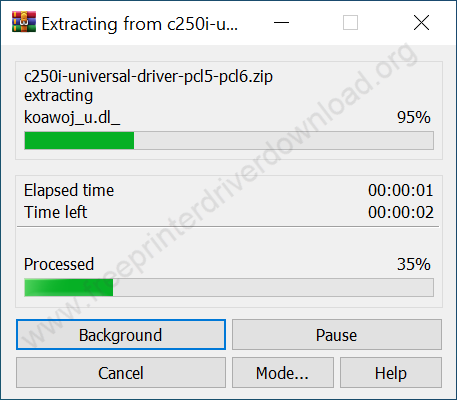
Step 2: It is now extracting the drivers, so please wait for that.
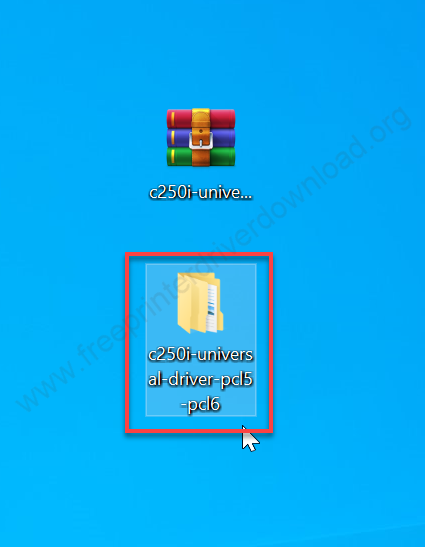
Step 3: Open up the newly created extracted folder.
Step 4: Open up the subfolder “PCL6”. PCL6 is for if you are installing this printer on a Windows 11, Windows 10, Windows 8 computer. If you are going to install it on Windows XP, Vista, or Windows 7, then you will have to use PCL5.
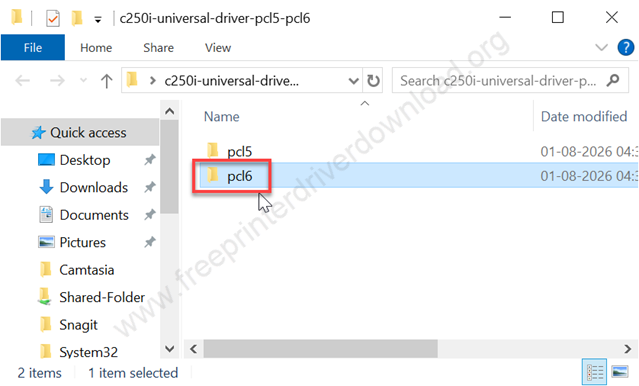
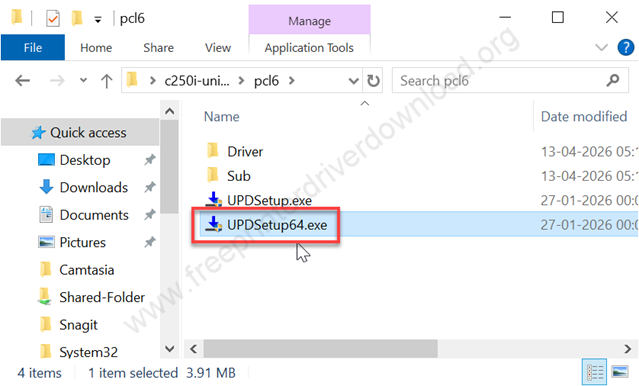
Step 5: In the folder, you will get two files, UPDSetup.exe and UPDSetup64.exe. If your computer is 64-bit, then double-click on the 64-bit “updsetup64.exe“ driver. And if your computer is 32-bit, then double-click on the UPDSetup.exe to execute the installation wizard.
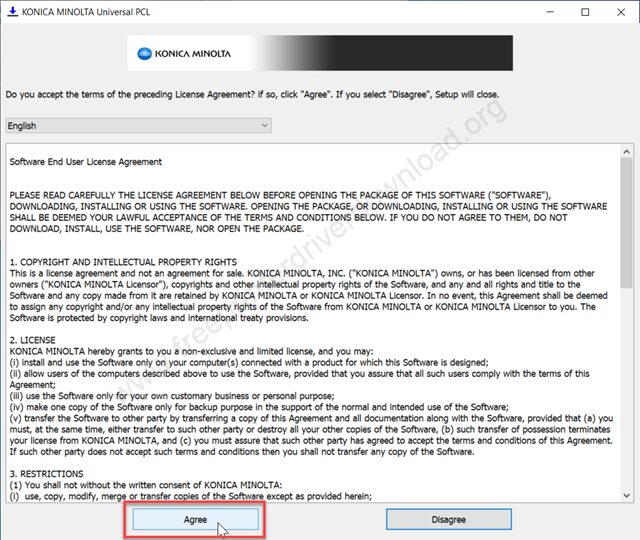
Step 6: The Konica Minolta Universal Driver installation wizard has been started. Just click on the Agree button to go next.
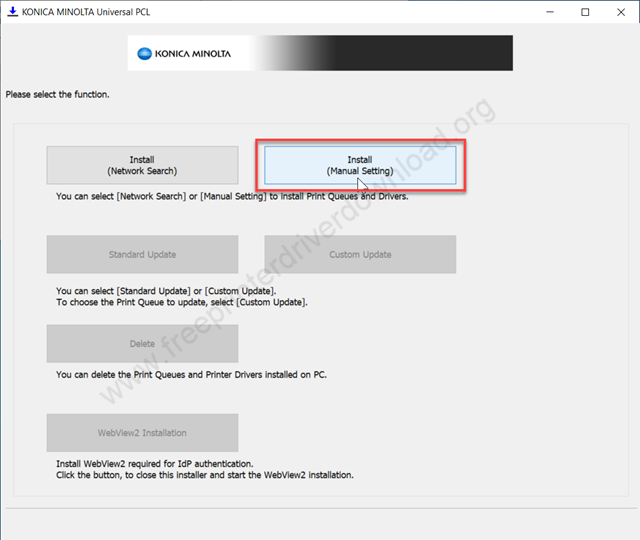
Step 7: Now, choose the preferred connection type. If you are going to install this printer through the USB cable, then select Manual Settings option. If you are going to install this printer on your local network, then you will have to choose the first option, Install Network Search.
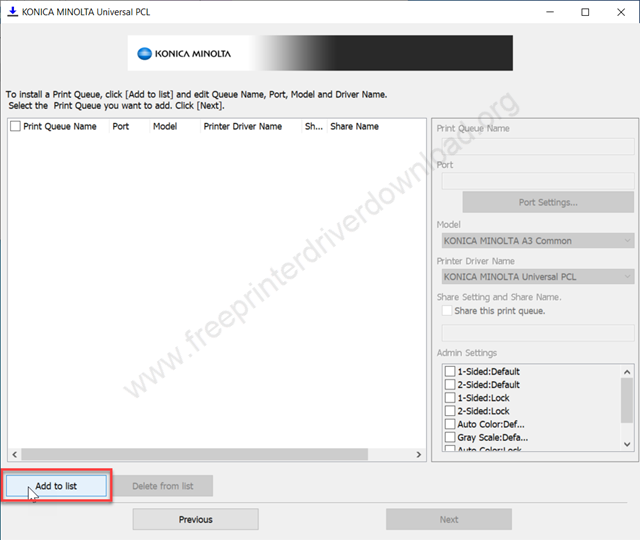
Step 8: Click on the Add to list button to make an entry in the list above.
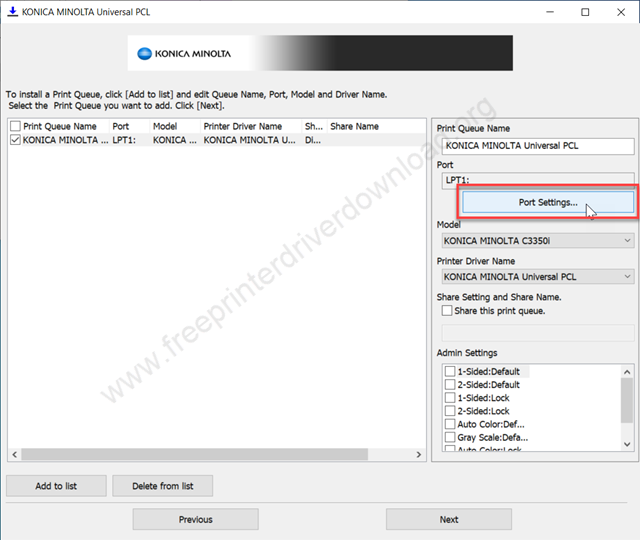
Step 9: Once an entry has been made, click on Port Settings to choose the port.
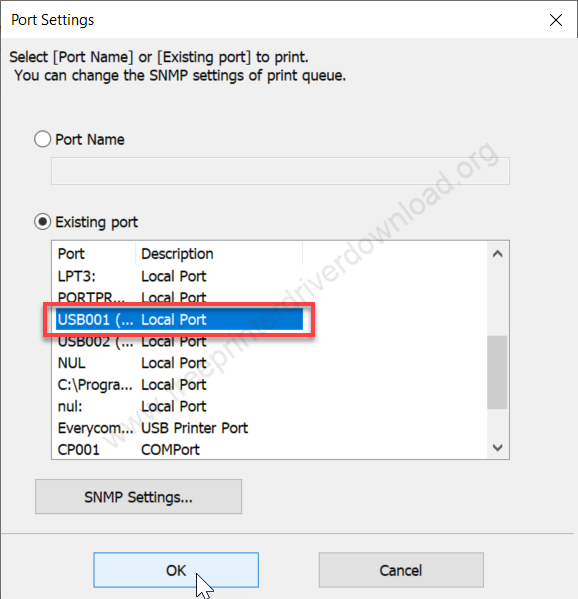
Step 10: Here you need to select a port and click on OK. If you only have this printer connected to the PC, then you will have to choose USB 001. If you have multiple printers connected, then you can choose USB002 or 003 accordingly.
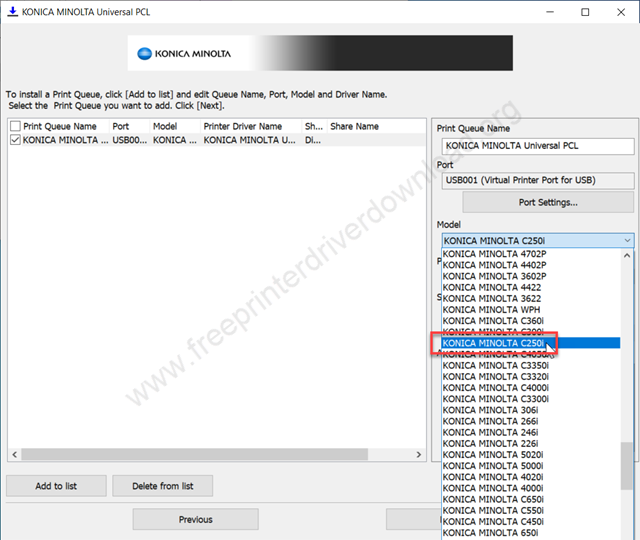
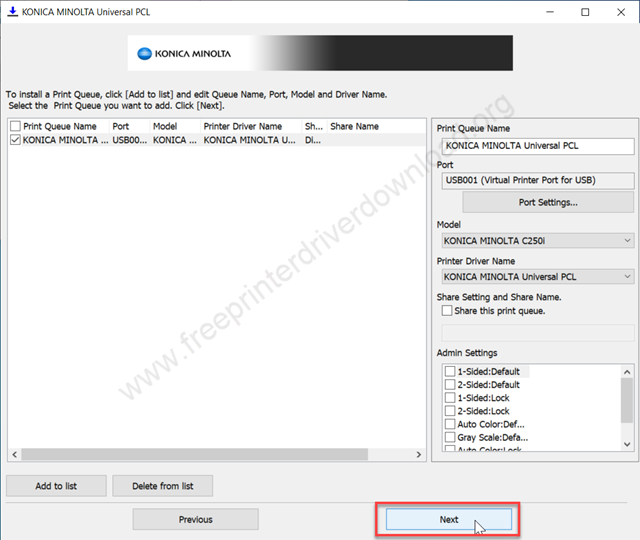
Step 11: Now click on the “model” drop down menu and select your printer model number from the given list. I have selected Konica Minolta C250i.
Step 12: Then click on Next
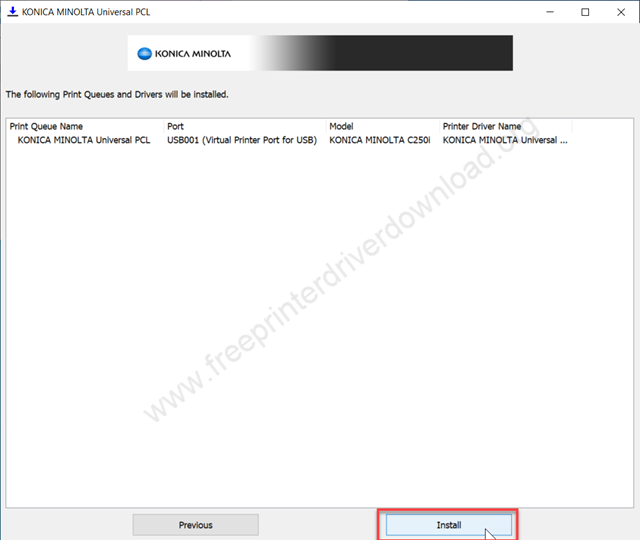
Step 13: After that click on install to finally start the driver installation.
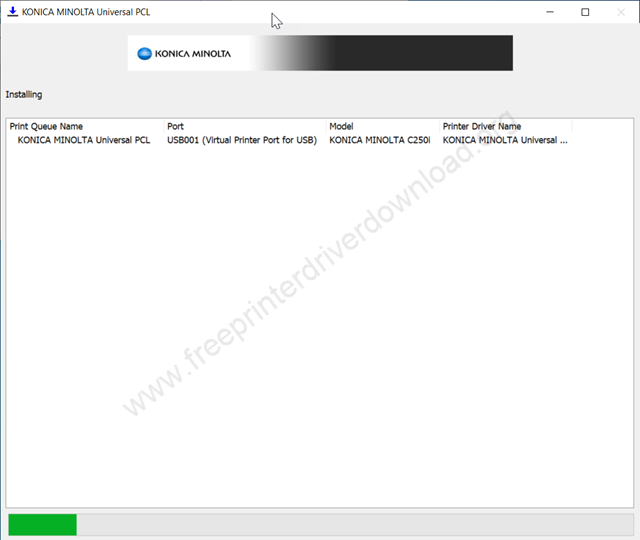
Step 14: It is now installing the drivers, so please wait for that.
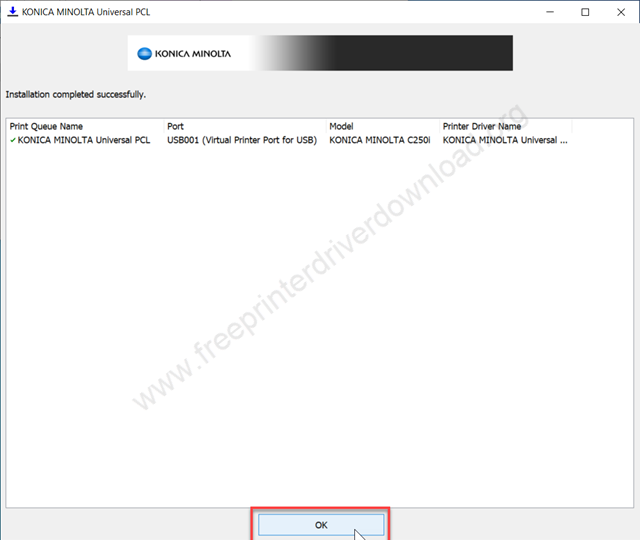
Step 15: The installation process has been completed successfully. Please click on OK to complete the installation process.
Step 16: Go to the printers page and check if a universal driver has been installed or not. As you can see, the Konica Minolta C250i printer has been installed with the name of “Universal PCL”. You can change the name if you want by clicking on the Manage button.
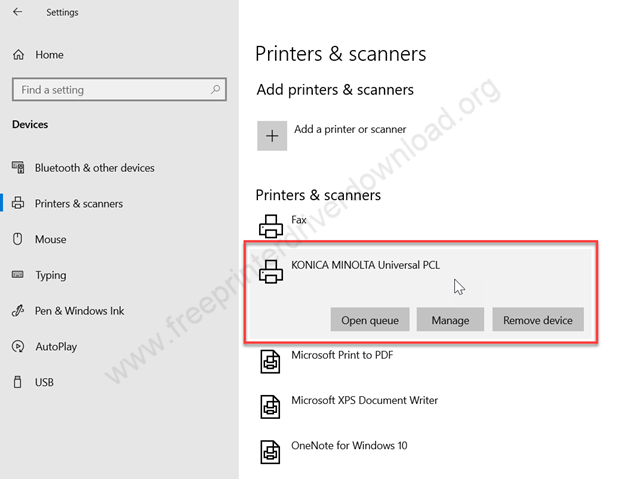
So, here are the steps on how you can install this Konica Minolta C250i printer on your computer using its universal driver. It is very easy, as you can see. Hope you liked it.
Specifications & Features
The Konica Minolta C250i printer is a color photocopy machine that can print, copy, scan and fax in color with network connectivity. This printer comes from Bizhub series. This printer is very similar to C300i and C360i printers, because all three printers have the same motherboard. There’s very little difference between them. So, the same driver will work with all three printers.
The two main highlights of this printer are the print speed and the network connectivity. The print speed of this printer is 25 ppm in color and black & white, on A4 size paper. If you are printing on A3 size paper, then the print speed will be 15 ppm in color and black & white prints. The maximum resolution is 1800 x 1200 dpi. It will give you the same speed in copy as well.
It has a flatbed scanner with 200 to 600 DPI resolution, which is very good. It comes with the ADF feature, which help you to print both sides of the paper. It has a dedicated scan button on the printer, which can help you to scan the document with a single button, which can save on your computer, and also you can send the scanned document to the email directly from the printer, it is a really handy feature.
You can connect a maximum of 4 paper trays, the cassette type tray, with this printer, and use them in a different paper size, which is also a very convenient feature. The input tray can hold up to 250 pages in each tray. There is only one output tray that can hold up to 250 pages as well. There is a bypass input paper tray for custom paper size, which is at the side of the printer, that can also hold 70 pages at a time.
The specs of the printer look very good. It has a Cortex-A72 series 1.6 GHz CPU and 8 GB RAM. It is loaded with a 256 GB SSD. It has one big size 10-inch display on the top, so that you can navigate the printer settings and operation easily.
If you are going to connect this printer to your mobile (android and iPhone), then you can easily connect it by installing its app on your phone.
I have explained everything about this Bizhub C250i printer, which driver you will require to install this printer on your computer, which app you will require to install this printer on your phone, and from where you can download the drivers. I have given the driver download link, and also provided the step-by-step installation guide, and all the specifications of this printer. Hope you like it. Thanks.