

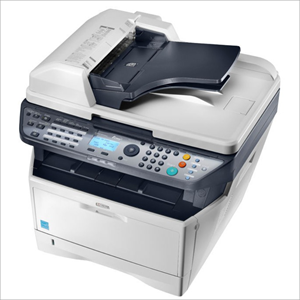
Kyocera ECOSYS M2530dn is a monochrome laser printer with scanner. This printer has lots of features like print, copy, scan and fax. You can use all these features through the computer, you will have to install the latest version driver on the computer where you want to install this printer.
Although you can download this driver from Kyocera’s official website, but you can also download this driver from the given download section below. After that, don’t forget to read the step-by-step installation instructions so that you can install this printer easily on your computer.
Download Kyocera M2530dn Latest Version Driver
In order to download Kyocera M2530dn printer driver, you need to know the operating system of your computer and click on the given download link according to your operating system version.
Driver for Kyocera M2530dn Printer
Type: Full feature driver Operating System: Windows 11, 10, 8, 8.1, 7, Vista, XP File Size: 169 MB Version: 4.0 Download DriverOR
You may download the driver from the Kyocera M2530dn official website
How to Install Kyocera M2530dn Printer Driver
In order to properly install this printer on a computer, you need to follow the proper installation process that is given below. I suggest you to follow the following steps carefully.
Installation Process:
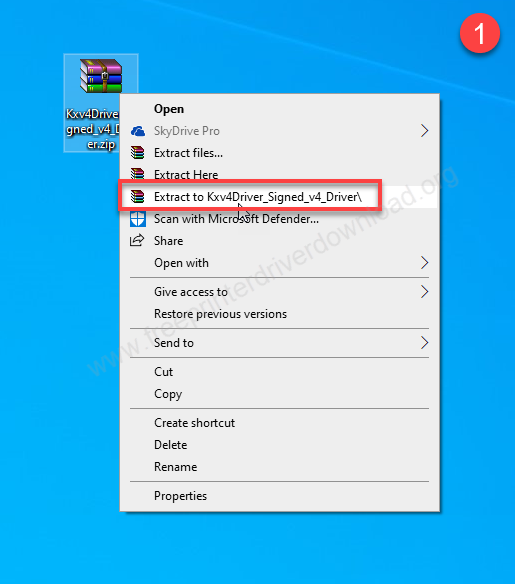
Step 1: Right-click on the downloaded driver and click on “extract to” or “extract all”.
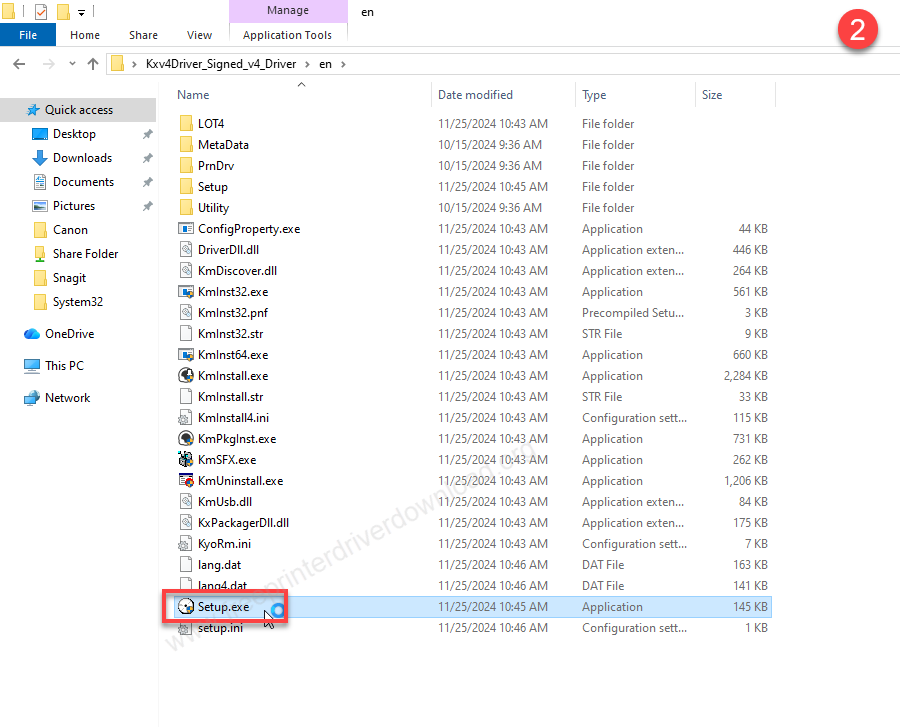
Step 2: Open up the extracted folder and double-click on the setup.exe file. After that click on yes if the computer is asking for permission to execute this file.
Step 3: It is preparing the installation installer, so please wait.
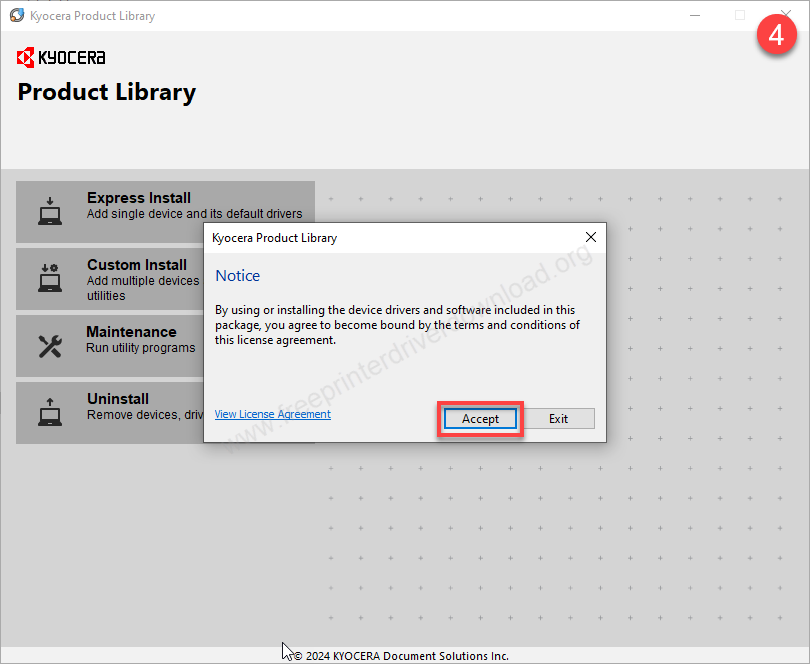
Step 4: Click on Accept to accept the term and condition to use this software.
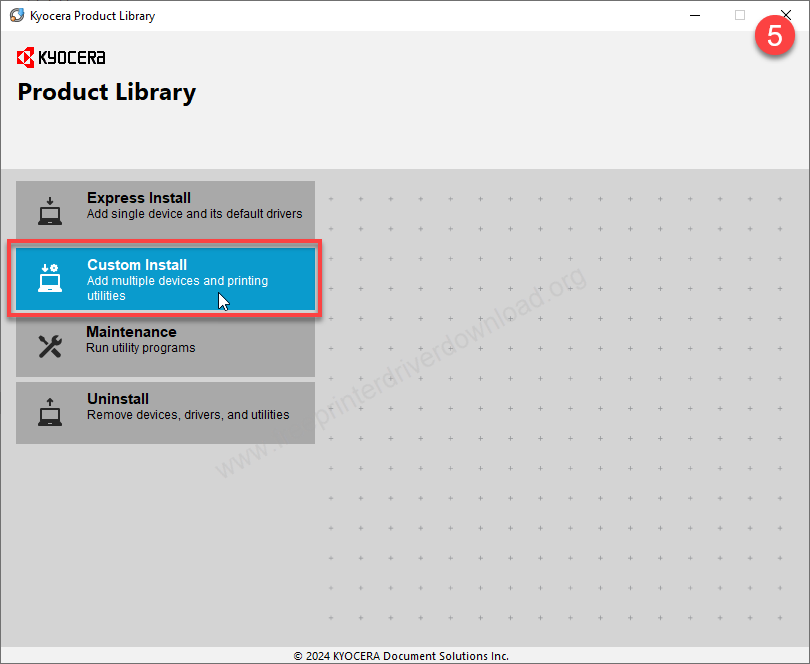
Step 5: Connect the USB cable of your printer to the computer and click on custom install.
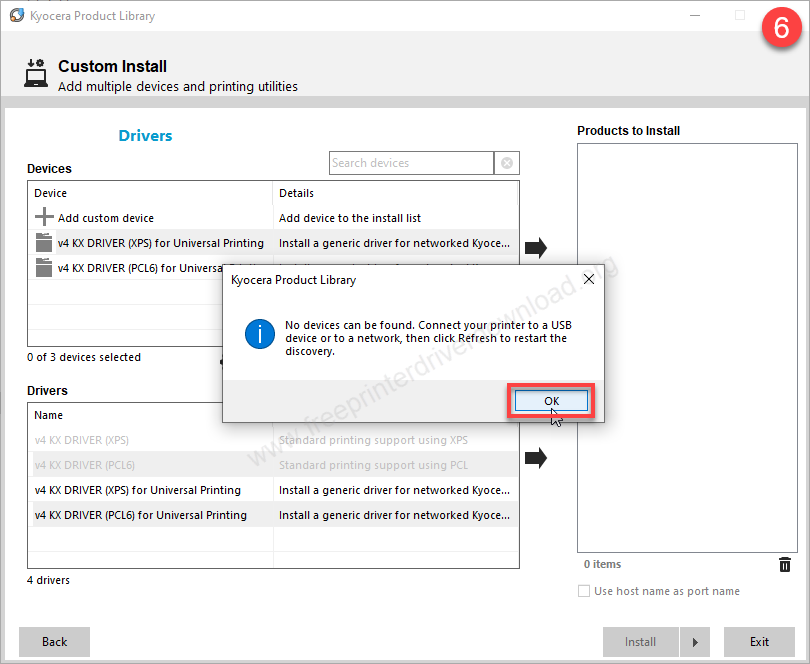
Step 6: Click on OK. And connect the printer cable properly.
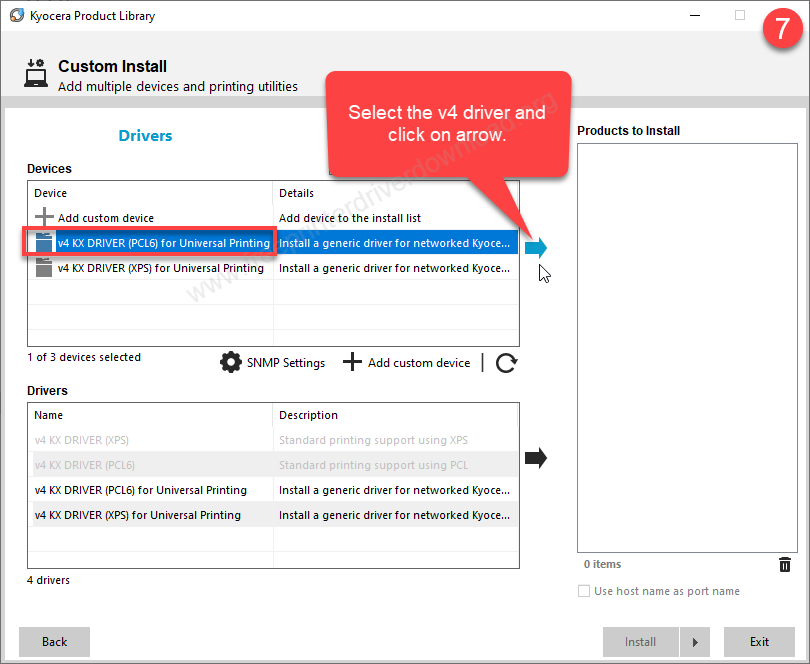
Step 7: Select the PCL6 driver and click on arrow to add the driver to right pane.
Step 8: After that click on install to start the installation process.
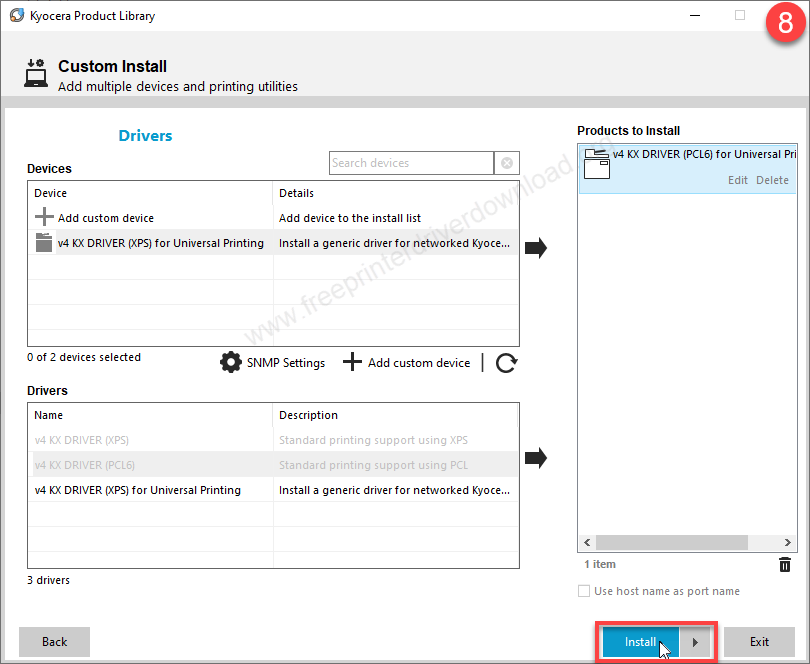
Step 9: The driver is being installed the driver, so pleas wait while it is done.
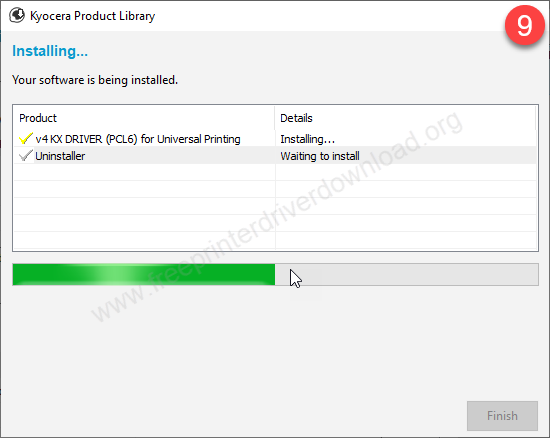
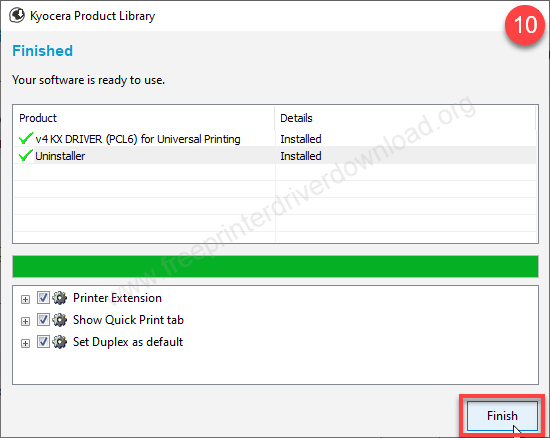
Step 10: The M2530dn printer driver is installed. Click on Finish to complete the installtion process.
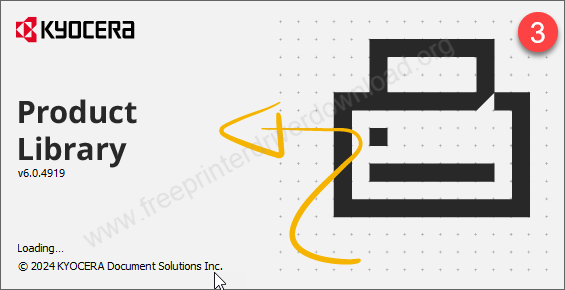
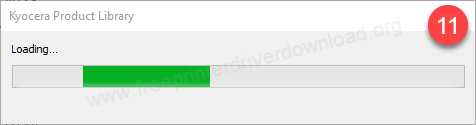
Step 11: It is now loading the product libarary. It will vanish once it is done.
So, this is how you can install the Kyocera M2530dn printer on a Windows computer. I have installed this printer on a Windows 10 laptop, but you can install this printer on a Windows 11, 8 and Windows 7 computer.
Specifications:
Kyocera ECOSYS M2530dn is a high speed printer (up to 30ppm – A4) with high print resolution 1200 x 1200 dpi. This printer has 667 MHz processor along with 512 MB of RAM. This printer uses a toner drum with a yield of 10000 pages.
This printer has multiple paper trays. You can have 2-3 trays (cassette type) beneath the printer which can hold 250 papers in each tray. A multi-purpose tray which is additionally attached at the side of the printer which can hold 50 papers in this tray. It has one output tray that can hold up to 150 pages at a time.
This machine is built-in with a flatbed scanner with duplex ADF. The scanner speed is 35 IPM with 300 DPI copy and scan resolution. The copy speed is 30 CPM. The duplex feature with ADF makes this printer unique and high in features.
You can copy documents in many different sizes with this printer. Just use its zoom feature to make things bigger or smaller. The zoom goes from 25% to 400%.
This printer also has a fax feature. You can send and receive faxes easily. Now, let’s talk about how it connects to your computer. It works in three ways: Ethernet cable (also called a LAN cable), USB cable and through WiFi – Wireless. WiFi card is not included. You need to get it additionally if you need it.
The dimensions of the printer are: width: 494 mm, length: 430 mm and height: 448 mm. It takes 431 watts power while printing – on full load.






