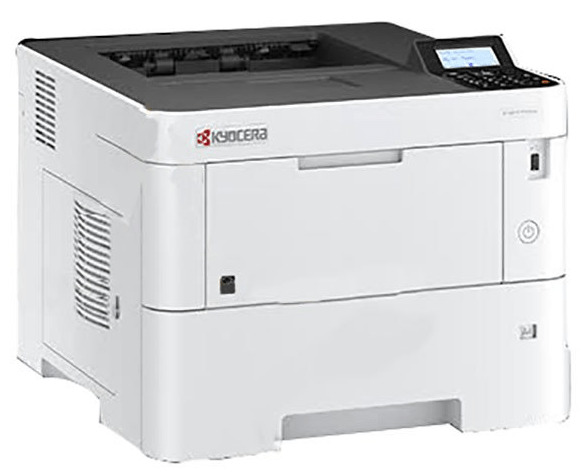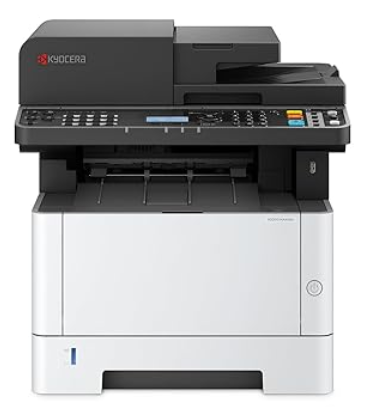
The ECOSYS MA4000x is an all-in-one laser printer by Kyocera. It has print, copy and scan functions. It also has an auto-duplex feature to print and copy 2-sided on a page. To use all these print features through your computer, you will have to install this printer driver on your computer.
You can either download this driver from the download section below or download it from its official website. After downloading the driver, you must follow the step-by-step guide which is given below. So, let’s start the installation process by downloading the drivers first.
Download Kyocera ECOSYS MA4000x Printer Driver
In order to download Kyocera Ecosys MA4000x printer driver, you just need to click on the below given download link according to the operating system version you have.
Web Driver for Kyocera ECOSYS MA4000x Printer Driver
Type: Full feature driver Operating System: Windows 11, 10, 8, 8.1, 7 File Size: 17.2 Version: 1.13 Download DriverOR
You may download the driver from the Kyocera’s official website.
How to Install Kyocera ECOSYS MA4000x Printer Driver in Windows
In order to install this MA4000x printer, you just need to follow the following instructions carefully according to your operating system version.
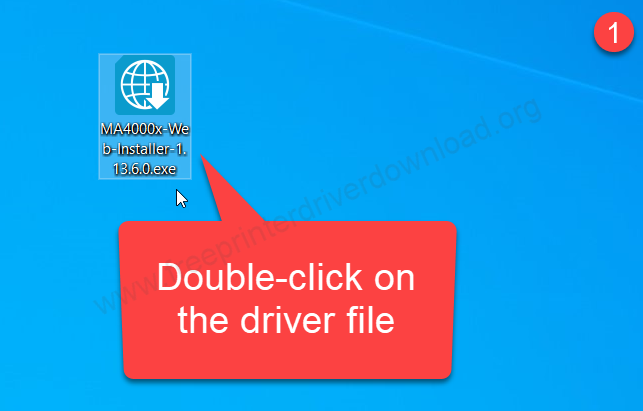
Step 1: Double-click on the driver file to execute the installer – which you just have downloaded from the download section below.
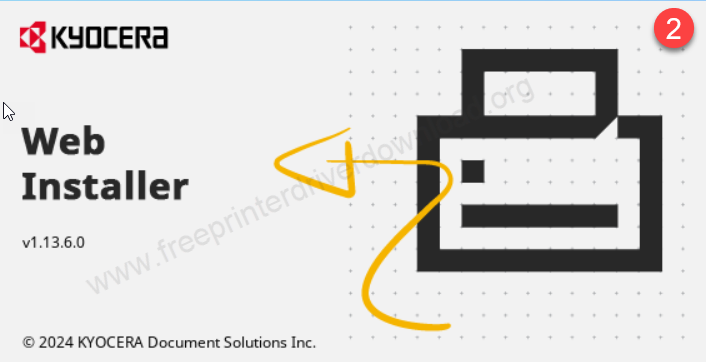
Step 2: It is preparing to load.
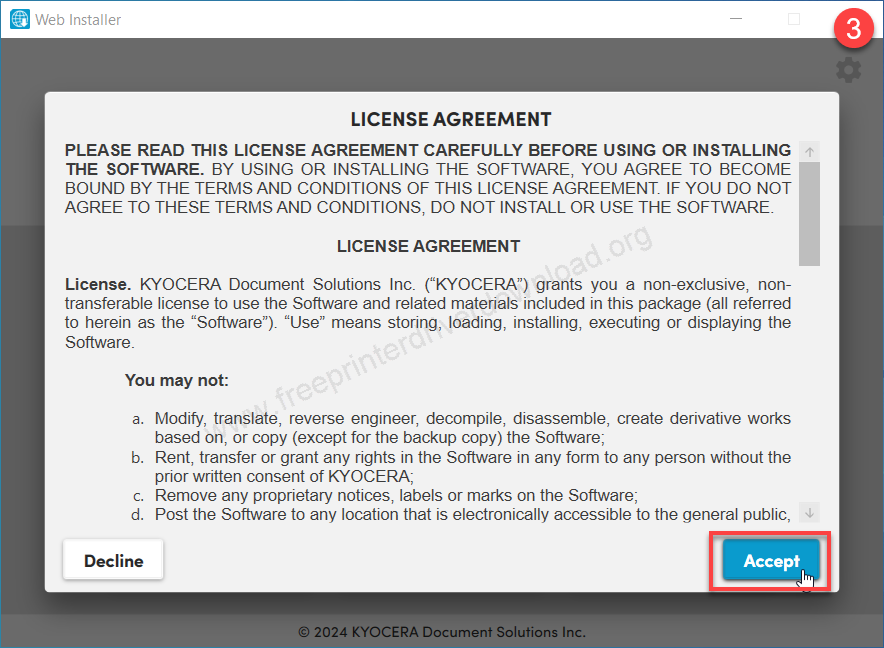
Step 3: Click on Accept.
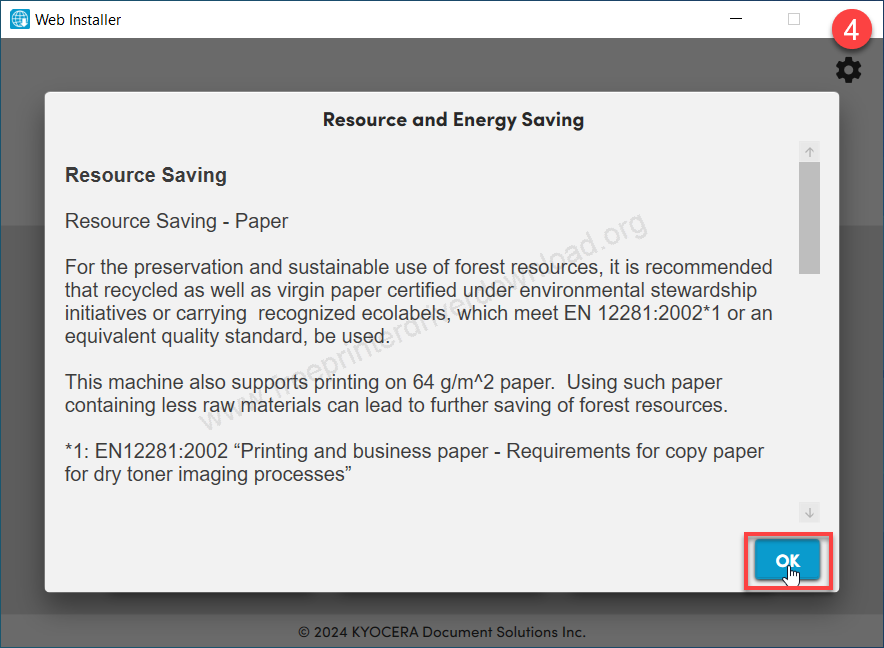
Step 4: Click on OK.
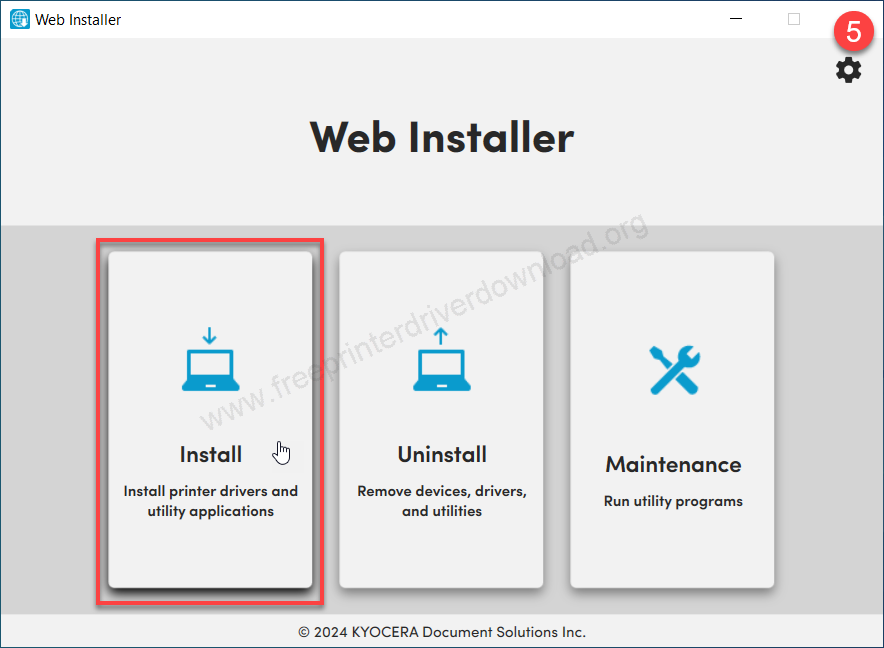
Step 5: Click on Install option.
Step 6: If the printer appears, then select it and click on Next. If the printer does not appear, click on “Add custom device”.
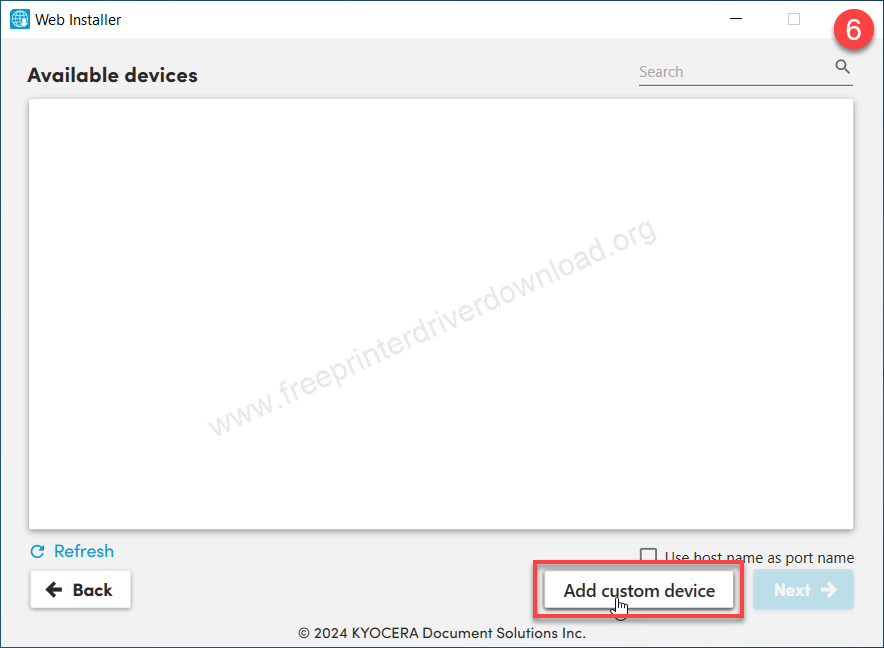
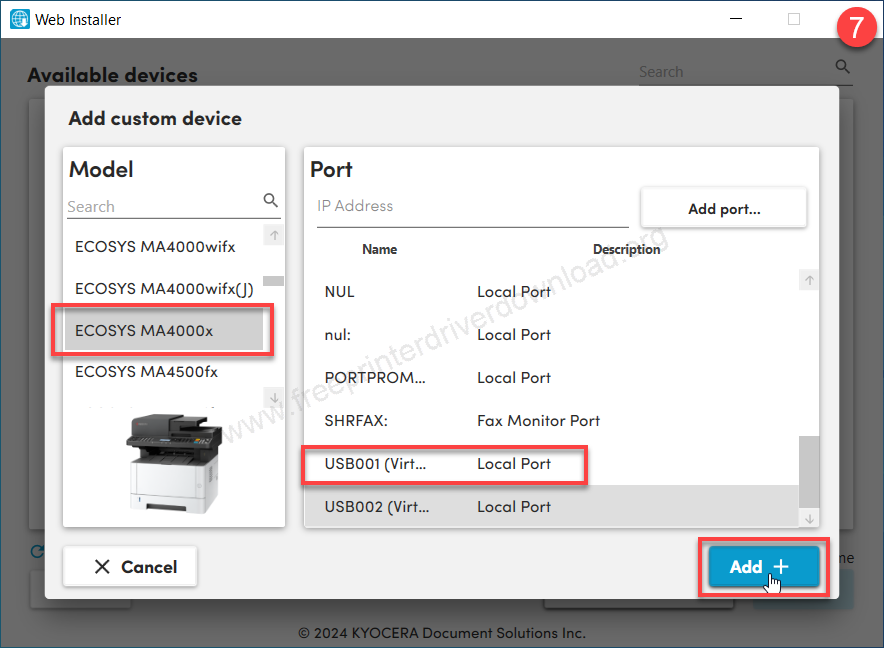
Step 7: Select the model number “Ecosys MA4000x” from the left side pane and then select the appropriate port from the right side pane.
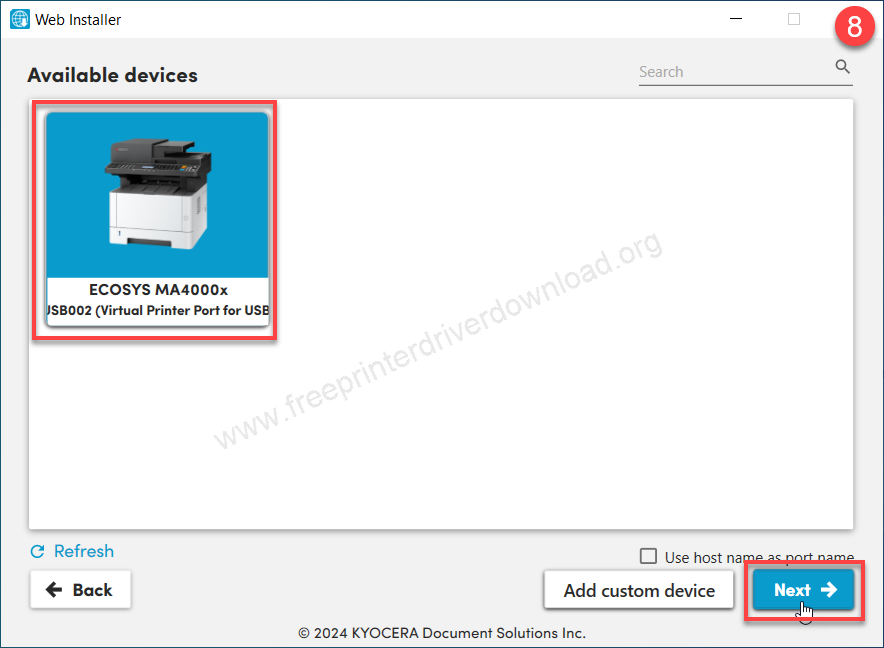
Step 8: Now select the model number (Ecosys MA4000x) from the available devices and then click on Next.
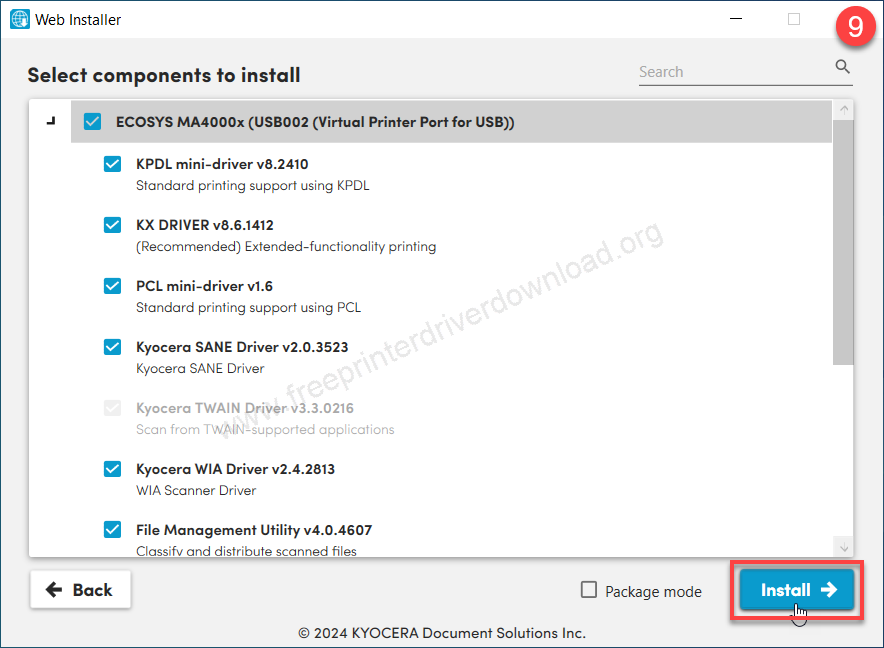
Step 9: Click on install and then wait until all the application & driver will be done.
Step 10: After that click Finish.
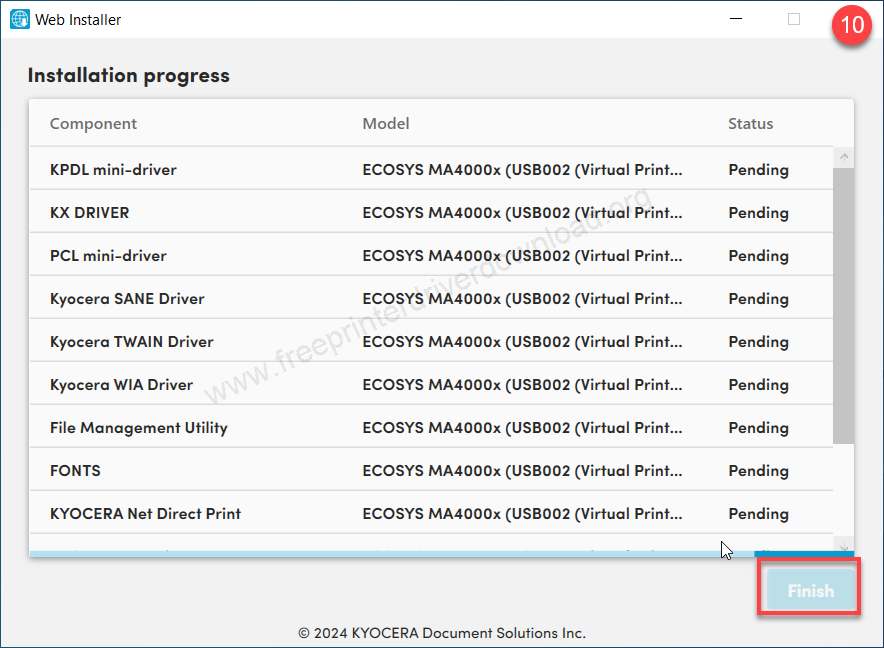
Step 11: Click on OK. It will create all these shortcuts to the desktop and it will close automatically after it’s done.
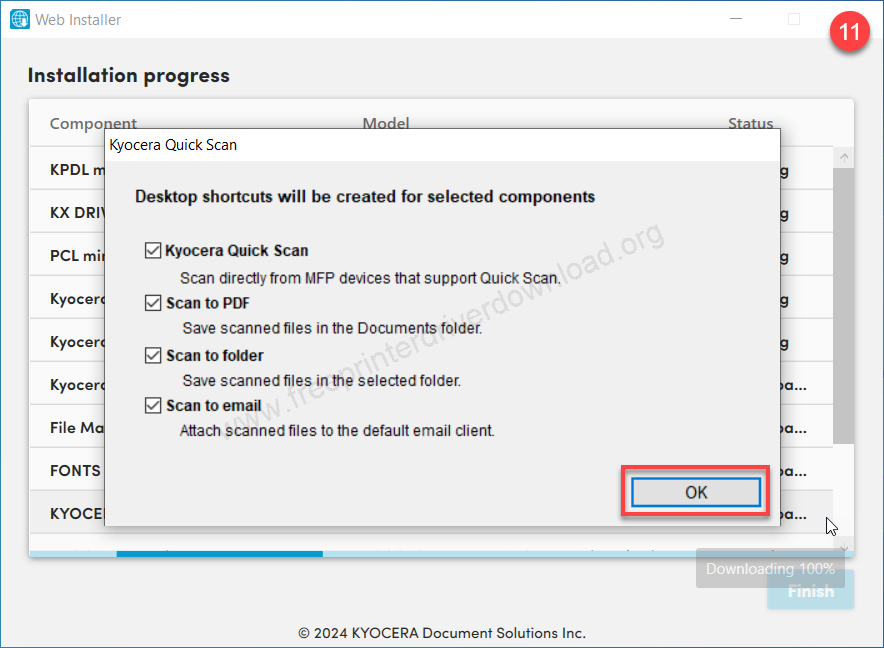
So this is how you can install the printer driver in Windows. I have installed it on my Windows 10 computer, but you can apply the same steps on my Windows 11, 8, 8.1, 7.
Features & Specifications
Kyocera ECOSYS MA4000x is A4 size laser printer. It is a black & white printer with a printing speed of 40 pages per minute. It looks like a desk photo-copy machine. This printer takes only 575 watts while printing or copying which is very less as it is a laser printer. This printer has a built-in 1.0 GHz processor and 8MB RAM which makes this printer a multitasker.
It has a standard input tray that can hold 250 pages and its multipurpose input tray (Universal cassette) can hold 100 pages at a time. Meaning, the whole over this printer can hold a maximum of 350 pages at a time. This printer ha an output tray that can hold 150 pages face-down.
It has an auto-duplex printing facility so that you can copy and print both sides of the paper without flipping it manually. It has an ADF (Auto Document Feeder) which can help you for dual scan and both-side printing and copying the documents. You can copy 999 pages at once with one command and can copy by zooming in from 25% to 400%.
This printer has a “Scan To” button that allows you to scan documents directly. By pressing this button, the document is scanned and automatically saved to a folder on your computer, without using computer manually. The scanning speed of this printer is around 40 ipm in mono and 23ipm in color scanning with the resolution of 1200 dpi. This printer can scan into PDF, JPG and IMG format.
The Kyocera ECOSYS MA4000x printer supports Windows 11, 10, 8, 8.1, 7, Vista, XP (32bit / 64bit), Server 2000 to 2025, Linux, Ubuntu, Mac 10.x, 11.x, 12.x, 13.x, 14.x, macOS 15 Sequoia, 26.x Tahoe Operating Systems. The dimensions of this printer are 417mm in width, 412mm in depth and 437mm in height.