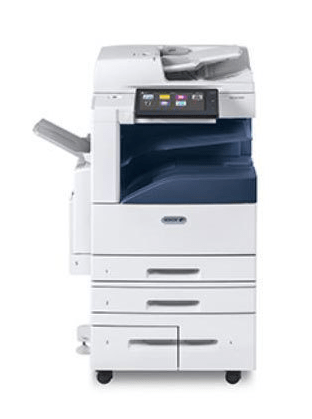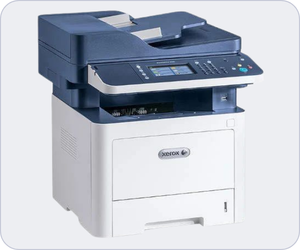
Xerox WorkCentre 3335 is a black & white all-in-one printer that has print, copy, scan, fax and direct email functions. This printer uses laser technology to print. It and lots of features like ADF, auto-duplex, scan to email with WiFi and Network connectivity. To use all the features through your computer, you need to install it latest version driver and the software properly on your computer.
You can either download its driver from Xerox’s official website, otherwise download the latest driver from the download section below. The given driver will support: Windows 11, 10, 8, 8.1, 7, Vista, XP (32bit / 64bit), Server 2000 to 2026, Linux, Ubuntu, Mac 10.x, 11.x, 12.x, 13.x, 14.x, 15.x, 26.x Tahoe Operating Systems.
Additionally, I have prepared a step-by-step installation process that I have shared in the how to install section which is just beneath the download section. I suggest you to check it out as well. So, let’s start the installation process by downloading the drivers first.
Download Xerox WorkCentre 3335 / 3345 Printer Driver for PC
In order to download the right driver for your Xerox 3335 printer, you just need to click on the download button that are given below according to the version of your operating system. All the supported operating system drivers are listed below.
Driver for Xerox WorkCentre 3335
Type: Full feature driver Operating System: Windows 11, 10, 8, 8.1, 7, Vista, XP File Size: 5.88 MB Version: 2.5 Download DriverOR
You may download the Xerox 3335/45 driver from Xerox’s official website.
How to Setup Xerox WorkCentre 3335 / 3345 Printer Driver on PC
After downloading the latest driver from for your printer from the above given download section, proper installation is also very important. To install the printer properly on your PC, you just need to follow the below given step-by-step guide.
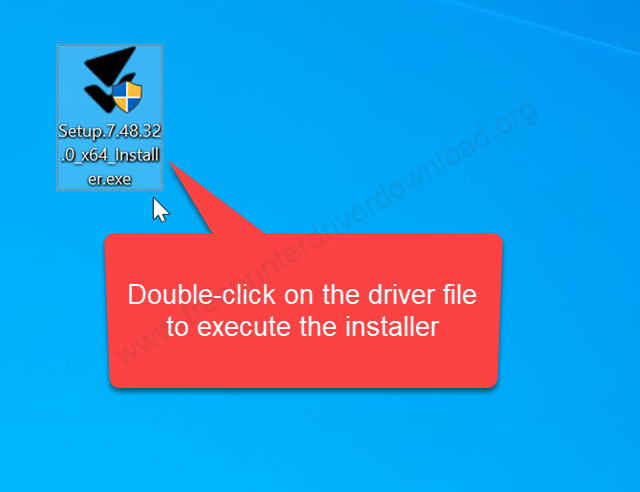
Step 1: Double-click on the driver file “Setup.7.48.32.0.x64_Installer.exe” that you have downloaded from the above given download section.
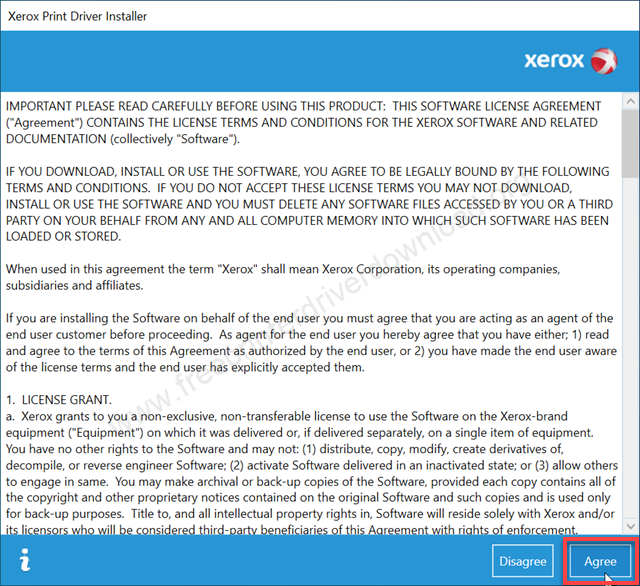
Step 2: Click on Agree to accept the the license agreement.
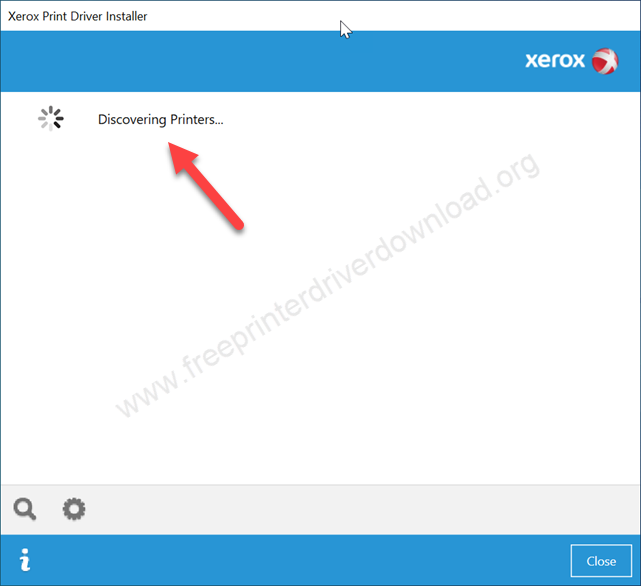
Step 3: It is now discovering the printer. So make sure your printer should be connected to the computer through Ethernet, WiFi or USB cable.
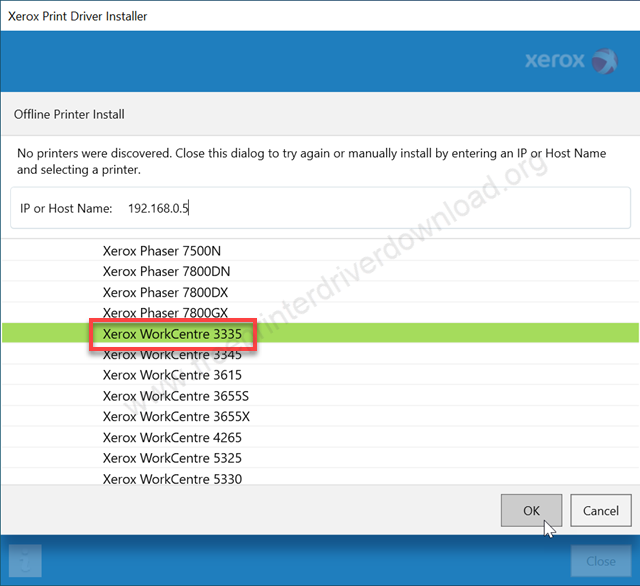
Step 4: Now please enter the IP address of your printer and then select the model number “Xerox WC 3335” then click on OK.
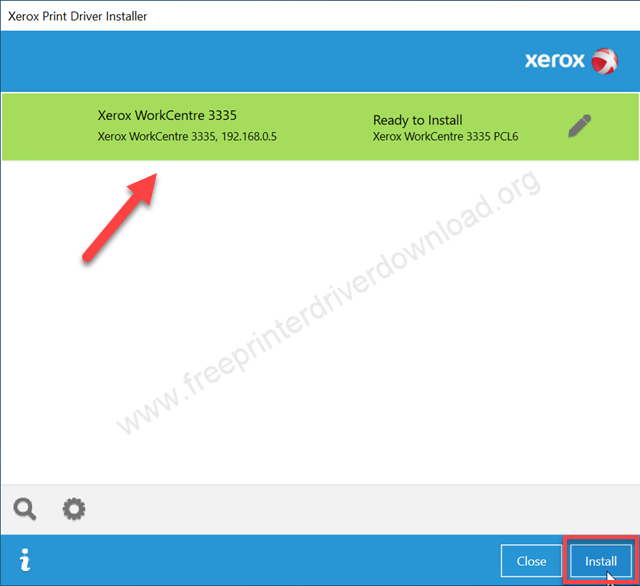
Step 5: Now the Xerox 3335 printer is ready to install. Please click on Install button.
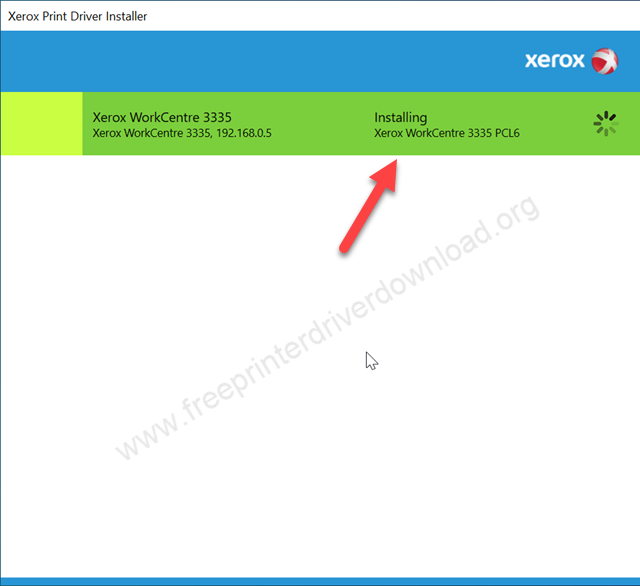
Step 6: Finally, it is installing the drivers, so please wait and let it be completed. After that click on Next and then click on Finish to complete the installation process.
Here’s how you can install this Xerox 3335 / 3345 printer on your computer 7, 8, 10 and Windows 11 PC. Although, I have installed it on my Windows 10 computer but you can apply the same steps and same drivers for installing it on your Windows 11, 8 and Windows 7 computer.
Xerox 3335 / 3345 Full Specifications
The 3335 and 3345 printers have lots of powerful specifications and features like 1GHz processor, 1.5GB RAM, WiFi & Network connectivity, FAX, ADF, Auto-duplexer and a big LCD display to navigate the printer settings easily. This is a laser technology multifunctional printer.
The print speed of this printer is 33 PPM on A4 pages, 35 PPM on letter size paper and 28 PPM on Legal size paper. The auto-duplex speed is around 16 PPM with a resolution of 1200 x 1200 DPI. The copy speed of this printer is also very good, around 30 pages per minute with a resolution of 600 x 600 dpi.
Direct USB printing is supported on this printer. While copying, you can reduce the copy size to 25% and enlarge to 400% as well. It has one input tray that can hold 250 pages (each paper cassette) and output tray can hold 150 pages and its ADF is also can hold 50 pages at a time.
It has a built-in flatbed scanner that can give you 20 ipm scan speed in black & white and 6 ipm speed in color with the resolution of 600 x 600 dpi. The supported scan formats are: JPEG, Tiff, BMP and PDF for multiple scan.
There are three connectivity options to connect this printer to your PC, Laptop and to your local area network: USB, WiFi and Ethernet. To connect this printer to mobile devices you can use Apple AirPrint, Google Cloud Print, Xerox Plug and play Android App and Xerox mobile driver.
So on this page, I have explained where to download the correct driver for your Xerox 3335 and 3345 printer and how to install it in the proper method and also explained all the specifications of this printer, hope you like my efforts.