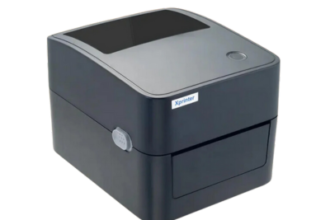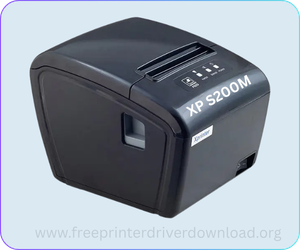
Xprinter XP S200M is a high-speed, 80mm POS receipt printer. This printer is based on a thermal printing technology that doesn’t require any type of ink. It comes with easy network integration options through USB and LAN (Ethernet).
To set up this printer on a network or on a computer, you will require and have to download its driver. You can either download the driver from the download section given below. I have prepared the download guide or you can download the same drivers from its official website. Both are the same drivers.
After downloading the driver, please check out the how to install section for the proper steps that will help you to install this driver on a Windows computer.
So, let’s start the process of setting up this printer on a computer by downloading the drivers first.
Download Xprinter XP S200M Driver
To download the xprinter xp s200m driver, click on the below given download button according to the version of your operating system. The provided driver will work for s200m, s260m and S300m model numbers. All these printers are the derivative printers of S200M series. So the given driver will work 100%.
Driver for Xprinter XP s200m Printer
Type: Full feature driver Operating System: Windows 11, 10, 8, 8.1, 7, Vista, XP, Server 2000 to 2026 File Size: 3.7 MB Version: 7.77 Download DriverOR
Download the driver from the Xprinter’s official website.
How to Install Xprinter XP S200M Driver on a PC
In order to install the printer driver properly, you need to follow the below given step-by-step guide. I have it installed on my Windows 11 laptop, so you can try it on Windows 10, Windows 8, Windows 7. The same driver and same steps will be worked.
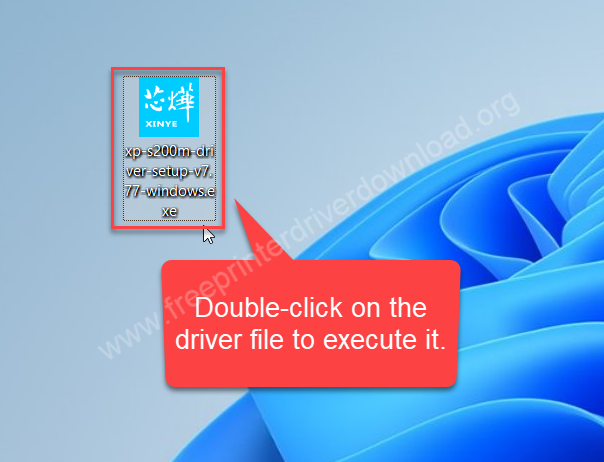
Step 1: After downloading the driver from the above given download link, double-click on the Xprinter XP-S200M driver file to execute the installation wizard.
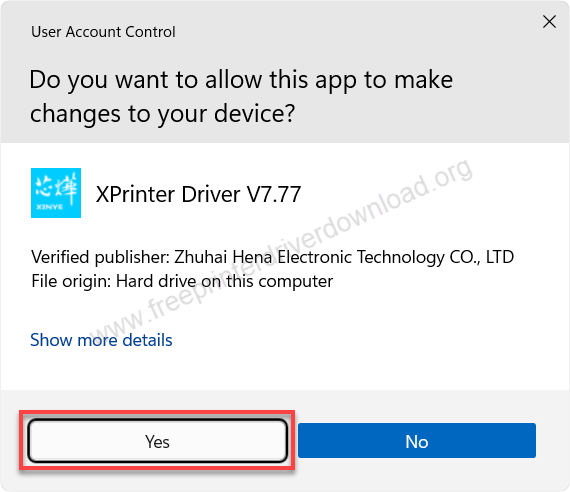
Step 2: Click on Yes if it asks for permission to execute the driver file.
Step 3: Choose the option I accept the agreement and click on Next.
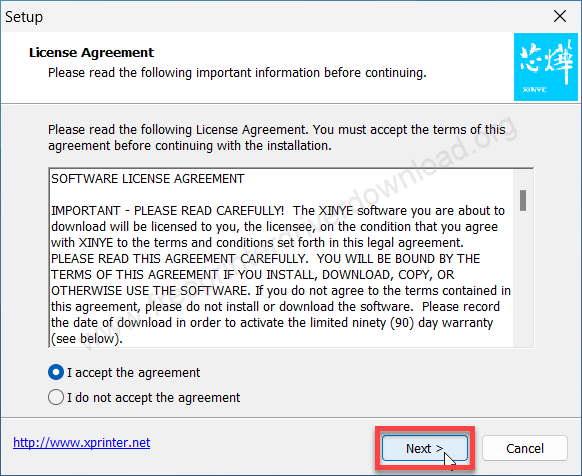
Step 4: Click on Next again to extract all the driver files into a specific folder.
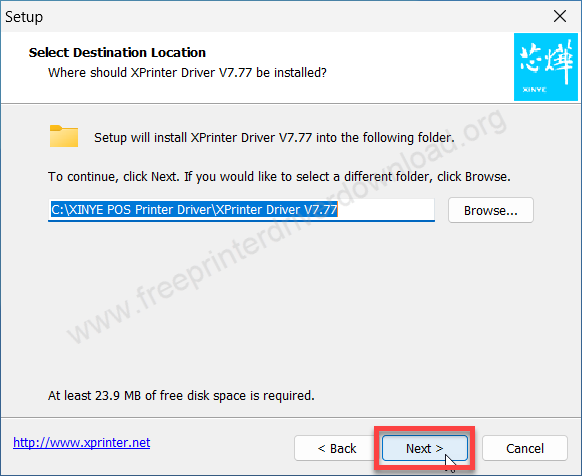
Step 5: Click on Next one more time to to create a icon on the desktop.
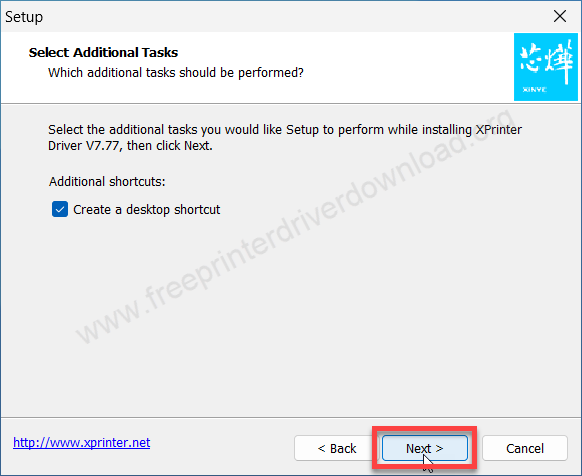
Step 6: Click on Install.
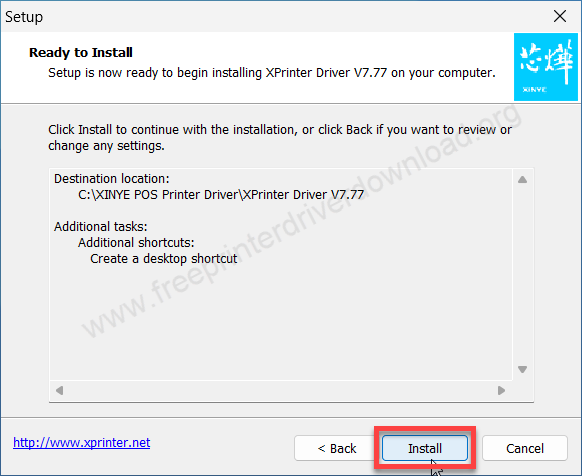
Step 7: It is installing the driver files, so please wait for that.
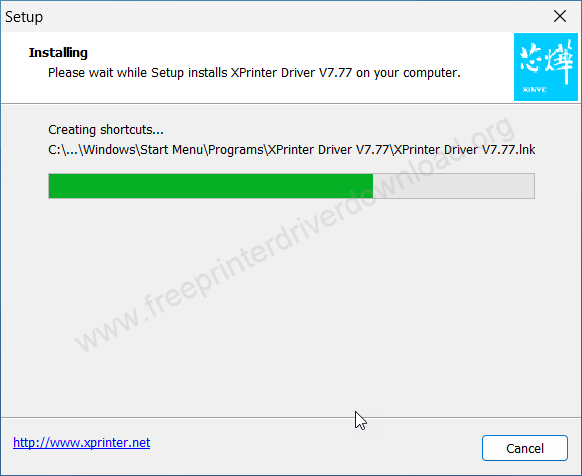
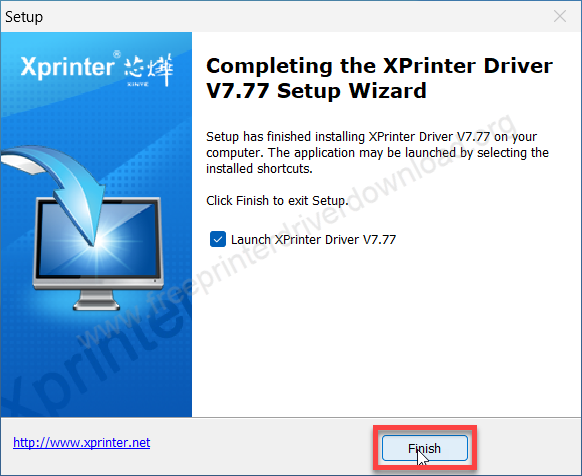
Step 8: The Xprinter XP-S200M printer driver installation has been completed, please click on Finish to complete the installation process.
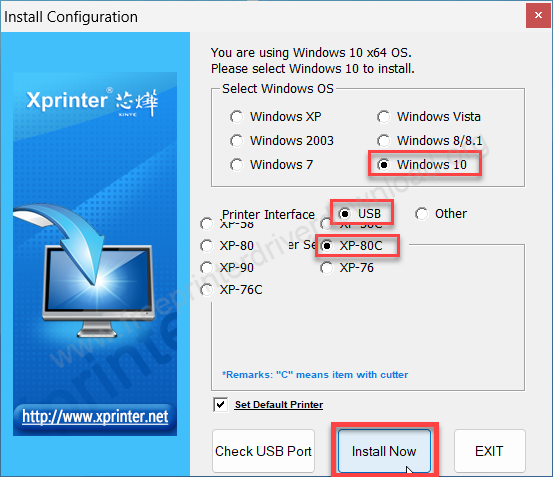
Step 9: Select the operating system version, connection type and printer serial number to XP-80C and then click on Next. If you are installing this S200M printer on Windows 11 then please select Windows 10, because the Windows 10 driver will work on Windows 11 as well. The UI of the installer is displaced in this section, so please ignore it.
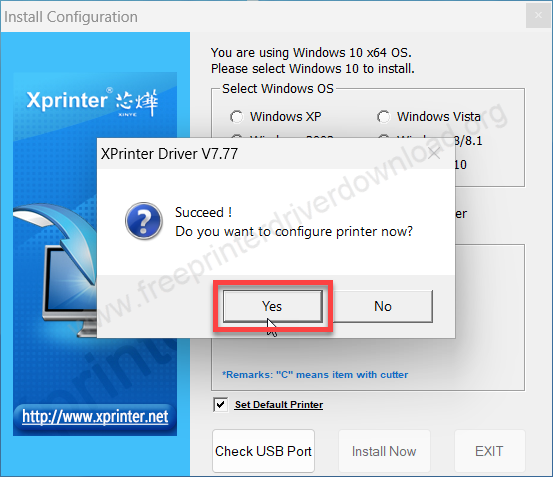
Step 10: Printer has installed, it is now asking to configure the port, please click on Next to configure the port or you can choose NO to do it later. I clicked on Yes.
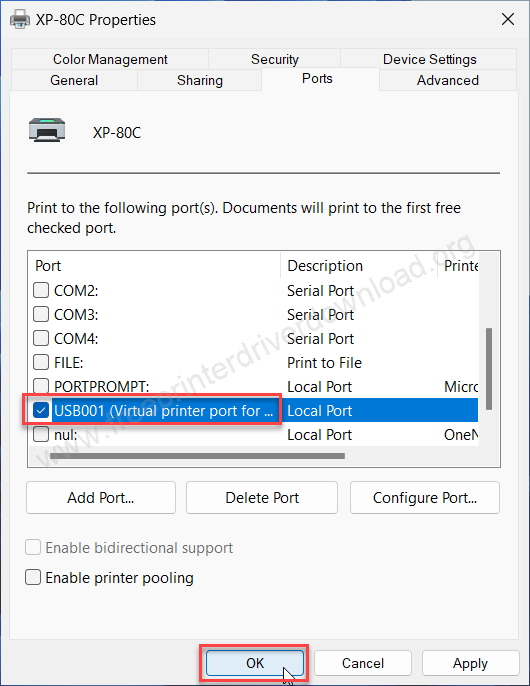
Step 11: Here in the ports selection setting screen, choose the port USB001 or the port that addresses the model number of your printer and then click on apply and OK.
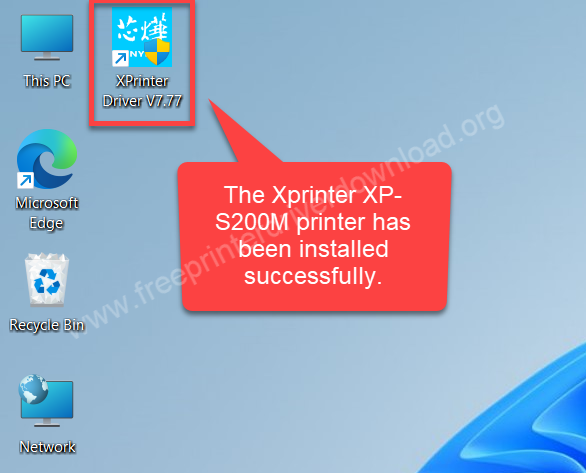
Step 12: After that, the installation will be completed and as you can see the printer software icon has been created on the desktop.
Print a test page
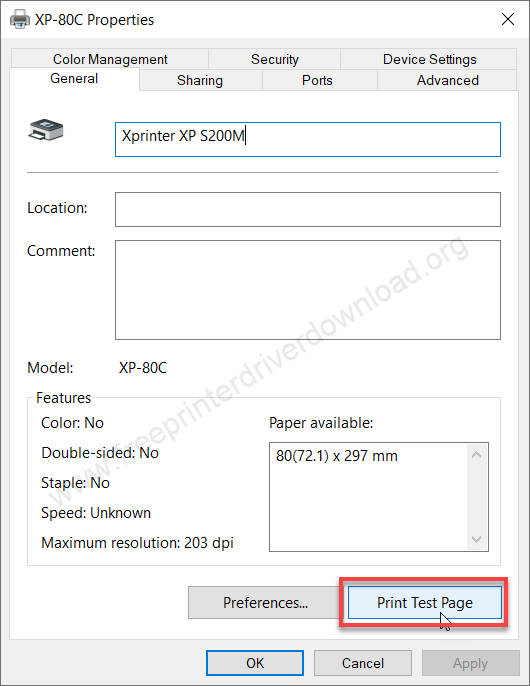
Print a test page by going to the printer’s page and click on the printer named XP-80C or XP-S200M and then click on the button print a test page, you will get the test page from the printer.
Specifications & Features
The print speed of this printer is a highlight of this printer. It gives you a print speed of 200 mm per second, which is very high in this segment. This printer supports 52mm to 80 mm paper size.
This printer comes with an auto-cutter feature. You can also integrate this printer with your cash drawer. The dimensions of this printer are 180 mm in depth, 140 mm in width and 134 mm in height. The total weight of this printer is less than 1 kg. You can install this printer on iOS, Android, Windows, and Linux. You can place this printer on the desk or you can also hang it on the wall, which is a pretty good option.
This printer gives you very stable connectivity and very consistent performance. Loading the paper in the printer is damn easy. I found this printer very good.
So, on this page I have explained how and where to download the Xprinter XP-S200M thermal printer driver, and provide a step-by-step installation guide. Also provide all the specifications and features of this printer. Hope you like it.