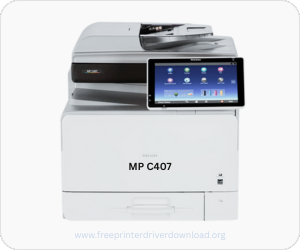
Ricoh MP C407 is a color laser printer with higher print speed (42 ppm) which is suitable for large size offices. There is a SPDF feature to print both sides on a paper in one go without flipping it manually. As this is a network printer, you can connect this machine to your local network, so that you can print from laptops and mobile devices as well. To give print commands from a computer, you will need to install the latest version driver.
Therefore, I have given the latest version driver & software download link in the download section below for all its supported operating system. Download the driver according to your operating system version. After download, also read the step-by-step installation guide for the right installation which is also given beneath the download section.
Download Ricoh MP C407 / C407SPF / C407SPFG Printer Driver
In order to download the Ricoh MP C407 printer driver, determine the operating system version of your computer and then click on the below given download link accordingly.
Driver for Ricoh MP C407 Printer
Type: Full Feature Driver Operating System: Windows 11, 10, 8, 8.1, 7, Server 2012 to 2025 File Size: 55.2 MB Version: 3.6 Download DriverOR
Apart from this, you can also download these drivers directly from Ricoh’s official website.
How to Install Ricoh MP C407 Printer Driver in Windows
In order to properly install the Ricoh MP C407 printer, go to the download section below.
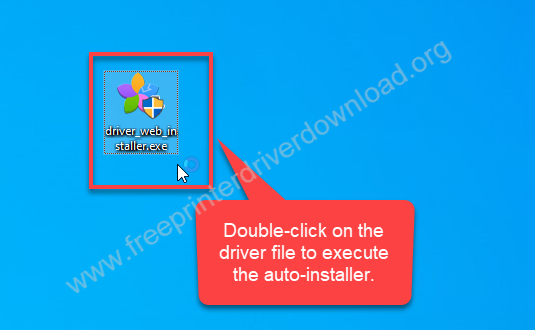
Step 1: Double-click on the driver file “driver_web_installer.exe” to start the installation wizard.
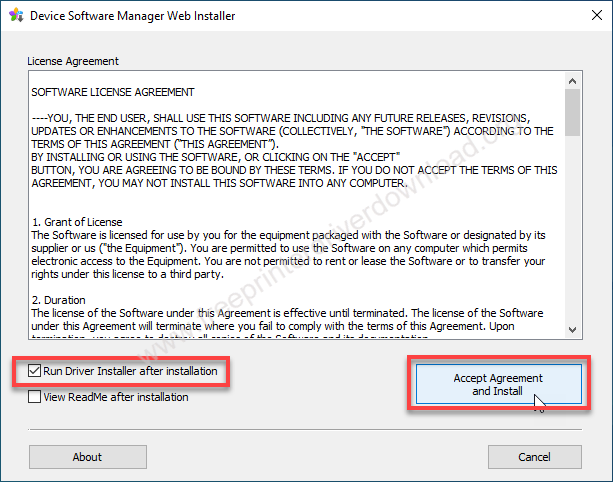
Step 2: Click on “Accept Agreement & Install”
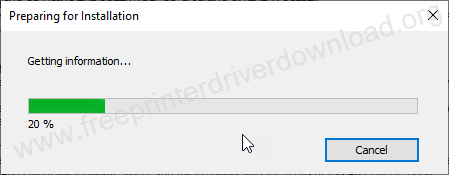
Step 3: It is being prepared. Please wait and let it be done.
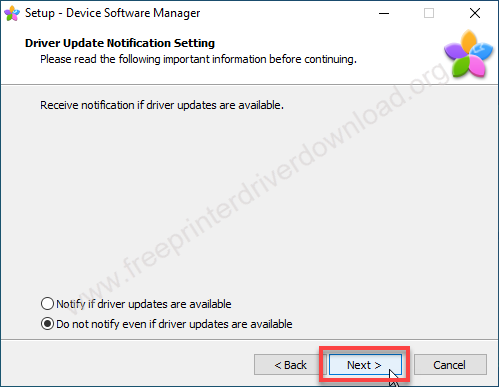
Step 4: Click on Next.
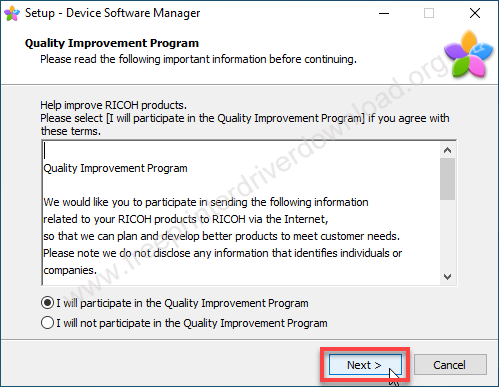
Step 5: Click on Next.
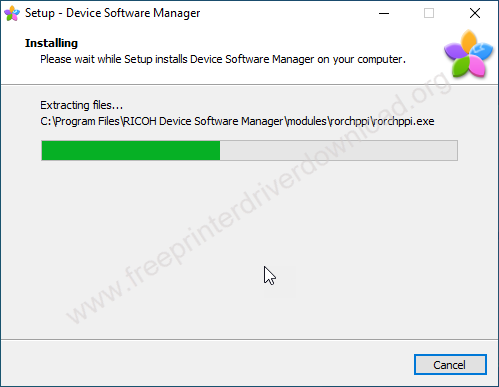
Step 6: It is being installed. So please wait and let it be done.
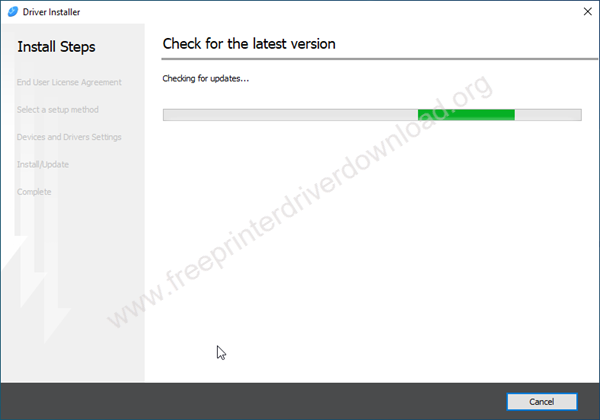
Step 7: It is checking for the latest version. So please wait for that.
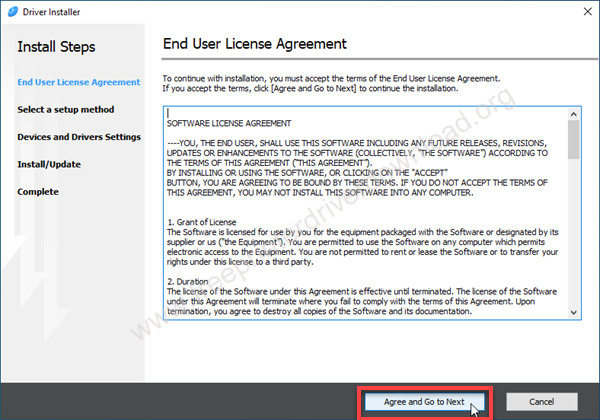
Step 8: Click on the “Agree and go to next” button.
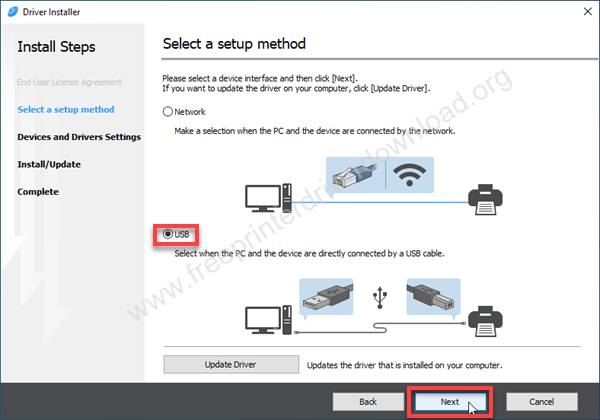
Step 9: Select the preferred connection type and click on Next. Make sure the printer should be connected to the USB or to the router through LAN cable and also make sure the printer is turned ON.
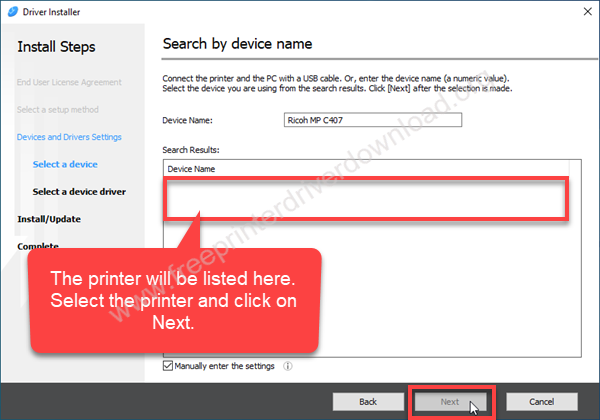
Step 10: Select the printer model number Ricoh MP c407 from the search results tab and click on Next. After that, click on Finish to complete the installation process. That’s it
Did you see how you can install Ricoh MP C407 Printer Driver in Windows? I have explained the step-by-step guide on how to install this printer properly on a computer. I have installed this on my Windows 10 64bit OS, but you can apply the same steps on Windows 11, 8, 8.1 and Windows 7 as well.
Specifications
Ricoh MP C407 series printer comes in two more variants: Ricoh MP C407SPF and C407SPFG. There are a few minor feature differences between them. All these printer model numbers come under C407 series printers and also use the same driver & software. This is an auto-duplex enabled printer with ADF feature. The dimensions of this printer are approx: 19″ width, 23″ depth and 20″ height with one tray. The weight may vary if you attach more trays. The total weight of this printer is around 46kg with one input tray. This printer consumes 1300 watts while printing.
The printer has a 1.46 GHz processor with 2GB RAM along with a 320 GB HDD. This printer has a sleep mode that can go to sleep mode in 8 seconds. There are 2 input trays: one main tray (hold 250pages) and one bypass tray that can hold 100 pages at a time. You can additoinal add two more inout trays which can hold 500 pages each – these would be the optional trays. The output hold capacity is 200 pages.
This is an all-in-one printer driver that can print, scan, copy and fax. The main highlight of this printer is its print and copy speed. This printer can print at 42 pages per minute in black and 36 ppm in color with 1200 x 1200 dpi. The copy resolution is around 600 dpi. You can zoom in and out by 25% to 400%. This printer can print 999 copies command at a time.
It has one built-in scanner with a speed of around 10 images per minute with a resolution of 600 dpi. The flatbed scan area is around 8.5″ x 14″ inches. There is one more feature which is to scan to email or scan to a folder. You can send a scanned document directly to a specific email or you can save it to your computer’s hard drive by pressing one button on the printer. The scanner supported: PDF, SPEG, TIFF and PDF.
There are three connectivity options to connect this printer to the computer to the local network: Network, USB and Wireless (Optional). It will need drivers which are already given in the download section above. There is a USB and one SD card slot which on the front panel where you connect your memory devices and print directly from the UBS – without need of a PC.
I have explained everything about Ricoh MP C407 printer driver download & installation. Hope you like it, Thanks.